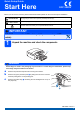
Quick Setup Guide Start Here DCP-395CN Before you can use the machine, please read this Quick Setup Guide for the correct setup and installation. WARNING Warnings tell you what to do to prevent possible personal injury. CAUTION Cautions specify procedures you must follow or avoid to prevent possible minor injuries. Electrical Hazard icons alert you to a possible electrical shock. IMPORTANT DO NOT connect the USB cable yet (if you are using a USB cable).
a a b c 2 Attachment of the cover of the control panel 3 Load plain A4 paper Pull the paper tray completely out of the machine. Lift the output paper tray cover. With both hands, gently press and slide the paper side guides a and then the paper length guide b to fit the paper size you are loading in the tray. 1 3 2 3 2 Check that the paper is flat in the tray. IMPORTANT DO NOT push the paper in too far. Attach the cover of the control panel to the machine.
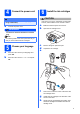
4 6 Connect the power cord CAUTION IMPORTANT DO NOT connect the USB cable yet (if you are using a USB cable). a Connect the power cord. WARNING Install the ink cartridges If ink gets in your eyes, wash them out with water at once, and if irritation occurs consult a doctor. a b Make sure that the power is turned on. Open the ink cartridge cover. The machine must be fitted with an earthed plug. Note The Warning LED on the control panel will stay on until you have installed the ink cartridges.
a 7 Check the print quality Set Paper and Press Start Press Colour Start. b c Check the quality of the four colour blocks on the sheet. (black/yellow/cyan/magenta) If all lines are clear and visible, press (Yes) to finish the quality check and go to step 8. If you can see missing short lines, press (No) and go to d. d e f 4 The LCD asks you if the print quality is OK for black and colour. Press (Yes) or (No). Press (Yes), the machine will then start cleaning the colours.
9 Choose your connection type Windows®, go to page 6 Macintosh, go to page 8 Windows®, go to page 10 Macintosh, go to page 12 Note Windows® Macintosh Wired Network For Wired Network Windows® Macintosh USB For USB interface cable For Windows Server® 2003/ 2008, see the Network User’s Guide on the CD-ROM.
USB Windows® For USB interface users (Windows® 2000 Professional/XP/XP Professional x64 Edition/ Windows Vista®) 10 a Make sure that your computer is ON and you are logged on with Administrator rights. 11 a b c d e 6 Before you install 12 Connect the USB cable a Install MFL-Pro Suite Put the supplied CD-ROM into your CD-ROM drive. Follow the on-screen instructions. The CD-ROM Top Menu will appear. Click Install MFL-Pro Suite. Follow the on-screen instructions.
USB Windows® c 13 a b Finish and restart Click Finish to restart your computer. After restarting the computer, you must be logged on with Administrator rights. In the Check for Firmware Updates screen, choose the firmware update setting you want and click OK. Note Internet access is required for the firmware update. IMPORTANT d Finish The installation is now complete. 1 Now go to 2 3 Proceed to Install Optional Applications on page 14. Note e The installation will continue automatically.
USB Macintosh For USB interface users (Mac OS X 10.3.9 - 10.4.x - 10.5.x) 10 a Before you install c Make sure your machine is connected to the power and your Macintosh is ON. You must be logged on with Administrator rights. 11 Connect the USB cable IMPORTANT IMPORTANT • DO NOT connect the machine to a USB port on a keyboard or a non-powered USB hub. • Connect the machine directly to your Macintosh. Make sure that the cable does not restrict the cover from closing, or an error may occur.
USB 12 a b c d f Install MFL-Pro Suite Put the supplied CD-ROM into your CD-ROM drive. Double-click the Start Here OSX icon to install. Please wait, it will take a few seconds for the software to install. After the installation, click Restart to finish installing the software. The Brother software will search for the Brother device. Choose the machine from the list, and then click OK. When this screen appears, click OK. Finish The installation is now complete.
Wired Network Windows® For wired network interface users (Windows® 2000 Professional/XP/XP Professional x64 Edition/ Windows Vista®) 10 a Before you install b LAN USB Make sure that your computer is ON and you are logged on with Administrator rights. IMPORTANT Disable all personal firewall software (other than Windows® Firewall), anti-spyware or antivirus applications for the duration of the installation.
Wired Network 12 a b c d e Install MFL-Pro Suite Put the supplied CD-ROM into your CD-ROM drive. Follow the on-screen instructions. The CD-ROM Top Menu will appear. Click Install MFL-Pro Suite. Follow the on-screen instructions. Choose Wired Network Connection, and then click Next.
Wired Network Macintosh For wired network interface users (Mac OS X 10.3.9 - 10.4.x - 10.5.x) 10 a Before you install c Make sure your machine is connected to the power and your Macintosh is ON. You must be logged on with Administrator rights.
Wired Network 12 a b c d e f Macintosh Install MFL-Pro Suite Put the supplied CD-ROM into your CD-ROM drive. Double-click the Start Here OSX icon to install. Please wait, it will take a few seconds for the software to install. After the installation, click Restart to finish installing the software. The Brother software will search for the Brother device. If the machine is configured for your network, choose the machine from the list, and then click OK. When this screen appears, click OK.
Install Optional Applications 1 Install FaceFilter Studio supported by Reallusion, Inc 3 Windows® Install BookScan&Whiteboard Suite supported by Reallusion, Inc IMPORTANT IMPORTANT • The machine must be ON and connected to the computer. • The computer must be connected to the Internet. • Make sure you are logged on with Administrator rights. • This application is not available for Windows Server® 2003/2008. a b c a b c d e • The computer must be connected to the Internet.
Safety and Legal Choosing a location Put your machine on a flat, stable surface that is free of vibration and shocks, such as a desk. Put the machine near a standard grounded electrical socket. Choose a location where the temperature remains between 10°C and 35°C. WARNING • DO NOT put the machine near heaters, air conditioners, refrigerators, medical equipment, chemicals or water.
Safety and Legal To use the machine safely Please keep these instructions for later reference and read them before attempting any maintenance. WARNING There are high voltage electrodes inside the machine. Before you clean the inside of the machine, make sure you have unplugged the power cord from the electrical socket. Doing this will prevent an electrical shock. DO NOT handle the plug with wet hands. Doing this may cause an electrical shock. DO NOT pull on the middle of the AC power cord.
Safety and Legal Always make sure the plug is fully inserted. DO NOT use the machine if the power cord is frayed or damaged, doing so may cause a fire. CAUTION DO NOT put your hands on the edge of the machine under the scanner cover. Doing this may cause injury. DO NOT put your hands on the edge of the paper tray under the paper tray cover. Doing this may cause injury. DO NOT touch the area shaded in the illustration. Doing this may cause injury.
Safety and Legal Important safety instructions 1 2 3 4 5 Read all of these instructions. Save them for later reference. Follow all warnings and instructions marked on the product. DO NOT use this product near water. DO NOT place this product on an unstable cart, stand, or table. The product may fall, causing serious damage to the product. 6 Slots and openings in the cabinet and the back or bottom are provided for ventilation.
Safety and Legal Regulations LAN connection CAUTION EC Declaration of Conformity DO NOT connect this product to a LAN connection that is subject to over-voltages. Radio interference This product complies with EN55022 (CISPR Publication 22)/Class B. When connecting the machine to a computer, ensure that you use a USB cable which does not exceed 2.0 metres in length. EU Directive 2002/96/EC and EN50419 European Union Only This equipment is marked with the above recycling symbol.
Safety and Legal Legal limitations for copying It is an offence to make reproductions of certain items or documents with the intent to commit fraud. This memorandum is intended to be a guide rather than a complete list. We suggest you check with relevant legal authorities if in doubt about a particular item or document.
Trademarks The Brother logo is a registered trademark of Brother Industries, Ltd. Brother is a registered trademark of Brother Industries, Ltd. Multi-Function Link is a registered trademark of Brother International Corporation. Windows Vista is either a registered trademark or a trademark of Microsoft Corporation in the United States and other countries. Microsoft, Windows, Windows Server and Internet Explorer are registered trademarks of Microsoft Corporation in the United States and/or other countries.