
user manual


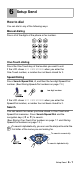
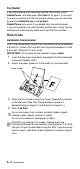

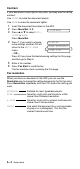
Table Of Contents
- USER’S GUIDE
- Brother numbers
- Ordering accessories and supplies
- Safety precautions
- Choosing a location
- Quick Reference Guide
- Table of Contents
- 1 Introduction
- 2 Paper
- 3 On-Screen Programming
- 4 Initial Setup
- Getting started
- Setting the Date and Time
- Turning on Automatic Daylight Savings Time
- Setting the Station ID
- Setting the Beeper Volume
- Setting the Speaker Volume
- Choosing the Handset Volume (For Volume Amplify)
- Setting Volume Amplify
- Setting the Ring Volume
- Setting Tone and Pulse dialing mode (Canada Only)
- Setting up your area code (USA only)
- Getting started
- 5 Setup Receive
- 6 Setup Send
- 7 Quick-Dial numbers and dialing options
- 8 Remote Fax Options
- 9 Printing reports
- 10 Making copies
- 11 Important information
- 12 Troubleshooting and routine maintenance
- Glossary
- Specifications
- Index
- Remote Retrieval Access Card

Setup Send
6 - 3
Manual transmission
Manual transmission lets you hear the dialing, ringing and
fax-receiving tones while sending a fax.
1
Insert the document face down in the ADF.
2
Pick up the handset and listen for a dial tone.
—OR—
Press Hook listen for a dial tone.
3
Enter the fax number you want to call. (You can enter the
digits using the dial pad, or you can enter a One-Touch or
Speed-Dial number, or you can call using Search/Speed
Dial.)
(See How to dial on page 6-1.)
4
When you hear the fax tone,
press Fax Start.
5
If you picked up the handset, hang up.
Sending a fax at the end of a conversation
At the end of a conversation you can send a fax to the other party
before you both hang up.
1
Ask the other party to wait for fax tones (beeps) and then to
press Start before hanging up.
2
Insert the document face down in the ADF.
Press Fax Start.
The LCD shows:
3
Replace the handset.
Basic sending operations
Sending faxes using multiple settings
When you send a fax you can choose any combination of these
settings such as contrast, resolution, overseas mode, delayed fax
timer, polling transmission or memory transmission.
After each setting is accepted, the
LCD will ask if you want to enter
more settings:
Press 1 to select more settings. The
LCD will return to the SETUP SEND menu.
—OR—
Press 2 if you have finished choosing settings and go to the next
step.
SEND
SEND
OTHER SETTINGS?
1.YES 2.NO