
user manual


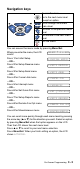


Table Of Contents
- USER’S GUIDE
- Brother numbers
- Ordering accessories and supplies
- Safety precautions
- Choosing a location
- Quick Reference Guide
- Table of Contents
- 1 Introduction
- 2 Paper
- 3 On-Screen Programming
- 4 Initial Setup
- Getting started
- Setting the Date and Time
- Turning on Automatic Daylight Savings Time
- Setting the Station ID
- Setting the Beeper Volume
- Setting the Speaker Volume
- Choosing the Handset Volume (For Volume Amplify)
- Setting Volume Amplify
- Setting the Ring Volume
- Setting Tone and Pulse dialing mode (Canada Only)
- Setting up your area code (USA only)
- Getting started
- 5 Setup Receive
- 6 Setup Send
- 7 Quick-Dial numbers and dialing options
- 8 Remote Fax Options
- 9 Printing reports
- 10 Making copies
- 11 Important information
- 12 Troubleshooting and routine maintenance
- Glossary
- Specifications
- Index
- Remote Retrieval Access Card

On-Screen Programming
3 - 2
Navigation keys
You can access the menu mode by pressing Menu/Set.
When you enter the menu, the LCD
scrolls.
Press 1 for Initial Setup
—OR—
Press 2 for Setup Receive menu
—OR—
Press 3 for Setup Send menu
—OR—
Press 4 for Cancel Job menu
—OR—
Press 5 for Interrupt menu
—OR—
Press 6 for Set Quick-Dial menu
—OR—
Press 7 for Setup Reports menu
—OR—
Press 8 for Remote Fax Opt menu
—OR—
Press 0 for Miscellaneous menu
You can scroll more quickly through each menu level by pressing
the arrow key (▲ or ▼) for the direction you want. Select an option
by pressing Menu/Set when that option appears on the LCD.
Then the LCD shows the next menu level.
Press ▲ or ▼ to scroll to your next menu selection.
Press Menu/Set. When you finish setting an option, the LCD
shows ACCEPTED.
Access the menu
Go to the next menu level
Accept an option
Scroll through the current
menu level
Go back to the previous menu
level
Go forward to the next menu
level
Exit the menu
SELECT ↑ ↓ & SET
1.INITIAL SETUP
2.SETUP RECEIVE
3.SETUP SEND
4.CANCEL JOB
5.INTERRUPT
6.SET QUICK-DIAL
7.SETUP REPORTS
8.REMOTE FAX OPT
0.MISCELLANEOUS