
user manual
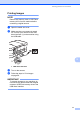
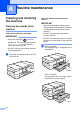
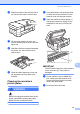
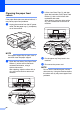

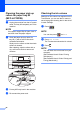
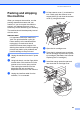
Table Of Contents
- Advanced User’s Guide MFC-J4510DW MFC-J4710DW
- User's Guides and where do I find them?
- Table of Contents
- 1 General setup
- 2 Security features
- 3 Sending a fax
- Additional sending options
- Additional sending operations
- Sending a 2-sided fax from the ADF (MFC-J4710DW)
- Sending a fax manually
- Sending a fax at the end of a conversation
- Dual Access (Black & White only)
- Broadcasting (Black & White only)
- Real Time Transmission
- Overseas Mode
- Delayed Faxing (Black & White only)
- Delayed Batch Transmission (Black & White only)
- Checking and canceling waiting jobs
- Polling overview
- 4 Receiving a fax
- 5 Dialing and storing numbers
- 6 Printing reports
- 7 Making copies
- Copy options
- Stop copying
- Changing copy quality
- Enlarging or reducing the copied image
- Making N in 1 copies or a poster (Page Layout)
- 2 in 1 ID Copy (Page Layout)
- Sorting copies using the ADF
- Adjusting Density
- Ink Save Mode
- Thin Paper Copy
- Book Copy
- Watermark Copy
- Remove Background Color
- 2-sided copying (MFC-J4510DW)
- 2-sided copying (MFC-J4710DW)
- Saving copy options as a Shortcut
- Ledger Copy Shortcuts
- Copy options
- 8 PhotoCapture Center™: Printing photos from a memory card or USB Flash memory drive
- 9 Printing photos from a camera
- A Routine maintenance
- B Glossary
- Index
- brother USA/CAN
82
Cleaning the paper pick-up
rollers for paper tray #2
(MFC-J4710DW) A
a Unplug the machine from the AC power
outlet. Pull tray #2 completely out of the
machine.
NOTE
If the paper support flap is open, close it,
and then close the paper support.
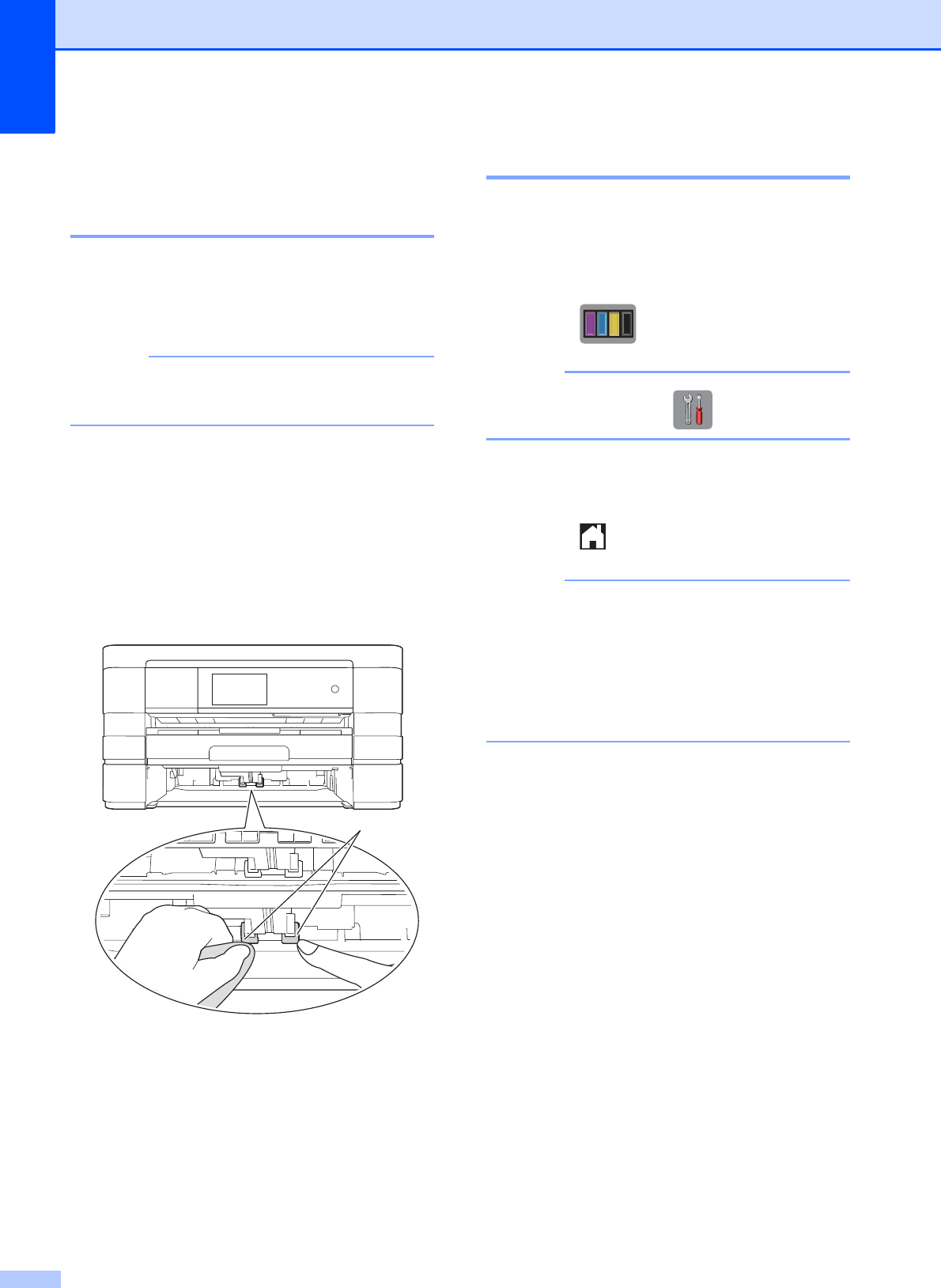
b Clean the paper pick-up rollers for
tray #2 (1) with a soft lint-free cloth
moistened with water.
Slowly turn the rollers so that the whole
surface is cleaned.
After cleaning, wipe the rollers with a
dry, soft lint-free cloth to remove all
moisture.
c Put tray #2 firmly back in the machine.
d Re-connect the power cord.
Checking the ink volume A
Although an ink volume icon appears on the
Touchscreen, you can use the ink menu to
see a large graph showing the ink that is left
in each cartridge.
a Press .
NOTE
You can also press and Ink.
b Press Ink Volume.
The Touchscreen shows the ink volume.
c Press .
NOTE
You can check the ink volume from your
computer.
(See Software User’s Guide: Printing
(Windows
®
).)
(See Software User’s Guide: Printing and
Faxing (Macintosh).)
1