
user manual
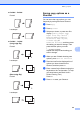
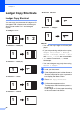



Table Of Contents
- Advanced User’s Guide MFC-J4510DW MFC-J4710DW
- User's Guides and where do I find them?
- Table of Contents
- 1 General setup
- 2 Security features
- 3 Sending a fax
- Additional sending options
- Additional sending operations
- Sending a 2-sided fax from the ADF (MFC-J4710DW)
- Sending a fax manually
- Sending a fax at the end of a conversation
- Dual Access (Black & White only)
- Broadcasting (Black & White only)
- Real Time Transmission
- Overseas Mode
- Delayed Faxing (Black & White only)
- Delayed Batch Transmission (Black & White only)
- Checking and canceling waiting jobs
- Polling overview
- 4 Receiving a fax
- 5 Dialing and storing numbers
- 6 Printing reports
- 7 Making copies
- Copy options
- Stop copying
- Changing copy quality
- Enlarging or reducing the copied image
- Making N in 1 copies or a poster (Page Layout)
- 2 in 1 ID Copy (Page Layout)
- Sorting copies using the ADF
- Adjusting Density
- Ink Save Mode
- Thin Paper Copy
- Book Copy
- Watermark Copy
- Remove Background Color
- 2-sided copying (MFC-J4510DW)
- 2-sided copying (MFC-J4710DW)
- Saving copy options as a Shortcut
- Ledger Copy Shortcuts
- Copy options
- 8 PhotoCapture Center™: Printing photos from a memory card or USB Flash memory drive
- 9 Printing photos from a camera
- A Routine maintenance
- B Glossary
- Index
- brother USA/CAN
PhotoCapture Center™: Printing photos from a memory card or USB Flash memory drive
59
8
Movie printing 8
You can print images from movie files that are
stored on a memory card or USB Flash
memory drive.
A movie file is automatically divided into
9 parts by movie recording times and is
placed in 3 lines, then you can see and print
the scenes that have been automatically
divided.
NOTE
• You cannot choose a particular movie
scene.
• You can use AVI or MOV movie file
formats (Motion JPEG only). However, if
an AVI file size is 1 GB or more (the
shooting time is about 30 minutes) or a
MOV file size is 2 GB or more (the
shooting time is about 60 minutes), these
files cannot be printed.
• If the data for a divided scene is corrupted,
the part for that scene will be blank.
Print Images 8
Print Index (Thumbnails) 8
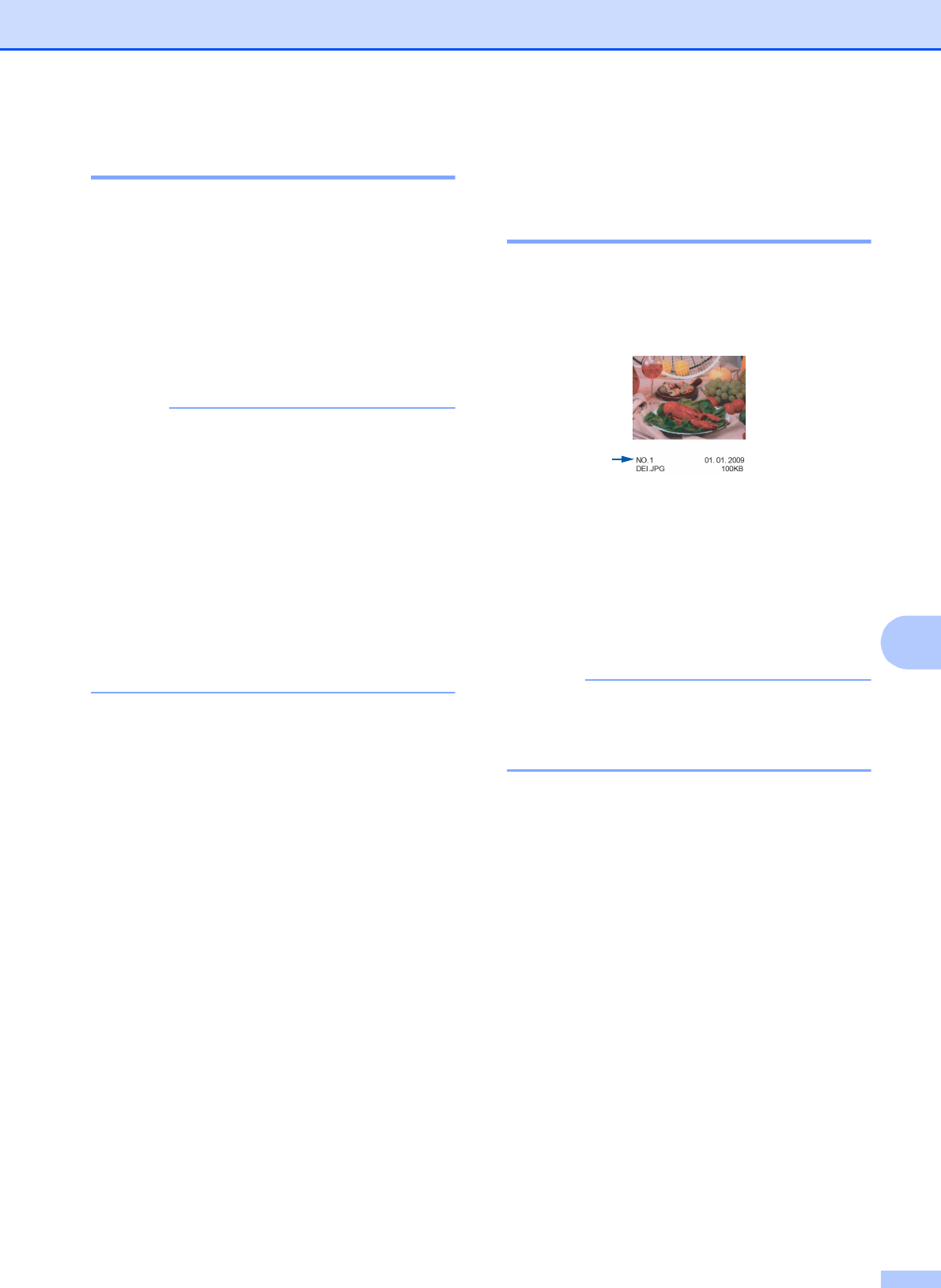
The PhotoCapture Center™ assigns
numbers for images (such as No.1, No.2,
No.3, and so on).
The PhotoCapture Center™ does not
recognize any other numbers or file names
that your digital camera or computer has
used to identify the pictures. You can print a
thumbnail page. This will show all the pictures
on the memory card or USB Flash memory
drive.
NOTE
Only file names that are 20 characters or
less will be printed correctly on the index
sheet.
a Open the media slot cover.
b Put the memory card or USB Flash
memory drive in the correct slot.
c Press Photo.
d Swipe left or right to display
Index Print.
e Press Index Print.
Press OK.
f Press Print Index Sheet.