
user manual
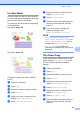
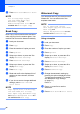
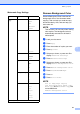
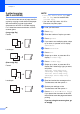

Table Of Contents
- Advanced User’s Guide MFC-J4510DW MFC-J4710DW
- User's Guides and where do I find them?
- Table of Contents
- 1 General setup
- 2 Security features
- 3 Sending a fax
- Additional sending options
- Additional sending operations
- Sending a 2-sided fax from the ADF (MFC-J4710DW)
- Sending a fax manually
- Sending a fax at the end of a conversation
- Dual Access (Black & White only)
- Broadcasting (Black & White only)
- Real Time Transmission
- Overseas Mode
- Delayed Faxing (Black & White only)
- Delayed Batch Transmission (Black & White only)
- Checking and canceling waiting jobs
- Polling overview
- 4 Receiving a fax
- 5 Dialing and storing numbers
- 6 Printing reports
- 7 Making copies
- Copy options
- Stop copying
- Changing copy quality
- Enlarging or reducing the copied image
- Making N in 1 copies or a poster (Page Layout)
- 2 in 1 ID Copy (Page Layout)
- Sorting copies using the ADF
- Adjusting Density
- Ink Save Mode
- Thin Paper Copy
- Book Copy
- Watermark Copy
- Remove Background Color
- 2-sided copying (MFC-J4510DW)
- 2-sided copying (MFC-J4710DW)
- Saving copy options as a Shortcut
- Ledger Copy Shortcuts
- Copy options
- 8 PhotoCapture Center™: Printing photos from a memory card or USB Flash memory drive
- 9 Printing photos from a camera
- A Routine maintenance
- B Glossary
- Index
- brother USA/CAN
Chapter 7
54
l Press Black Start or Color Start.
If you placed the document in the ADF,
the machine scans the pages and starts
printing.
If you are using the scanner glass, go
to step m.
m The Touchscreen shows:
Place the next page on the scanner
glass and press Scan.
Press OK.
The machine starts printing.
n If you pressed Sort for multiple copies,
repeat step m for each additional page.
After all the pages have been scanned,
press Complete.
The machine starts printing.
DO NOT touch the printed page until it is
ejected the second time. The machine will
print the first side and eject the paper and
then pull the paper in to print the second side.
NOTE
• If you get a paper jam, press Advanced
after step i, and then press one of the
jam prevention settings: 2-sided 1 or
2-sided 2.
2-sided 1 uses a longer print time for
the ink to dry.
2-sided 2 uses a longer print time and
will also print in lighter colors.
• 2in1(ID), Poster, Book Copy and
Fit to Page are not available with
2-sided Copy.
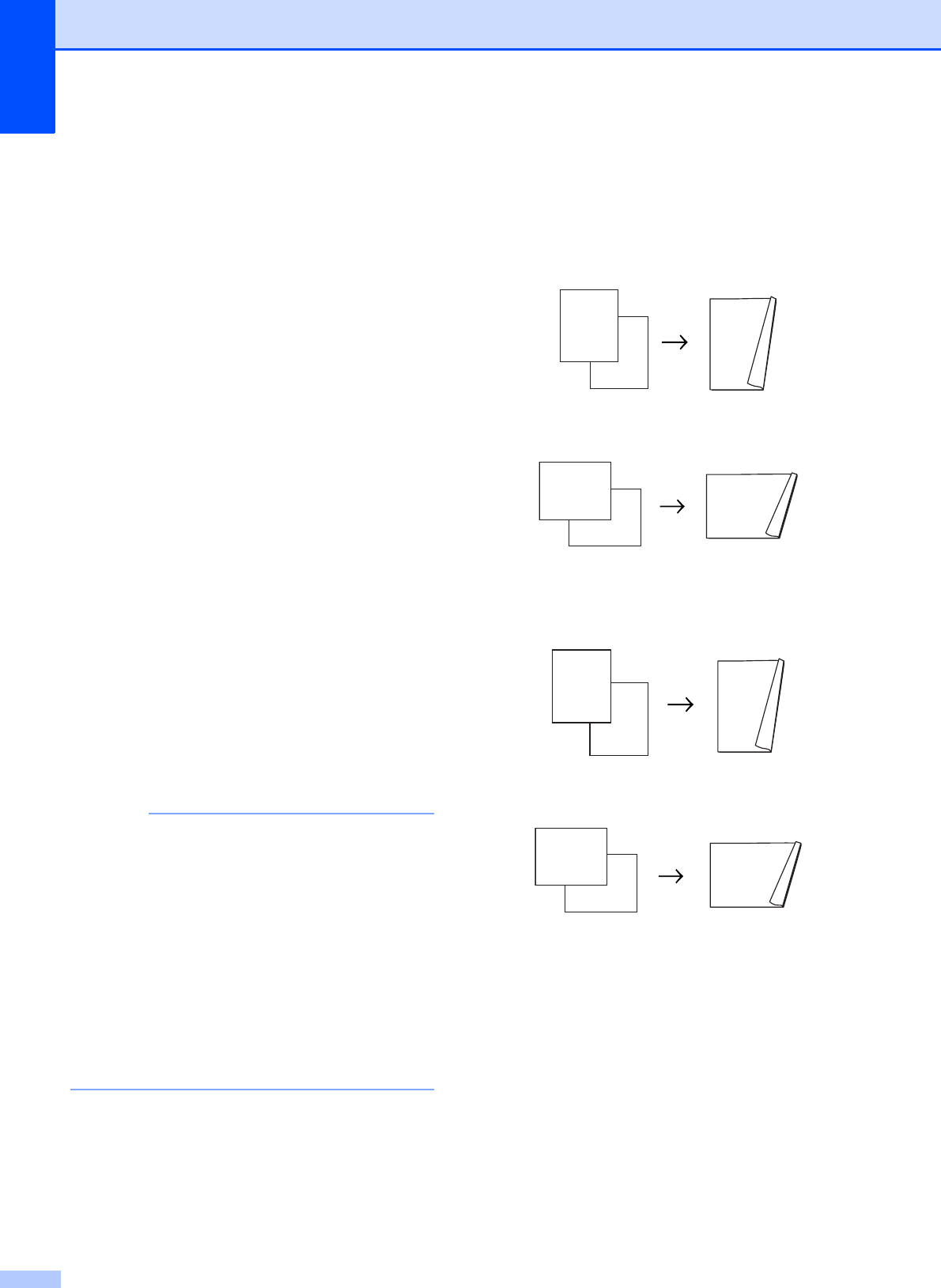
2-sided copying type 7
1 sided i 2 sided
(Long edge flip)
Portrait
Landscape
(Short edge flip)
Portrait
Landscape
Turn over the document
(or Flip the book), then
press [Scan]. When you
finish, press [Complete].
1
2
1
1
2
1
1
2
1
2
1
2
1
1
2
1
1
2
1
2