
user manual
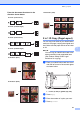
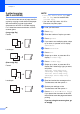

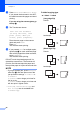
Table Of Contents
- Advanced User’s Guide MFC-J4510DW MFC-J4710DW
- User's Guides and where do I find them?
- Table of Contents
- 1 General setup
- 2 Security features
- 3 Sending a fax
- Additional sending options
- Additional sending operations
- Sending a 2-sided fax from the ADF (MFC-J4710DW)
- Sending a fax manually
- Sending a fax at the end of a conversation
- Dual Access (Black & White only)
- Broadcasting (Black & White only)
- Real Time Transmission
- Overseas Mode
- Delayed Faxing (Black & White only)
- Delayed Batch Transmission (Black & White only)
- Checking and canceling waiting jobs
- Polling overview
- 4 Receiving a fax
- 5 Dialing and storing numbers
- 6 Printing reports
- 7 Making copies
- Copy options
- Stop copying
- Changing copy quality
- Enlarging or reducing the copied image
- Making N in 1 copies or a poster (Page Layout)
- 2 in 1 ID Copy (Page Layout)
- Sorting copies using the ADF
- Adjusting Density
- Ink Save Mode
- Thin Paper Copy
- Book Copy
- Watermark Copy
- Remove Background Color
- 2-sided copying (MFC-J4510DW)
- 2-sided copying (MFC-J4710DW)
- Saving copy options as a Shortcut
- Ledger Copy Shortcuts
- Copy options
- 8 PhotoCapture Center™: Printing photos from a memory card or USB Flash memory drive
- 9 Printing photos from a camera
- A Routine maintenance
- B Glossary
- Index
- brother USA/CAN

Making copies
49
7
Ink Save Mode 7
Ink Save Mode can help you save some ink.
Your machine detects the edges of the image
and prints the outline of the image.
The amount of ink saved will vary depending
on the document.
Ink Save Mode: Off
7
Ink Save Mode: On 7
(The above screens are used in ISO/IEC
24712.)
a Load your document.
b Press Copy.
c Enter the number of copies you want.
d Press Options.
e Swipe up or down, or press a or b to
display Advanced Settings.
f Press Advanced Settings.
g Swipe up or down, or press a or b to
display Ink Save Mode.
h Press Ink Save Mode.
i Read and confirm the displayed list of
settings you have chosen, and then
press OK.
j If you do not want to change any
additional settings, press
Black Start or Color Start.
NOTE
• Book Copy, Thin Paper Copy,
Page Layout, Watermark Copy and
Remove Background Color are not
available with Ink Save Mode.
• Ink Save Mode may make your
printouts look different from your original
document.
Thin Paper Copy 7
If your document is a 2-sided Copy on thin
paper, choose Thin Paper Copy so the
print on the other side does not bleed
through.
a Load your document.
b Press Copy.
c Enter the number of copies you want.
d Press Options.
e Swipe up or down, or press a or b to
display Advanced Settings.
f Press Advanced Settings.
g Swipe up or down, or press a or b to
display Thin Paper Copy.
h Press Thin Paper Copy.
i Read and confirm the displayed list of
settings you have chosen, and then
press OK.