
user manual
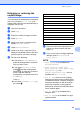
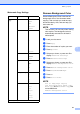
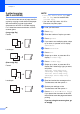

Table Of Contents
- Advanced User’s Guide MFC-J4510DW MFC-J4710DW
- User's Guides and where do I find them?
- Table of Contents
- 1 General setup
- 2 Security features
- 3 Sending a fax
- Additional sending options
- Additional sending operations
- Sending a 2-sided fax from the ADF (MFC-J4710DW)
- Sending a fax manually
- Sending a fax at the end of a conversation
- Dual Access (Black & White only)
- Broadcasting (Black & White only)
- Real Time Transmission
- Overseas Mode
- Delayed Faxing (Black & White only)
- Delayed Batch Transmission (Black & White only)
- Checking and canceling waiting jobs
- Polling overview
- 4 Receiving a fax
- 5 Dialing and storing numbers
- 6 Printing reports
- 7 Making copies
- Copy options
- Stop copying
- Changing copy quality
- Enlarging or reducing the copied image
- Making N in 1 copies or a poster (Page Layout)
- 2 in 1 ID Copy (Page Layout)
- Sorting copies using the ADF
- Adjusting Density
- Ink Save Mode
- Thin Paper Copy
- Book Copy
- Watermark Copy
- Remove Background Color
- 2-sided copying (MFC-J4510DW)
- 2-sided copying (MFC-J4710DW)
- Saving copy options as a Shortcut
- Ledger Copy Shortcuts
- Copy options
- 8 PhotoCapture Center™: Printing photos from a memory card or USB Flash memory drive
- 9 Printing photos from a camera
- A Routine maintenance
- B Glossary
- Index
- brother USA/CAN
Making copies
45
7
Enlarging or reducing the
copied image 7
You can choose an enlargement or reduction
ratio. If you choose Fit to Page, your
machine will adjust the size automatically to
the paper size you set.
a Load your document.
b Press Copy.
c Enter the number of copies you want.
d Press Options.
e Swipe up or down, or press a or b to
display Enlarge/Reduce.
f Press Enlarge/Reduce.
g Swipe up or down, or press a or b to
display the available options, and then
press the option you want to change.
h Do one of the following:
If you chose Enlarge or Reduce,
press the enlargement or reduction
ratio you want to use.
If you chose Custom(25-400%),
press to erase the displayed
percentage, or press d to move the
cursor, and then enter an
enlargement or reduction ratio from
25% to 400%.
Press OK.
If you chose 100% or Fit to Page,
go to step i.
i Read and confirm the displayed list of
options you have chosen, and then
press OK.
j If you do not want to change additional
settings, press Black Start or
Color Start.
NOTE
• Page Layout is not available with
Enlarge/Reduce.
• Page Layout, 2-sided Copy,
Book Copy, Sort, Thin Paper Copy,
Watermark Copy and
Remove Background Color are not
available with Fit to Page.
• Fit to Page does not work properly
when the document on the scanner glass
is skewed more than 3 degrees. Using the
document guidelines on the left and top,
place your document in the upper-left
hand corner, with the document face down
on the scanner glass.
• Fit to Page is not available when
using the ADF.
• Fit to Page is not available for Legal
size documents.
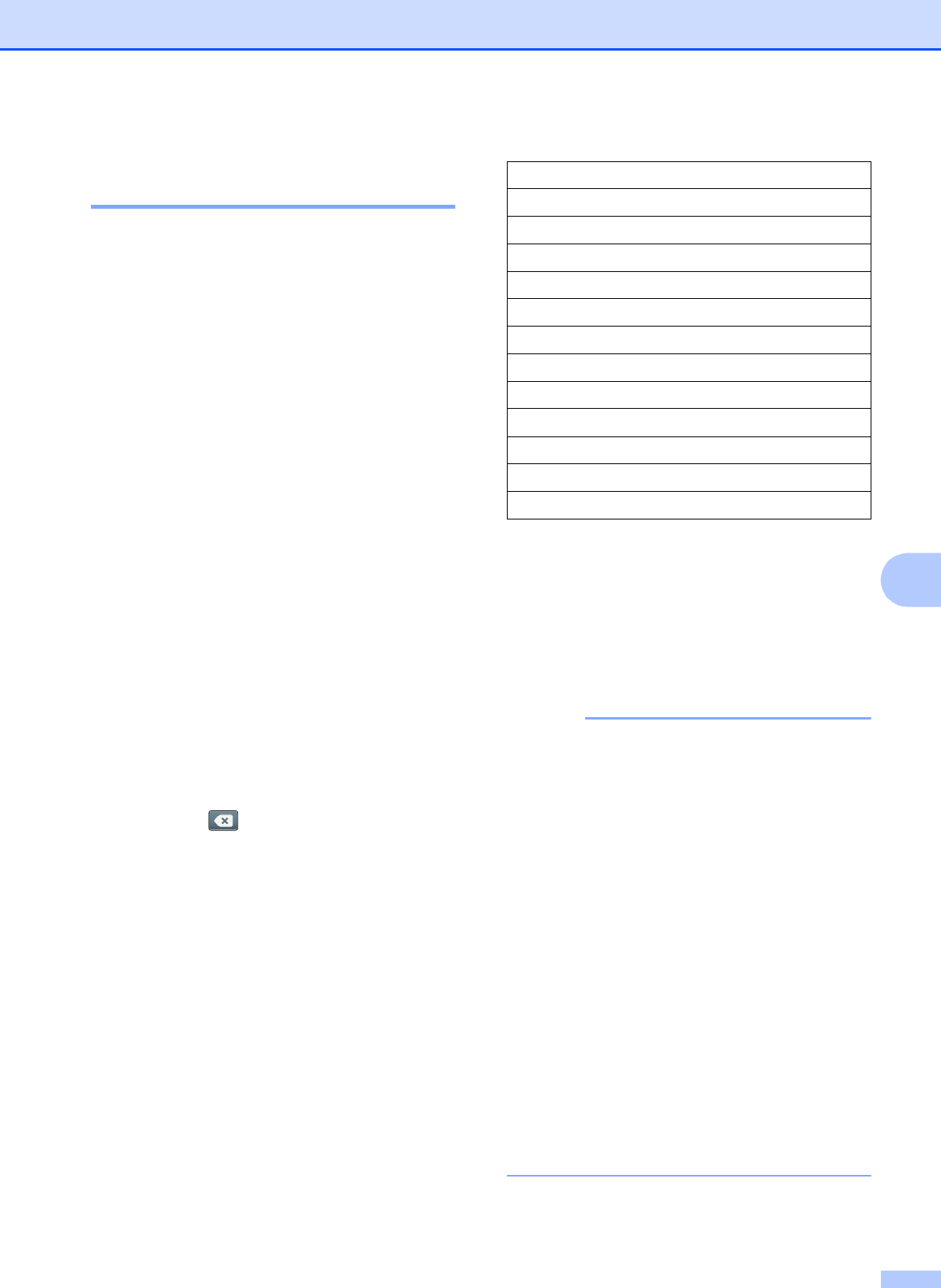
198% 4"x6" i A4
186% 4"x6" i Letter
130% Letter i Ledger
104% EXE i Letter
100%
97% Letter i A4
93% A4 i Letter
85% Letter i EXE
83% Legal i A4
78% Legal i Letter
46% Letter i 4"x6"
Fit to Page
Custom(25-400%)