
user manual
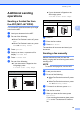
Table Of Contents
- Advanced User’s Guide MFC-J4510DW MFC-J4710DW
- User's Guides and where do I find them?
- Table of Contents
- 1 General setup
- 2 Security features
- 3 Sending a fax
- Additional sending options
- Additional sending operations
- Sending a 2-sided fax from the ADF (MFC-J4710DW)
- Sending a fax manually
- Sending a fax at the end of a conversation
- Dual Access (Black & White only)
- Broadcasting (Black & White only)
- Real Time Transmission
- Overseas Mode
- Delayed Faxing (Black & White only)
- Delayed Batch Transmission (Black & White only)
- Checking and canceling waiting jobs
- Polling overview
- 4 Receiving a fax
- 5 Dialing and storing numbers
- 6 Printing reports
- 7 Making copies
- Copy options
- Stop copying
- Changing copy quality
- Enlarging or reducing the copied image
- Making N in 1 copies or a poster (Page Layout)
- 2 in 1 ID Copy (Page Layout)
- Sorting copies using the ADF
- Adjusting Density
- Ink Save Mode
- Thin Paper Copy
- Book Copy
- Watermark Copy
- Remove Background Color
- 2-sided copying (MFC-J4510DW)
- 2-sided copying (MFC-J4710DW)
- Saving copy options as a Shortcut
- Ledger Copy Shortcuts
- Copy options
- 8 PhotoCapture Center™: Printing photos from a memory card or USB Flash memory drive
- 9 Printing photos from a camera
- A Routine maintenance
- B Glossary
- Index
- brother USA/CAN

Receiving a fax
23
4
d Press Fax.
e Swipe up or down, or press a or b to
display Setup Receive.
f Press Setup Receive.
g Swipe up or down, or press a or b to
display Memory Receive.
h Press Memory Receive.
i Swipe up or down, or press a or b to
display Paging.
j Press Paging.
k Enter your cell phone or pager number
followed by # # (up to 20 digits).
Press OK.
Do not include the area code if it is the
same as that of your machine.
For example, press:
1 8 0 0 5 5 5 1 2 3 4 # #.
l Do one of the following:
If you are programming your cell
phone number and do not need to
enter a PIN, press OK.
If your pager needs a PIN, enter the
PIN, press #, press Pause, and then
enter your fax number followed by
##.
Press OK.
For example, press:
1 2 3 4 5 # Pause 1 8 0 0 5 5 5 6 7 8
9 # #
If you do not need a PIN, press:
Pause, and then enter your fax
number followed by # #. Press OK.
For example, press:
Pause 1 8 0 0 5 5 5 6 7 8 9 # #
m Press .
NOTE
You cannot change a pager number or
PIN remotely.
Fax Storage 4
If you choose Fax Storage, your machine
stores received faxes in the memory. You will
be able to retrieve fax messages from
another location using the remote retrieval
commands.
If you have turned on Fax Storage, a backup
copy will automatically be printed at the
machine.
a Press .
b Press All Settings.
c Swipe up or down, or press a or b to
display Fax.
d Press Fax.
e Swipe up or down, or press a or b to
display Setup Receive.
f Press Setup Receive.
g Swipe up or down, or press a or b to
display Memory Receive.
h Press Memory Receive.
i Swipe up or down, or press a or b to
display Fax Storage.
j Press Fax Storage.
k Press .
NOTE
Color faxes cannot be stored in the
memory. When you receive a color fax,
your machine prints it.