
user manual
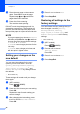
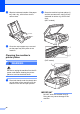
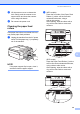
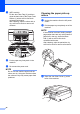
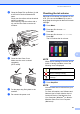
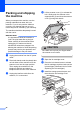
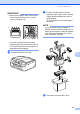
Table Of Contents
- Advanced User’s Guide MFC-J450DW MFC-J470DW MFC-J475DW DCP-J152W
- User's Guides and where do I find them?
- Table of Contents
- 1 General setup
- 2 Security features (MFC models)
- 3 Sending a fax (MFC models)
- 4 Receiving a fax (MFC models)
- 5 Dialing and storing numbers (MFC models)
- 6 Printing reports
- 7 Making copies
- Copy options
- Stop copying
- Improving copy quality
- Enlarging or reducing copies
- Making N in 1 copies or a poster (Page Layout)
- 2 in 1 ID copy (Page Layout)
- Sorting copies
- Adjusting Density
- Remove Background Color
- 2-sided copying (MFC models)
- Setting your changes as the new default
- Restoring all settings to the factory settings
- Copy options
- A Routine maintenance
- B Glossary
- Index
- brother USA/CAN

Routine maintenance
41
A
d Clean the Paper Pick-up Rollers (1) with
a soft lint-free cloth moistened with
water.
Slowly turn the rollers so that the whole
surface is cleaned.
After cleaning, wipe the rollers with a
dry, soft lint-free cloth to remove all
moisture.
e Close the Jam Clear Cover.
Make sure the cover is closed
completely.
(DCP model)
f Put the paper tray firmly back in the
machine.
g Re-connect the power cord.
Checking the ink volume A
Although an ink volume icon appears on the
LCD, you can use the Menu key to see a
large graph showing the ink that is left in each
cartridge.
a Press Menu.
b Press a or b to choose Ink.
Press OK.
c Press a or b to choose Ink Volume.
Press OK.
The LCD shows the ink volume.
NOTE
When the ink cartridge is near the end of
its life or having a problem, one of the
following icons is displayed.
d Press Stop/Exit.
NOTE
You can check the ink volume from your
computer.
For more information, see Software and
Network User’s Guide: Monitor the Ink
Level and Status of the Machine from
Your Computer (Windows
®
) or Monitor
Machine status from Your Computer
(Macintosh).
1
The ink level is low.
The ink cartridge is empty.
There is a problem with the ink
cartridge.