
user manual
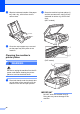
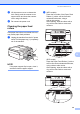
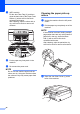
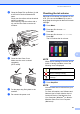
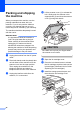
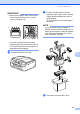
Table Of Contents
- Advanced User’s Guide MFC-J450DW MFC-J470DW MFC-J475DW DCP-J152W
- User's Guides and where do I find them?
- Table of Contents
- 1 General setup
- 2 Security features (MFC models)
- 3 Sending a fax (MFC models)
- 4 Receiving a fax (MFC models)
- 5 Dialing and storing numbers (MFC models)
- 6 Printing reports
- 7 Making copies
- Copy options
- Stop copying
- Improving copy quality
- Enlarging or reducing copies
- Making N in 1 copies or a poster (Page Layout)
- 2 in 1 ID copy (Page Layout)
- Sorting copies
- Adjusting Density
- Remove Background Color
- 2-sided copying (MFC models)
- Setting your changes as the new default
- Restoring all settings to the factory settings
- Copy options
- A Routine maintenance
- B Glossary
- Index
- brother USA/CAN

40
c (MFC models)
Lift the Jam Clear Flap (2), and then
clean the back side of the Paper Feed
Rollers (1) with a soft lint-free cloth
moistened with water.
After cleaning, wipe the rollers with a
dry, soft lint-free cloth to remove all
moisture.
d Put the paper tray firmly back in the
machine.
e Re-connect the power cord.
NOTE
Do not use the machine again until the
rollers are dry. Using the machine before
the rollers are dry may cause paper feed
problems.
Cleaning the paper pick-up
rollers A
a Unplug the machine from the AC power
outlet.
b Pull the paper tray completely out of the
machine.
NOTE
If the machine has been feeding multiple
pages when there are only a few sheets of
paper left in the tray, clean the Base
Pad (1) with a soft lint-free cloth
moistened with water.
After cleaning, wipe the pad with a dry,
soft lint-free cloth to remove all moisture.
c Open the Jam Clear Cover (1) at the
back of the machine.
1
2
1
1