
Technical data






162 ServerIron ADX Graphical User Interface Guide
53-1002412-01
Real servers
12
Real server ports
To view the statistics of all the real server ports configured on the device, perform the following
steps within the Monitor tab.
1. Click Traffic on the menu bar.
2. From the sidebar, select Real Servers.
3. Select a configuration from the Virtual Servers page and click Port.
4. Select a port configuration from the All Virtual Servers Ports page and click Details.
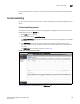
The All Real Server Ports page is displayed, as shown in Figure 124. To view the port details in
the graphical format, click Graph. To switch the view between tabular and graphical format,
click the Details or Graph on top right corner of the Real Server Port Details page.
FIGURE 124 Displaying the real server ports
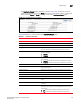
Table 30 describes the fields available in the Real Server Ports page.
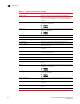
TABLE 30 Real Server Port fields
Field Description
Name Displays the name of the real server ports.
Status Displays the health of the real server ports. The status can be one
of the following:
• Enabled
• Disabled
• Not Healthy
• Healthy
• Not Bound
Admin State Displays the status of the real server ports.
Current Connections Displays the number of current open connections on the real
server ports.
Response Time (ms)