Projector MP-57i / MP-58i User's Manual - Operating Guide Thank you for purchasing this projector! 1.800.762.5757 www.boxlight.com ©2004, BOXLIGHT Corporation. All rights reserved.This manual may not be copied in any media or form without the written consent of the manufacturer.
Projector MP-57i / MP-58i User's Manual - Operating Guide Thank you for purchasing this projector! WARNING! Before using, read the “User’s Manual - Safety Guide” and these manuals to ensure correct usage through understanding. After reading, store them in a safe place for future reference NOTE: The information in this manual is subject to change without notice. The manufacturer assumes no responsibility for any errors that may appear in this manual.
01CP-X1200-ENG-OG-三校 03.12.5 1:10 PM ページ2 Projector Features This multimedia projector is used to project various computer signals as well as NTSC/PAL/SECAM video signals onto a screen. Little space is required for installation and large images can easily be realized. ●Ultra High Brightness Crisp, ultra-bright presentations is achieved by using a UHB (ultra high brightness) lamp and a highly efficient optical system.
01CP-X1200-ENG-OG-三校 03.12.
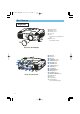
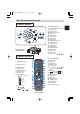
01CP-X1200-ENG-OG-三校 03.12.5 1:10 PM ページ4 Part Names Projector TEMP LAMP STANDBY/ON VIDEO MENU BNG COMPONENT S-VIDEO INTER RGB LENS SHIFT FOCUS RESET M1-D INPUT ZOOM SEARCH KEYSTONE 6 3 5 1 2 4 1 2 3 4 5 Elevator button Elevator foot Remote sensor Lens cap Lens The picture is projected from here. 6 Filter cover An air filter is inside.
01CP-X1200-ENG-OG-三校 03.12.
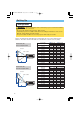
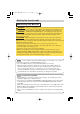
01CP-X1200-ENG-OG-三校 03.12.5 1:10 PM ページ6 Setting Up Arrangement WARNING • Before installation, make sure that the projector is turned off and the power code is disconnected. • Do not set up and move the projector, while it is hot. • Install the projector in a suitable environment according to instructions of the “User’s Manual – Safety Guide” and this manual. • The power outlet should be close to the projector and easily accessible.
01CP-X1200-ENG-OG-三校 03.12.5 1:10 PM ページ7 Setting Up (continued) Adjusting The Projector's Elevator WARNING • Do not touch about the lens and ventilation openings during use or immediately after use to prevent a burn. CAUTION • To prevent damaging the projector and injuring yourself, always hold the projector whenever using the elevator buttons to adjust the elevator feet.
01CP-X1200-ENG-OG-三校 03.12.5 1:10 PM ページ8 Setting Up (continued) Connecting Your Devices WARNING • Whenever attempting to connect other devices to the projector, read thoroughly the "User's Manual - Safety Guide", this manual and the manual of each device to be connected. Incorrect connecting could result in fire or electrical shock. CAUTION • TURN OFF ALL DEVICES prior to connecting them to the projector.
01CP-X1200-ENG-OG-三校 03.12.5 1:10 PM ページ9 Setting Up (continued) Please refer to the following (for example) for connecting your devices. See the rear of the projector. You can see the ports.
01CP-X1200-ENG-OG-三校 03.12.
01CP-X1200-ENG-OG-三校 03.12.
01CP-X1200-ENG-OG-三校 03.12.5 1:10 PM ページ12 Remote Control About The Laser Pointer WARNING • The laser pointer of the remote control is used in place of a finger or rod. Never look directly into the laser beam outlet or point the laser beam at other people. The laser beam can cause vision problems. CAUTION • Use of controls or adjustments or performance of procedures other than those specified herein may result in hazardous radiation exposure.
01CP-X1200-ENG-OG-三校 03.12.5 1:10 PM ページ13 Remote Control (continued) Operating The Remote Control CAUTION • Do not disassemble the remote control. • Do not place the remote control near the projector’s lens, fan, or vents. • Do not drop or otherwise expose the remote control to physical impact. • Do not get the remote control wet or place it on wet objects on it. Doing so may result in malfunction.
01CP-X1200-ENG-OG-三校 03.12.5 1:10 PM ページ14 Remote Control (continued) Using The Mouse/Keyboard Control Function CAUTION • Before connecting, read the manuals of the device you will connect. Mistaken use of the mouse/keyboard control could damage your equipment. • Only connect to a PC. • Do not unplug the connector cables while the computer is operating. Using the USB control feature, you can use the remote control as a simplified mouse or keyboard of the computer.
01CP-X1200-ENG-OG-三校 03.12.5 1:10 PM ページ15 Power ON/OFF WARNING • When the power is ON, a strong light is emitted. Do not look into the lens or vents of the projector. NOTE • Turn the power on/off in right order. Please power on the projector before the connected devices. Power off the projector after the connected devices. Turning On The Power STANDBY/ON 1 Remove the lens cap. 2 Set the power switch to [ | ] (ON). The STANDBY/ON indicator will light to solid orange.
01CP-X1200-ENG-OG-三校 03.12.5 1:10 PM ページ16 Operating Selecting An Input Signal 1 Select an input signal. ■ Using the INPUT dial Turn the INPUT dial of the projector. Turning the dial cycles through the input ports as shown below. Select the signal you wish to project. M1-D RGB BNC SEARCH button SEARCH M1-D INPUT RGB RESET BNC COMPONENT ENTER MENU S-VIDEO VIDEO S-VIDEO COMPONENT VIDEO INPUT dial ■ Using SEARCH button Press the SEARCH button of the projector or the remote control.
01CP-X1200-ENG-OG-三校 03.12.5 1:10 PM ページ17 Operating (continued) Selecting The Aspect Ratio 1 Press the Aspect button to toggle between the modes for aspect ratio. ■ At a M1-D signal NORMAL LASER INDICATOR STANDBY/ON VIDEO 16:9 4:3 memo NORMAL keeps the original aspect ratio of the input signal.
01CP-X1200-ENG-OG-三校 03.12.5 1:10 PM ページ18 Operating (continued) Adjusting The Picture Position memo This function is available only for RGB signals. 1 Press the POSITION button. As illustrated on the right, a dialog will appear on the screen to aid you in adjusting the position. LASER INDICATOR STANDBY/ON VIDEO + LENS SHIFT FOCUS POSITION RGB + + ZOOM – – – BLANK ASPECT LASER PREVIOUS NEXT Cursor buttons ENTER 2 Use the cursor buttons / / / to adjust the position.
01CP-X1200-ENG-OG-三校 03.12.5 1:10 PM ページ19 Operating (continued) Adjusting The Volume 1 2 3 Press the VOLUME button. As illustrated on the right, a dialog will appear on the screen to aid you in adjusting the volume. Use the cursor buttons adjust the volume. / VOLUME LASER INDICATOR STANDBY/ON VIDEO + RGB + + LENS SHIFT FOCUS to ZOOM – – – BLANK ASPECT LASER PREVIOUS NEXT Cursor buttons ENTER 16 Press the VOLUME button again to close the dialog and complete this operation.
01CP-X1200-ENG-OG-三校 03.12.5 1:10 PM ページ20 Operating (continued) Freezing The Screen 1 Press the FREEZE button. As illustrated on the right, a dialog will appear on the screen, and the screen will freeze at the current image. LASER INDICATOR STANDBY/ON VIDEO + LENS SHIFT FOCUS FREEZE 2 + ZOOM – – – BLANK ASPECT LASER PREVIOUS Press the FREEZE button again to restore the screen to normal. The icon “||” will change to the icon “ ”.
01CP-X1200-ENG-OG-三校 03.12.5 1:10 PM ページ21 Operating (continued) Displaying The Child Window memo This feature called "PinP (Picture in Picture)" is available only when a RGB signal is selected to main screen. 1 2 Press the PinP button. The child window with a picture of a video signal will appear. Press the PinP button again to change the size of the child window or close the window.
01CP-X1200-ENG-OG-三校 03.12.5 1:10 PM ページ22 Multifunctional Settings Using The Menu Functions This projector has the following menus: MAIN, PICTURE-1, PICTURE-2, INPUT, AUTO, SCREEN, OPTION and NETWORK. Each of these menus is operated using the same methods. The basic operations of these menus are as follows. 1 Press the MENU button. The menu will appear on the screen. ex.
01CP-X1200-ENG-OG-三校 03.12.5 1:10 PM ページ23 Multifunctional Settings (continued) MENU MAIN PICTURE-1 PICTURE-2 INPUT AUTO SCREEN OPTION NETWORK : SELECT MAIN Menu With the MAIN menu, the items shown in the table below can be performed. Perform each operation in accordance with the instructions in the table below.
01CP-X1200-ENG-OG-三校 03.12.5 1:10 PM ページ24 Multifunctional Settings (continued) MENU MAIN PICTURE-1 PICTURE-2 INPUT AUTO SCREEN OPTION NETWORK : SELECT PICTURE-1 Menu With the PICTURE-1 menu, the items shown in the table below can be performed. Perform each operation in accordance with the instructions in the table below. Item GAMMA COLOR BAL R COLOR BAL G COLOR BAL B SHARPNESS COLOR TINT MY MEMORY NORMAL +0 +0 +0 +0 +0 +0 LOAD1 Description Select a gamma mode using the / buttons.
01CP-X1200-ENG-OG-三校 03.12.5 1:10 PM ページ25 Multifunctional Settings (continued) PICTURE-1 Menu (continued) Item Description Select a command to load or save using the / buttons, and then press the (or the ENTER) button to perform the function.: LOAD1 LOAD2 LOAD3 LOAD4 SAVE1 SAVE2 SAVE3 SAVE4 MY MEMORY RESET This projector has 4 numbered memories for adjustment data.
01CP-X1200-ENG-OG-三校 03.12.5 1:10 PM ページ26 Multifunctional Settings (continued) PICTURE-2 Menu With the PICTURE-2 menu, the items shown in the table below can be performed. Perform each operation in accordance with the instructions in the table below. MENU MAIN PICTURE-1 PICTURE-2 INPUT AUTO SCREEN OPTION NETWORK : SELECT V POSITION H POSITION H PHASE H SIZE OVER SCAN RESET 20 142 31 1344 95 memo This menu cannot be selected at a M1-D signal.
01CP-X1200-ENG-OG-三校 03.12.5 1:10 PM ページ27 Multifunctional Settings (continued) INPUT Menu With the INPUT menu, the items shown in the table below can be performed. Perform each operation in accordance with the instructions in the table below. MENU MAIN PICTURE-1 PICTURE-2 INPUT AUTO SCREEN OPTION NETWORK : SELECT COLOR SPACE COMPONENT VIDEO 3D-YCS VIDEO NR P. INP. INPUT P. INP. POSIT.
01CP-X1200-ENG-OG-三校 03.12.5 1:10 PM ページ28 Multifunctional Settings (continued) INPUT Menu (continued) Item Description P.IN P. INPUT Select a signal input port for the child window using the / buttons. : VIDEO S-VIDEO memo About the child window, please refer to the section “Displaying the Child Window”. P.IN P. POSIT. Select the display position of the child window using the / buttons. : memo About the child window, please refer to the section “Displaying the Child Window”.
01CP-X1200-ENG-OG-三校 03.12.5 1:10 PM ページ29 Multifunctional Settings (continued) AUTO Menu With the AUTO menu, the items shown in the table below can be performed. Perform each operation in accordance with the instructions in the table below. MENU MAIN PICTURE-1 PICTURE-2 INPUT AUTO SCREEN OPTION NETWORK : SELECT ADJUST POWER OFF POWER ON SEARCH RESET 0 min TURN ON TURN ON Item Description ADJUST Pressing the (or the ENTER) button performs the automatic adjustment.
01CP-X1200-ENG-OG-三校 03.12.5 1:10 PM ページ30 Multifunctional Settings (continued) AUTO Menu (continued) Item Description Select the TURN ON or the TURN OFF using the / buttons. : TURN ON TURN OFF When the TURN ON is selected, detecting no signal cycles through input ports and displays the picture of retrieved signal. M1-D RGB VIDEO S-VIDEO SEARCH BNC COMPONENT memo When the TURN ON is selected, pressing the RGB button selects the M1-D ports, and pressing the VIDEO button selects the COMPONENT port.
01CP-X1200-ENG-OG-三校 03.12.5 1:10 PM ページ31 Multifunctional Settings (continued) SCREEN Menu With the SCREEN menu, the items shown in the table below can be performed. Perform each operation in accordance with the instructions in the table below.
01CP-X1200-ENG-OG-三校 03.12.5 1:10 PM ページ32 Multifunctional Settings (continued) SCREEN Menu (continued) Item Description MESSAGE RESET Select the TURN ON or the TURN OFF using the / buttons. : TURN ON TURN OFF When the TURN ON is selected, the following message function works. The message of the “AUTO IN PROGRESS” for the auto adjustment.
01CP-X1200-ENG-OG-三校 03.12.5 1:10 PM ページ33 Multifunctional Settings (continued) OPTION Menu With the OPTION menu, the items shown in the table below can be performed. Perform each operation in accordance with the instructions in the table below.
01CP-X1200-ENG-OG-三校 03.12.5 1:10 PM ページ34 Multifunctional Settings (continued) OPTION Menu (continued) Item Description Pressing the (or the ENTER) button calls the SERVICE SERVICE FANSPEED menu. AUTO ADJUST LENS TYPE SERVICE Menu LENS LOCK Select an item using the / buttons, and press the : SELECT (or the ENTER) button to per form each function. : FANSPEED AUTO ADJUST LENS TYPE LENS LOCK FANSPEED Select the fan speed level using the / buttons.
01CP-X1200-ENG-OG-三校 03.12.5 1:10 PM ページ35 Multifunctional Settings (continued) NETWORK Menu This projector provides the NETWORK function. If you use this function, please set up the projector according to the Network environment in which you use it.
01CP-X1200-ENG-OG-三校 03.12.5 1:10 PM ページ36 Network Setting Up This projector provides the NETWORK function. If you use this function, please consult your dealer for information. To start, connect the NETWORK port to a gateway device via a RJ-45 (10BASE-1) cable, then set up the projector according to the Network environment in which you use it.
01CP-X1200-ENG-OG-三校 03.12.5 1:10 PM ページ37 Lamp WARNING HIGH VOLTAGE HIGH TEMPERATURE HIGH PRESSURE The projector uses a high-pressure mercury glass lamp. The lamp can break with a loud bang, or burn out, if jolted or scratched, handled while hot, or worn over time. Note that each lamp has a different lifetime, and some may burst or burn out soon after you start using them.
01CP-X1200-ENG-OG-三校 03.12.5 1:10 PM ページ38 Lamp (continued) Replacing The Lamp If the indicators or a message prompts you to replace the lamp, replace the lamp as soon as possible. 1 Turn off the projector, and unplug the power cord. Allow the lamp bulb to cool for at least 45 minutes. 2 Contact your dealer to prepare a new lamp. Tell the dealer your lamp type number. If the projector is mounted on the ceiling, or if the lamp has broken, also ask the dealer to replace the lamp.
01CP-X1200-ENG-OG-三校 03.12.5 1:10 PM ページ39 Air Filter WARNING • Please carefully read the “User’s Manual - Safety Guide. • Before caring, make sure the power switch is off and the power cable is not plugged in, then wait at least 45 minutes for the lamp to cool sufficiently. • Use only the air filter of the specified type NJ08081. • Do not use the projector with the air filter and filter cover removed. The use without the air filter could result in damage.
01CP-X1200-ENG-OG-三校 03.12.5 1:10 PM ページ40 Other Care WARNING • Please carefully read the “User’s Manual - Safety Guide”. • Before caring, make sure the power switch is off and the power cable is not plugged in. • Be cautious of high temperature. Do not touch about the lens and ventilation openings during use or immediately after use prevent a burn. • Never try to care for the inside of the unit yourself. Doing so is dangerous.
01CP-X1200-ENG-OG-三校 03.12.5 1:10 PM ページ41 Troubleshooting Related Messages When the unit's power is on, messages such as those shown below may be displayed. When any such message is displayed on the screen, please respond as described below. If the same message is displayed after the treatment, or if a message other than the following appears, please contact your dealer or service company.
01CP-X1200-ENG-OG-三校 03.12.5 1:10 PM ページ42 Troubleshooting (continued) Related Messages (continued) Message Description CLEAN THE AIR FILTER POWER OFF FIRST, THEN CLEAN THE AIR FILTER. AFTER CLEANING THE AIR FILTER, RESET THE FILTER TIMER. The time the filter timer has counted has reached 100 hours. Please clear or change the air filter by referring to the section “Air Filter”. After caring for the air filter, please be sure to reset the filter timer. The internal portion temperature is rising.
01CP-X1200-ENG-OG-三校 03.12.5 1:10 PM ページ43 Troubleshooting (continued) Regarding The Indicator Lamps Lighting and flashing of the STANDBY/ON indicator, the LAMP indicator, and the TEMP indicator have the meanings as described in the table below. Please respond in accordance with the instructions within the table. If the same indication is displayed after the treatment, or if an indication other than the following is displayed, please contact your dealer or service company.
01CP-X1200-ENG-OG-三校 03.12.5 1:10 PM ページ44 Troubleshooting (continued) Regarding The Indicator Lamps (continued) STANDBY/ON LAMP indicator indicator TEMP indicator Description Either there is no lamp and/or lamp cover, or either of these has not been properly fixed. Lighting in Red Blinking in Red Turned off Please turn the power off, and allow the unit to cool down at least 45 minutes.
01CP-X1200-ENG-OG-三校 03.12.5 1:10 PM ページ45 Troubleshooting (continued) Phenomena That May Easily Be Mistaken For Machine Defects WARNING • Never use the projector if abnormal operations such as smoke, strange odor, excessive sound, damaged casing or elements or cables, penetration of liquids or foreign matter, etc. should occur.
01CP-X1200-ENG-OG-三校 03.12.5 1:10 PM ページ46 Troubleshooting (continued) Phenomena That May Easily Be Mistaken For Machine Defects (continued) Phenomenon Cases not involving a machine defect The signal cables are not correctly connected. Correctly connect the connection cables. Pictures are displayed, but no sounds are heard. Sounds are heard, but no pictures are displayed. Colors have a faded- out appearance, or Color tone is poor. Pictures appear dark.
01CP-X1200-ENG-OG-三校 03.12.5 1:10 PM ページ47 Warranty And After-Service If a problem occurs with the equipment, first refer to the “Troubleshooting” and run through the suggested checks. If this does not resolve the problem, please contact your dealer or service company. They will tell you what warranty condition is applied. Specifications NOTE • This specifications are subject to change without notice. Item Product name Liquid crystal panel Specification Liquid crystal projector Panel size 2.5 cm (0.