
Product guide




STATUS AND PRINT TASKS
XEROX DOCUPRINT 180 LPS OPERATOR GUIDE 9-27
Set Container Size task
through windows
Perform the following steps:
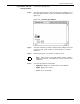
Step 1. Select the “Container Size” option from the header auxiliary menu of
the Printer Status window to open the Container Size window (see
figure 9-13).
Figure 9-13. Container Size window
Step 2. Select the container you want to modify from the auxiliary menu next
to the Type field. (Refer to table 9-1 for information on container
numbers.)
Step 3. Enter the dimensions you want the container to have.
Note: If the selection of the Units window is inches, enter the
dimensions in inches; if it is millimeters, enter the dimensions in
millimeters.
Step 4. Select the appropriate header button:
• Apply/Use. Apply your selection and close the window.
• Apply. Apply your selection.
• Close. Close the window.