
Product guide






OFFLINE PRINTING TASKS
7-32 XEROX DOCUPRINT 180 LPS OPERATOR GUIDE
Space
The Space task allows you to print a specific job (or jobs) by spacing
over pages or reports on a tape.
To move forward, enter a positive number; to move backward, enter
a negative number.
If you have already started a print job:
Step 1. Stop the print job.
Step 2. Perform the Space task.
Step 3. Continue the print job.
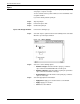
Space task through windows Perform the following steps:
Step 1. Select the “Space” option from the header auxiliary menu of the Start
window to open the Space window.
Figure 7-38. Space window
Step 2. Select one of the following options:
• Number of Pages. Enter the number of pages you want to
space forward or backward within the current report.
• Number of Reports. Enter the number of print jobs you want to
space forward or backward on the tape.
• Report Number. Enter the number of the print job you want to
space to on the tape.
Step 3. Select the appropriate header button:
• Apply/Close. Apply your selection and close the window.
• Apply. Apply your selection.
• Close. Close the window.