
User guide







ACCOUNTING WINDOWS
2-4 XEROX DOCUPRINT 180 LPS PC UI REFERENCE
SFS short display or the Messages window may be used to display
more than 500 reports.
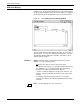
SFS Print
This window prints the report information in the status file.
Figure 2-4. Accounting>SFS Print window
Header buttons Test: The “Test” header button results in only the SFS column
header information being printed, such as, Block Number, Job
Number, Report Number, Status. This is useful for checking the
registration of the SFS Display information on a form without having
to print the SFS entries.
The Test option is only available if you designate your own form with
the File Name option.
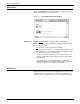
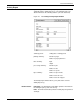
Parameters Form: Select Complete
, Short or File Name to designate which SFS
Display format you want to print (refer to figures 2-2 and 2-3, SFS
Short and Complete Display windows). Select File Name if you wish
to print the SFS on a particular form you have created. Creating a
form to format the SFS printout must be performed in the Editor.
When specifying the form file name in this window, do not include the
file type (.MSC).
Format: Select Simplex
or Duplex for one-sided or two-sided print
format.
Copies: 1 - 32767. Enter the number of copies of the SFS printout
you want.
Entries: Enter the range of report entries you want printed. Use the
following options: