
User guide








ACCOUNTING WINDOWS
XEROX DOCUPRINT 180 LPS PC UI REFERENCE 2-3
SFS Complete Display
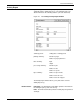
This window displays the status file service list of printed reports.
You can scroll and page through the list. Completed reports are
listed in order of date/time printed and include the disk ID.
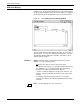
Figure 2-3. Accounting>SFS Complete Display window
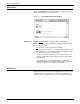
Header buttons Paged display...: Selecting this header button allows you to view the
status file service listing page by page in the Command Line/
Message window. Press the <ENTER> key to page through the
listing. Press <CTRL><X> to cancel the file listing in the SFS
Complete Display Window.
Parameters Entries: Enter the range of SFS report entries you want displayed.
Use the following options:
n
displays the first n reports. For example, typing 5 and pressing
the <ENTER> key (or selecting the Display header button)
displays the first five report entries.
-m
(dash, m) displays the last m reports in the list. For example,
entering -5 displays the last five report entries in the SFS list.
n-m
displays reports with entry numbers between n and m
inclusive. For example, entering 1-5 displays report entries one
through five.
Note: The SFS Short Display (refer to figure 2-2) can be selected
instead of the SFS Complete Display.
The default status file size is 500 reports. Displaying more than 500
reports may cause the PC UI to behave unpredictably. Either the