
User guide



USING THE PC UI
XEROX DOCUPRINT 180 LPS PC UI REFERENCE 1-23
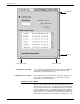
Note: To activate a menu window, click once on a Move/Resize
target, rather than the work area of the window.
Performing operator tasks through the PC UI
The PC UI gives you two options for performing operator tasks:
• Selecting tasks through windows
• Entering commands through the Command Line/Message
window.
Performing tasks through windows
Follow the procedures outlined earlier in this chapter to open Menu
and Task windows and select options using the PC UI windows.
Entering commands through the Command Line/Message window
Use the Command Line/Message window if you want to perform a
task by entering commands rather than selecting options in a
window. Place the cursor in the Command Line/Message window
(refer to figure 1-8) and click once with the left mouse button or press
the <ESCAPE> key, then the <ENTER> key to activate the window.
Then enter the command at the cursor.
Key-in conventions
Follow these conventions when entering commands:
• The system is ready to receive commands when OS1000
READY FOR COMMANDS appears in the command line/
message window.
• All commands may be abbreviated to the first three characters
or spelled out fully and correctly.
• Commands are executed by pressing <ENTER>, except for
those entered by the function keys.
• Spaces or commas may be used to separate command
parameters.