
User guide



USING THE PC UI
XEROX DOCUPRINT 180 LPS PC UI REFERENCE 1-21
the <ENTER> key, the text stops scrolling. A single click on the
target moves the text one line of information to the top.
To scroll text down, follow the above procedure, but place the cursor
on the arrow up target area.
Note: You can also scroll text up and down by moving the white box
located inside the scroll bar. Move the box as follows:
1. Place the cursor inside the box.
2. Press the left mouse button and hold it down while you "drag"
the box up or down within the scroll bar. Text within the window
moves up or down accordingly.
You can scroll text using only the keyboard in the following manner:
1. Press the <ESCAPE> key.
2. Using the arrow keys, position the cursor over the arrow.
3. Press the <ENTER> key to begin scrolling text.
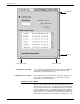
Figure 1-19. Scrolling the text vertically