
User guide



USING THE PC UI
1-20 XEROX DOCUPRINT 180 LPS PC UI REFERENCE
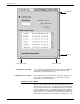
Resizing the windows To resize the window:
1. Place the cursor over a corner Move/Resize target.
2. Depress the right mouse button and hold.
3. Move the cursor:
• To the right
• To the left
• Up
• Down
• Diagonally
to change the size of the window, accordingly.
To resize the window using only the keyboard:
1. If necessary, press the <ESCAPE> key to remove the data
entry cursor from the window.
2. Position the cursor over a corner Move/Resize target
3. Press and continue to hold <CTRL>, then <ENTER> while
using the appropriate arrow keys to resize the window.
Figure 1-18. Resizing a window
Using the scroll bars
The scroll bars allow you to shift the display within a window. The
scroll bars are especially useful in the Command Line/Message
window.
Note: If all of the information within a window is already displayed,
the scroll bars do not work.
Scrolling text up and down To scroll text up, place the cursor in the arrow down target area,
depress the left mouse button or the <ENTER> key and hold. Text
scrolls from bottom to top. When you release the mouse button or