
User guide



USING THE PC UI
XEROX DOCUPRINT 180 LPS PC UI REFERENCE 1-17
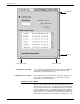
Menu entries A list of options.
Figure 1-13. Window example of menu entries
If a window option is not currently available, it appears “grayed out”—
the image is faint and you cannot select the option. If a window
option is restricted, it is not shown at all.
Additional types of windows In addition to Menu windows and Task windows, there are windows
that appear on the desktop as a result of things you have done or
conditions in the LPS.
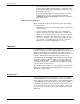
Confirmation window This window opens as a result of something you have done in a Menu
or Task window. It has two targets: Yes and No.
The confirmation window has a yellow header bar if one of the
following applies:
— Data may be lost as a result of the proposed action.
— A cycle down of the printer may occur as a result of the
proposed action.
A green header bar means that you must respond to the confirmation
window before any other actions can take place in the PC UI.
Figure 1-14. Confirmation window