
User guide




USING THE PC UI
1-6 XEROX DOCUPRINT 180 LPS PC UI REFERENCE
Cursor
The cursor is the entry point for information or activity on the PC UI
screen.
Types of cursors
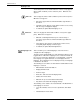
Main cursor Appears when you can select items on the desktop.
Wait cursor Appears when a system activity is being processed (for example,
when a window is being opened) and during system initialization.
Data Entry caret Appears when you can enter information in a field (an input field).
Moving the cursor
You can move the cursor in either of two ways:
• Mouse
• Arrow keys.
Moving the cursor using the mouse To move the cursor using the mouse, lightly move the mouse over
the mouse pad. You may lift the mouse and put it down again
(gently) in a different position on the mouse pad if you “run out of
room” on the pad while you are moving it. (Lifting the mouse and
setting it down does not cause the cursor to move.) Be sure that the
mouse is touching the mouse pad.
Moving the cursor using the arrow keys To move the cursor using the arrow keys, make sure that the <NUM
LOCK> key is not activated. Then press the arrow key pointing in the
direction you want the cursor to move. You may hold the arrow key
down; however, the cursor moves very quickly when you do this.
To select an input field with the arrow keys:
1. Press <ESCAPE> to remove the data entry cursor from the
screen.
2. Use the arrow keys to move the main cursor to the desired input
field.
3. Press <ENTER> to activate the input field. The data entry
cursor appears in the input field.
4. Use the arrow keys to move the data entry cursor within the
input field.