
User guide





PRINT TASKS WINDOWS
6-30 XEROX DOCUPRINT 180 LPS PC UI REFERENCE
SDI (Shared Disk Interface)
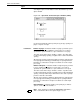
Use the SDI window to access SDI commands.
Figure 6-24. Print Tasks>SDI window
Header Buttons Online - Select the Online header button to place the LPS in the SDI
online state, so it is ready to receive jobs from the front end.
Offline - Select this header button to place the LPS in the SDI offline
state, where no new print requests or job transmissions are
accepted, but all those in progress are allowed to complete.
Start - Select this header button to start or continue printing jobs in
the SDI internal queue.
Stop - Select this header button to stop submitting print requests to
the LPS.
Dump - Select this header button to begin printing the next job in the
queue as a formatted data dump for analysis.
SDI Job Status . . . - Select this header button to display a list of jobs
in the SDI internal queue. A follow on window will appear. Refer to
the SDI Job Status window description.
Abort - Select this header button to abort SDI internal queue jobs
specified in the SDI#: window.
Drain - Select this header button to terminate the current
concatenated job and print any remaining pages of previously
processed jobs. This option is available only with concatenated jobs.
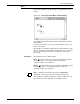
The following header buttons can be selected via the Auxiliary Menu.
Insert . . . - Select this header button to transfer a specified LPS
system controller file to the shared disk and convert it to a shared disk
job. Refer to the SDI Insert window description.
Change . . . - Select this header button to copy the specified shared
disk job from the shared disk to the LPS system disk. Refer to the SDI
Change window description.
Release - Select this header button to release the shared disk space
of the specified SDI job for use by other jobs.
Reset - Select this header button to delete all SDI queue jobs and
any information concerning all SDI queue jobs.