
User guide





PRINT TASKS WINDOWS
6-26 XEROX DOCUPRINT 180 LPS PC UI REFERENCE
Space
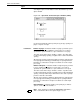
Selecting the Space header button from the Start window opens the
Space window.
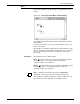
Figure 6-20. SpacePrint Tasks>Start>Space window (offline)
Use the Space window to print a specific job (or jobs) by spacing over
pages or reports on a tape.
Parameters. Number of pages
: 1. Enter the number of pages you want to space
forward or backward over within the current report. If no value is
specified, the system default is to space forward over one page.
The value can be in the range -32768 to +32767. A positive value
results in forward page spacing; a negative value results in backward
spacing.
After the page spacing command is applied, output is stopped and a
message appears informing you that the tape is spacing forward or
backward. You must then select/press Continue to resume output
processing.
Number of Reports: 1
. Enter the number of logical reports you want
to space forward or backward over on the tape. If no value is
specified, the system default is to space forward over one report.
The value can be in the range -32768 to +32767. A positive value
results in forward page spacing; a negative value results in backward
spacing. The tape cannot be positioned before the start-of-job tape
position or after the end-of-data.
After the report spacing command is applied, input is stopped and a
message appears informing you that the tape is spacing forward or
backward. You must then select/press Continue to resume input
processing.
Report Number: 1
Enter the number of the print job you want to
space to on the tape. The default is 1.
Note: Page spacing is not allowed if ABNORMAL SECURITY =
YES is coded in the JDL of the report being processed.