
User guide


PRINT TASKS WINDOWS
6-20 XEROX DOCUPRINT 180 LPS PC UI REFERENCE
Bin Full Criteria
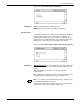
Select the Bin Full Criteria option from the Printer Status window
header auxiliary menu to open the Bin Full Criteria window.
Figure 6-17. Print Tasks>Printer Status>Bin Full Criteria
window
Use this window to set the bin full criteria according to the maximum
number of reams for a stacker bin.
By selecting the Boundary option, you can request that bins continue
to fill until:
• A specific report, report set, or print job is finished
• A specific report, report set, or print job is finished after a
specific number of sheets has been stacked.
Parameters Threshold:
1-4 reams: Select the maximum number of reams for the stacker
bins. Boundary selection is optional.
MAX
: Selecting MAX specifies that the bins fill to their maximum
safe capacity before switching. The boundary option is not available
for this option.
0 reams: If you select a threshold of 0 reams, you must set a
separation boundary. The bin then accepts one set, one report, or
one job.
Boundary: If the threshold you select is 0 reams, you must select a
boundary. Otherwise, boundary selection is optional. Select the
Boundary box and one of the following options:
Set: Stacking switches after each printed set.
Report
: Stacking switches after each printed report.
Job: Stacking switches after each printed job.
If no boundary is selected, the bin fills to its specified capacity and
output switches to another bin immediately.
Note: If a bin fills to its maximum safe capacity before the specified
boundary is met, output switches to another bin or cycles down if