
User guide


PRINT TASKS WINDOWS
6-18 XEROX DOCUPRINT 180 LPS PC UI REFERENCE
Container Size
The Container Size window is available by selecting the Container
Size option from the Printer Status window header auxiliary menu.
Use the Container Size window to change the maximum paper size
allowed in a non-Xerox container for custom print jobs. This task is
not necessary if you are using Xerox containers.
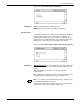
Figure 6-15. Print Tasks>Printer Status>Container Size window
The allowable container size range is 7 by 10 inches/178 by 254 mm
to 17 by 14.33 inches/432 by 358 mm. Any subsequent pages after
the first sheet must be within 25 mm on each dimension of the first
sheet. The system supports seven different types of containers.
Each container is encoded to represent the maximum paper size
(default size) allowed in that container. The default sizes can be
changed to accommodate custom-sized containers.
Parameters: Type: Select the container you want to modify from the auxiliary
menu (1
, 2, 3, 4, 5, 6, or 7).
Size: Enter the dimensions (in inches or millimeters) of the
container.
Note: The printer must be idle to perform this task.
New container sizes are retained during power off, and remain in
effect until they are changed.
Prior to stacking, the system compares the paper size with the
container size. If the paper is larger than the maximum size allowed
by the container, an error message is displayed.
Do not set the container size larger than the actual size of the
container.
When in Log level 2 or higher, the following will be displayed above
the Type: parameter in Figure 6-10.
Container Type 1 is now set to 203,267
Container Type 2 is now set to 210,297
Container Type 3 is now set to 216,279
Container Type 4 is now set to 216,330