
User guide




PRINT TASKS WINDOWS
XEROX DOCUPRINT 180 LPS PC UI REFERENCE 6-3
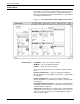
PRINTING if the report has completed the Input phase and is
printing.
• Status Message Number: Completion code (blank if completion
is normal), error message number, or “CS” for a copy- sensitive
report.
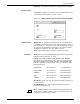
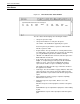
Header buttons Jobs can be displayed by status. The header options are as follows:
Current
—This default option displays jobs/reports in input and
output.
All—Select this option to display all completed jobs (up to 100).
Done—Select this option to display all completed jobs with the
status ’Done’.
Aborted—Select this option to display all aborted jobs.
Reset—Select this option to display all jobs with “Reset” status.
RCVY/NS—Select this option to display all jobs that were not
designated for recovery and printing after a system rollover.
A checkmark in a header button designates which types of jobs are
being displayed.
Current jobs are displayed when the Jobs Status window is first
opened.
Note: No other report is listed when a report with “In/Prtg” status is
displayed.
HIP includes XPAF.
You can scroll through the reports in the queue.
The queue is updated automatically.