
Installation guide






BlipNet Administrators Guide
2
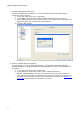
5. Change Administrator password.
When the BlipManager is started, it is recommended to change the administrator
password. This is done by:
a. In the menu bar select “File->Properties”.
b. In the BlipServer Properties window select the tab called “User Accounts”.
c. Select “Administrator” from the list and click on the “Edit” button and change the
password. Make sure to remember this password.
d. Click the “OK” button.
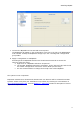
6. Specify a default Bluetooth Passkey.
Assuming that the “Server Node (All Services)” configuration is selected, a default
Bluetooth Passkey or dedicated Bluetooth Passkeys must be defined, please follow this
procedure:
a. In the menu bar select “File->Properties”.
b. In the BlipServer Properties window, select “Bluetooth Security”.
c. Specify a default passkey. All users who know this key will no have access to
your system. If you want only specific devices to have access, de-select the "All
Bluetooth Terminals have Access" option and follow the guide in the BlipServer -
Terminals section to add your Bluetooth Terminals.