
Installation guide



BlipManager Views
7
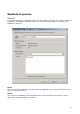
3. Properties
Allow you to change the BlipServer properties. For more information read BlipServer
Properties
Configuration
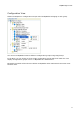
Only shown in configuration view.
Represents a configuration group that can contain a number of BlipNodes that are assigned to
that configuration.
Right Click Actions
1. Add New BlipNode
Add a new BlipNode to the BlipServer and assign it with the selected configuration.
2. Properties
Brings up the Configuration Properties. For more information read Configuration
Properties
BlipNode
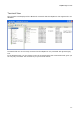
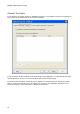
The BlipNode represents a BlipNode that is attached to the BlipServer.
The Icon change to images to represent different conditions of the BlipNode.
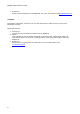
The BlipNode is running and connected to the BlipServer
The BlipNode is running but might not be working correctly. Open the Properties for the
BlipNode to read more about the warning.
The BlipNode is in use by a BlipNet Application.
Software upgrade is in progress. Do not perform any actions on this BlipNode until the
Software upgrade has completed.
The BlipNode is not connected to the server. Reasons could be that the BlipNode is powered
off, not allowed on the BlipServer or is not able to establish a TCP/IP Connection to the
BlipServer.
Right Click Actions
1. Add New BlipNode
Add a new BlipNode as a wireless BlipNode with the selected BlipNode as parent
2. Add New Terminal
Allow you to search and add a new Bluetooth Terminal to BlipNet
3. Restart
Restarts the BlipNode. All active Bluetooth connections will be lost.
4. Unlock
If a BlipNode is in use by an application, the Administrator can override this by
unlocking the BlipNode. The BlipNode will return to its original settings and will be
available for other applications.
5. Rename
Change the friendly name of the BlipNode. This is the Name Bluetooth Terminals will
find when performing inquiry/name lookup.
6. Delete
Disconnects and permanently delete all information and settings about the BlipNode,
from the BlipServer.