
User manual




13
Biomark Tag Manager™ User Manual
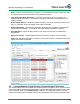
Stop - Cancels a tag download in progress. It is advised that this be used if you need
to navigate away from this tab within the Tag Manager program.
Filter Duplicates While Download - If checked, the program will only display non-
duplicate tag ID information. If unchecked, the program will display every tag listed in the
reader’s memory.
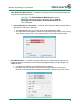
Erase Reader Memory - Deletes the reader’s memory, erasing all Tag ID information it con-
tains. A verification screen will appear if this button is selected.
Remove Duplicates - Removes any duplicate Tag ID data in the program’s chart that has
already been downloaded. A verification screen will appear if this button is selected.
Open MS Excel - Copies all data currently in the program’s chart into a new MS Excel
spreadsheet.
Export To Text File - Copies all data to a text file saved to a location of your choosing.
Clear List - Deletes all information currently in the program’s chart. A verification screen will
appear if this button is selected.
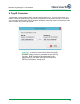
5.2 Console Mode for Pocket Reader & Pocket Reader EX Readers
The Pocket Reader and Pocket Reader EX readers require the readers to be in Console mode in
order to successfully download stored tag data. Tag Manager automatically transitions the read-
ers into Console mode when Download Tags is selected. The reader will remain in Console
mode until the download is complete and then will automatically leave Console mode and return