
Operation Manual






14 Capture mode
English
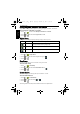
To select an effect:
1. Press > Effect.
2. Press or to select an Effect option.
3. Press to confirm setting.
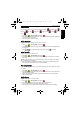
Shooting mode
Select one of the following shooting modes to fit your shooting condition.
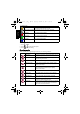
Sepia Adds an effect with dark reddish brown color tones, so
the image or video looks as if it is old.
B/W (Black and White) Adds an effect with monochromatic color tones.
Vivid Red The image becomes reddish.
Vivid Green The image becomes greenish.
Vivid Blue The image becomes bluish.
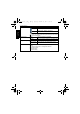
Icon Mode Description
Auto Mode The camera automatically decide most settings, so you
can capture images with ease.
Smart Scene Automatically selects a shooting mode based on the
current shooting environment.
Program You can set the shooting parameters manually.
Aperture Priority You can choose an aperture value, while the shutter
speed is automatically determined by the lighting
condition of the subject.
Shutter Priority You can choose a shutter speed, while the aperture
value is automatically determined by the lighting
condition of the subject.
Manual Lets you set both aperture and shutter speed manually.
Smile Catch Automatically takes a shot when a smile is detected.
Blink Detector Warns of eye blinks if detected & lets you decide
whether to save the image file.
Portrait Makes the subject (usually a person) stand out with
smooth and natural-looking skin tones.
Landscape Captures a scene in the distance with the focus area set
to infinity and a lower aperture value. The maximum
depth of view can also be achieved.
W1220_UM - EN.book Page 14 Thursday, December 10, 2009 11:43 AM