
User manual

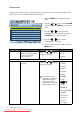

27 How to adjust your monitor
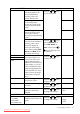
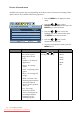
H. Position Adjusts the horizontal
position of the OSD menu.
Press the or keys to
change the settings.
0 to 100
V. Position Adjusts the vertical
position of the OSD menu.
0 to 100
Display Time Adjusts the display time of
the OSD menu.
• 5 Sec.
• 10 Sec.
• 15 Sec.
• 20 Sec.
• 25 Sec.
• 30 Sec.
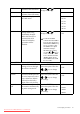
OSD Lock Prevents all the monitor
settings from being
accidentally changed.
When this function is
activated, the OSD
controls and hotkey
operations will be
disabled.
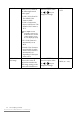
Press the or keys to
change the settings.
To unlock the OSD
controls when the OSD is
preset to be locked, press
and hold the "MENU" key
for 15 seconds to enter
the "OSD Lock" option
and make changes.
Alternatively, you may
use the or keys to
select "NO" in the "OSD
Lock" submenu from the
"OSD Settings" menu,
and all OSD controls will
be accessible.
• YES
• NO
Press MENU to leave the OSD Settings menu.
DDC/CI* Allows the monitor
settings to be set through
the software on the PC.
Press the ENTER key to
select this option. Press the
or keys to change
the settings.
• ON
• OFF
HDMI Auto
Switch
When this function is
activated, HDMI port will
be in the input auto select
loop. Otherwise, HDMI
can only be selected by
input select or by hot key.
Press the ENTER key to
select this option. Press the
or keys to change
the settings.
• ON
• OFF
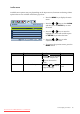
Auto Power
off
Sets the time to power off
the monitor automatically
in power saving mode.
Press the ENTER key to
select this option. Press the
or keys to change
the settings.
• OFF
• 10min.
• 20min.
• 30min.
Downloaded from ManualMonitor.com Manuals