
User manual

29 Navigating the main menu
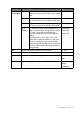
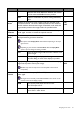
M-book
Minimizes the visual differences between the monitor
and the connected MacBook series product.
User Applies a combination of picture settings defined by
users.
Senseye
Demo
Displays the preview of screen images under the selected mode
from Picture Mode. The screen will be divided into two windows;
the left window demonstrates images of Standard mode, while the
right window presents the images under the specified mode.
• ON
• OFF
Dynamic
Contrast
The function is to automatically detect the distribution of an input
visual signal, and then to create the optimal contrast.
0 to 5
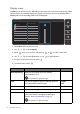
Display
Mode
This feature is provided to allow aspect ratios other than 16:9 to be
displayed without geometric distortion.
The options under Display Mode will be different depending on the input
signal sources.
Depending on your selection of
Picture Mode, different Display Mode
option is pre-set. Change the setting if needed.
Full Scales the input image to fill the screen. Ideal for 16:9
aspect images.
Aspect The input image is displayed without geometric
distortion filling as much of the display as possible.
Overscan Slightly enlarges the input image. Use this feature to hide annoying
edge noise if present around your image.
Available only when the input source is D-Sub (VGA converted from
Component).
• ON
• OFF
Color
Format
Determines the color space (RGB or YUV) based on the detected
video signal.
You might need to manually set the Color Format if colors shown on the
monitor screen do not display properly.
RGB • For D-Sub (VGA) input source from PC.
• For DVI input source.
YUV For D-Sub (Component converted from VGA) input
source from a video device.
Item Function Range