S1410 Digital Camera User Manual Welcome
Copyright Copyright 2010 by BenQ Corporation. All rights reserved. No part of this publication may be reproduced, transmitted, transcribed, stored in a retrieval system or translated into any language or computer language, in any form or by any means, electronic, mechanical, magnetic, optical, chemical, manual or otherwise, without the prior written permission of this company.
FCC Statement This equipment has been tested and found to comply with the limits for a Class B digital device, pursuant to Part 15 of the FCC Rules. These limits are designed to provide reasonable protection against harmful interference in a residential installation. This equipment generates, uses and can radiate radio frequency energy and, if not installed and used in accordance with the instructions, may cause harmful interference to radio communications.
Safety warning and notice Before operating the camera, please make sure that you read and fully understand the content in this section. If you ignore and violate all safety warning notices indicated in this section, the camera warranty may be void. Meanwhile, not only the camera but also you and all other people and things around you may be severely damaged, injured, or even placed in danger of death. For your safety • Keep the camera and its accessories out of the reach of babies, toddlers, and children.
• If the lens cannot retract into the camera, please replace the batteries first (usually this is because of drained batteries). Then the lens should retract automatically. If the lens still cannot retract, please contact your dealer. • Under no circumstances should you push the lens back manually as this may damage the camera. • All original accessories are designed only for use with this camera model you purchased.
Do not hold the camera by excessive force. Plus, be sure to protect the camera from strong impacts. To avoid accidental falling, please attach the hand strap to the camera and always hold the camera by keeping the hand strap around your wrist. If the battery suddenly depleted and caused the lens fail to retract, please carefully protect the lens to avoid collision and insert a battery with full power ASAP.
CONTENTS 8 INTRODUCTION 8 8 Overview Package Contents 9 GETTING TO KNOW YOUR CAMERA 9 Front View 9 Rear View 10 LCD Monitor Display 12 GETTING STARTED 12 Preparation 12 Charging the Battery 13 Initial Settings 15 CAPTURE MODE 15 15 16 18 18 19 19 20 20 21 21 Capturing Images AF Tracking Mode Setting the Scene Mode Taking Images with Intelligent Scene mode Taking Images When the Smile Feature Is On Taking and Combining Panoramic Pictures Mode of Skin Soften and De-blemish Recording Shots into Multip
INTRODUCTION Overview Congratulations on your purchase of the new digital camera. Capturing high-quality digital images is fast and easy with this state-of-the-art smart camera. Equipped with a 14.0-megapixel CCD, this camera is capable of capturing images with a resolution of up to 4288 x 3216 pixels.
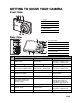
GETTING TO KNOW YOUR CAMERA Front View 1. Flash 2. Shutter button 3. ON/OFF Power button 4. Self-timer LED 5. Microphone 6. Lens Rear View A 1 A. LCD monitor B 2 3 4 5 6 7 8 2. 3. D. Strap holder E G 1. C. USB and AV OUT terminal D E. Battery / Memory card cover 9 10 Item B. Status LED C F F. Tripod socket G.
LCD Monitor Display Capture mode 1. Zoom status 2. Available number of shots 3. O.I.S. 4. Storage media [r] Internal memory (no card) [ ] SD/SDHC memory card 5. Battery condition [l] Full battery power [o] Medium battery power [n] Low battery power [m] No battery power 6. Focus setting [K] Auto [ ] AF Tracking [ ] Face Detect [ ] Macro [ ] Super Macro [Q] Infinity 7. Flash mode [b] Auto [a] Flash On [d] Flash Off [c] Red-eye [`] Slow Sync [_] Pre-flash 8.
Video mode 1. Zoom status 2. Storage media 3. Battery condition 4. Focus setting 5. Flash off 6. Self-timer icon 7. Video resolution 8. Elapsed time / Available recording time 9. Main focus area 10. Date and time 11. Video quality 12. Audio off 13. Mode icon Playback mode - Still image playback 1. Voice memo 2. DPOF 3. Protect icon 4. Folder / File number 5. Storage media 6. Battery condition 7. Image size resolution 8. Set key: Play hint icon 9. Date and time 10. Histogram 11.
GETTING STARTED Preparation 1. 2. 3. 4. Attach the camera strap. Open the battery/memory card cover. Insert the supplied battery with correct orientation as shown. (label side front) Insert an SD/SDHC memory card (Optional). The camera has 32MB internal memory(23MB available for image storage), but you can load an SD/SDHC memory card to expand the camera’s memory capacity. Be sure to format the memory card with this camera before its initial usage. 5.
Initial Settings The language & date/time needs to be set if and when: The camera is turned on for the first time. The camera is turned on after leaving the camera without the battery for an extended period of time. 1. Press the ON/OFF button to turn the power on. 2. Press any button to enter language setup. Select the displayed language with the e / f / c / d buttons and press the SET button. 3. Select the date format with the c / d buttons, and press the SET button. 4.
Choosing the Language Specify in which language menus and messages are to be displayed on the LCD monitor. 1. Press the MODE button, and set the camera mode to [ ] or [ ]; or press the 7 button. 2. Press the MENU button. 3. Select the [Setup] at the end of the Menu with the c / d buttons, and press the SET button. 4. Select [Language] with the c / d buttons and press the SET button. 5. Select the displayed language with the e / f / c / MENU ; SET ; d buttons and press the SET button.
CAPTURE MODE Capturing Images Your camera is equipped with a 2.7” full color TFT LCD monitor to help you compose images, playback recorded images/video clips or adjust menu settings. 1. Press the ON/OFF button to turn the power on. 2. Press the MODE button, and set the camera mode to [ ]. 3. Compose your image in the LCD monitor. Pressing the button zooms in on the subject, and enlarges the subject on the LCD monitor. Pressing the button zooms out on the subject, and provides a wider angle image. 4.
Setting the Scene Mode By simply selecting one of the available scene modes, you can capture the image with the most appropriate settings. 1. Press the MODE button, and set the camera mode to [ button. 2. Select the desired scene mode with the e / f / c / d buttons, and press the SET button. 3. Compose the image and press the shutter button.
Scene mode Description Portrait Man Select this mode when you want to capture an image that makes a man stand out against a blurred background. Portrait Lady Select this mode when you want to capture an image that makes a lady stand out against a blurred background. Landscape Select this mode when you want to capture an image with infinity focus, hard sharpness and high saturation. Sports Select this mode when you want to capture fast-moving subjects.
Taking Images with Intelligent Scene mode In this Intelligent Scene mode, the camera can sense the ambient conditions and automatically select the ideal shooting mode. 1. Press the MODE button, and set the camera mode to [ ], and press the SET button. 2. Select [Intelligent Scene] with the e / f / c / d buttons, and press the SET button. The camera can automatically select best mode for the shooting scene from [Auto] / [Landscape] / [Backlight] / [Portrait] / [Night] / [Night Portrait] / [Macro]. 3.
Taking and Combining Panoramic Pictures Pictures are manually shot, and the camera automatically combines pictures in the camera. 1. Press the MODE button, and set the camera mode to [ ], and press the SET button. 2. Select [Panorama PanCapture] with the e / f / c / d buttons, and press the SET button. 3. Select the photographic direction with the e / f buttons. 4. Shoot the first image. The next image appears beside the previous image. 5.
Recording Shots into Multiple Image Layout The Album Shot mode enables you to easily record images and combine three shots into a single image. 1. Press the MODE button, and set the camera mode to [ ]. 2. Press the MENU button, and select [Capture Md.] icon with the c / d buttons. Press the SET button. 3. Select [Album Shot] with the e / f buttons, and press the SET button. 4. Press the MENU button. 5. Press the shutter button to capture the first image. 6.
Recording Shots using Face Detection Technology Face Detection Technology can identify and focus on the human faces in the image. 1. Press the MODE button, and set the camera mode to [ ]. 2. Press the button, and select [ ] icon with the e / f buttons. Press the SET button. With Face Detection turned on, the camera identifies main face (white frame) and subsidiary faces (gray frames). If the camera cannot detect and track any faces, there will be no frame shown on the screen. 3.
VIDEO MODE Recording Video Clips This mode allows you to record video clips at a resolution of 320 x 240 / 640 x 480 / 720p pixels. 1. Press the MODE button, and set the camera mode to [ ]. 2. Compose the image. 3. Press the shutter button. The recording of the video clip will start. Pressing the shutter button one more time will end the recording of the video clip. The recording time depends on the storage size and the subject of the image to be recorded.
PLAYBACK MODE Playing Back Still Images You can play back the still images on the LCD monitor. 1. Press the 7 button. The last image appears on the screen. 2. The images can be displayed in forward or reverse sequence with the e / f buttons. To view the previous image, press the e button. To view the next image, press the f button. Pressing the button enlarges the image. To return to normal magnification, press the button. An [ ] icon is displayed with the video data.
Removing Red-eye You can use this function to remove the red-eye effect after an image is taken. 1. Press the 7 button. The last image appears on the screen. 2. Select the image that you want to edit with the e / f buttons. 3. Press the MENU button. 4. Select [Fix Red Eyes] with the c / d buttons, and press the SET button. 5. Select [Execute] with the e / f buttons, and MENU ; SET ; press the SET button. 6. View the changes on the corrected image. 7.
Attaching Voice Memos A maximum of 30 seconds of audio can be recorded as a memo for captured still images. The voice memo can be recorded only once. 1. Press the 7 button. The last image appears on the screen. 2. Select the image to which you want to attach the voice memo with the e / f buttons. 3. Press the MENU button. 4. Select [Voice Memo] with the c / d buttons, and press the SET button. 5. Press the SET button. [VOICE RECORDING] is displayed on the screen and recording starts. 6.
Protecting Images Set the data to read-only to prevent images from being erased by mistake. 1. Press the 7 button. The last image appears on the screen. 2. Select the image that you want to protect with the e / f buttons. 3. Press the MENU button. 4. Select [Protect] with the c / d buttons, and press the SET button. 5. Select [Single] or [All] with the e / f buttons, and MENU ; SET ; press SET button. 6. Select [Set] with the e / f buttons, and press the SET button.
DPOF Settings DPOF is the abbreviation for Digital Print Order Format, which allows you to embed printing information on your memory card. You can select the images to be printed and how many prints to make with the DPOF menu in the camera and insert the memory card to the card compatible printer. When the printer starts printing, it will read the embedded information on the memory card and print the specified images. 1. Press the 7 button. The last image appears on the screen. 2.
Erasing Images Erasing a single image / Erasing all images 1. Press the 7 button. The last image appears on the screen. 2. Select the image you want to erase with the e / f buttons. 3. Press the MENU button. 4. Select [Delete] with the c / d buttons, and press the SET button. 5. Select [Single] or [All] with the e / f buttons, and press the SET button. [Single]: Erases the selected image or the last image. [All]: Erases all of the images except for the protected images. 6.
MENU OPTIONS Capture Menu This menu is for the basic settings to be used when capturing still images. 4 MP AUTO MENU ; SET ; MENU ; SET ; Press the ON/OFF button to turn the power on. Press the MODE button, and set the camera mode to any scene mode. Press the MENU button to enter the [Capture] menu. Select the desired option item with the c / d buttons, and press the SET button to enter its respective menu. The selectable items may vary in different capture modes. 5.
Color This sets the color of the image that will be captured. * Standard / Vivid / Sepia / B&W / Blue / Red / Green / Yellow / Purple Saturation This sets the saturation of the image that will be captured. * High / Standard / Low Metering This sets the metering method for calculating the exposure. * Center: Averages the light metered from the entire frame, but gives greater weight to the subject matter at the center.
Quick Shot If this function is set to “On”, the camera takes a quick shot without focusing. * On / Off Digi. Zoom This sets whether or not to use digital zoom at the time of photography. * On / Off Find Blur Refer to the section in this manual titled “Find Blur” for further details. * On / Off Preview This sets whether or not to display the captured image on the screen immediately after the image is captured. * On / Off Date Print The date of recording can be printed directly on the still images.
Video Menu This menu is for the basic settings to be used when recording video clips. MENU ; SET ; MENU ; SET ; 1. Press the MODE button, and set the camera mode to [ ]. 2. Press the MENU button to enter the [Video] menu. 3. Select the desired option item with the c / d buttons, and press the SET button to enter its respective menu. 4. Select the desired setting with the e / f buttons, and press the SET button. 5. To exit from the menu, press the MENU button.
Playback Menu In the [7] mode, choose which settings are to be used for playback. MENU ; SET ; MENU ; SET ; 1. Press the 7 button. 2. Press the MENU button. 3. Select the desired option item with the c / d buttons, and press the SET button to enter its respective menu. 4. Select the desired setting with the e / f buttons, and press the SET button. 5. To exit from the menu, press the MENU button. Delete Refer to the section in this manual titled “Erasing Images” for further details.
Qual. Change Changes the quality (compression) of a recorded image. Compress images down to half of their size or less, overwrite old size images with newly compressed images. It is only possible to reduce the image quality/size, never to increase it. Copy to Card Allows you to copy your files from the camera’s internal memory to an SD/SDHC memory card. Of course, you can only do this if you have a memory card installed and some files in internal memory.
Setup Menu Set your camera’s operating environment. MENU ; SET ; MENU ; SET ; 1. Press the MODE button, and set the camera mode to [ ] or [ ]; or press the 7 button. 2. Press the MENU button. 3. Select the [Setup] at the end of the Menu with the c / d buttons, and press the SET button. 4. Select the desired option item with the c / d buttons, and press the SET button to enter its respective menu. 5. Select the desired setting with the e / f buttons, and press the SET button. 6.
Video Out This sets your camera to match the system of the equipment that you are going to connect to the camera. * NTSC / PAL Fr. No. Reset This creates a new folder. The captured images are recorded to the newly created folder from number 0001. * Execute / Cancel Light Freq. This camera supports different lighting frequencies: 50 Hz and 60 Hz. When photographing under fluorescent lighting, select the correct frequency setting depending in your local area's voltage. * 50 Hz / 60 Hz LCD Bright.
TRANSFERRING FILES TO YOUR COMPUTER System Requirement Windows Pentium III 1GHz or equivalent Windows 7/XP/Vista 512MB RAM 150MB available hard disk space CD-ROM drive Available USB port Macintosh PowerPC G3/G4/G5 OS 10.3.9 or later 256MB RAM (512 MB recommended) 128MB available hard disk space CD-ROM drive Available USB port Downloading Your Files 1. Turn on your camera. 2. Connect the camera to your computer with the USB cable. 3.
EDITING SOFTWARE INSTALLATION Softwares are included on the CD-ROM: ArcSoft MediaImpression™ - Easily, creatively, and productively manage your multimedia files. Create your own movies or photo slide shows, and share your photo, video and music files easily through simple email attachments or popular photo printing and video sharing websites. Print Creations - brings you a family of fun and easy print-project software that brings out the creativity in you.
SPECIFICATIONS Item Description Sensor Panasonic 14 Mega Pixels, 1/2.33 inch CCD Zoom Optical: 5X Wide Angle Digital: Up to 6X(Preview) / Up to 4X(Playback) Lens f = 4.7 ( W ) ~ 23.5 ( T ) mm F= 2.8 (W) ~ 6.5 (T) (f = 26~130mm, 35mm equivalent) Focus Range Normal: W=60cm ~ Infinity Macro: W=20cm ~ Infinity (5 cm with super macro mode) LCD 2.
APPENDIX Possible Number of Shots Possible number of shots (still image) The table shows the approximate shots that you can capture at each setting based on the capacity of the internal memory and the SD/SDHC memory card.
Connecting to a PictBridge Compliant Printer If a printer that supports PictBridge is available, images can be printed by connecting the digital still camera directly to the PictBridge-compatible printer without using a computer. Connecting the camera to the printer 1. Connect one end of the USB cable to your camera. 2. Connect the other end of the USB cable to the USB port on the printer. 3. Turn on your camera. 4. The [USB] screen is displayed.
3. If you select [Single] in the previous step, the figure shown on the right hand side will appear. Select the image that you want to print with the e / f buttons. Select the print number (up to 99) with the c / d buttons. After selecting the desired image and printing number, press the SET button to confirm. 4. Select [Exit] with the c / d buttons, and press the SET button. Η ; ; Η ; 5. Select [Print] with the c / d buttons, and press the SET button to start printing. ; 6.
Troubleshooting and service information If your camera cannot operate normally, see the frequently encountered problems and solutions listed below. If the problem persists, contact your nearest service center or technical support. Problem The camera cannot power up. The battery power is draining quickly. The battery or camera is warm. The flash does not fire or recharge. Cause Solution There is no battery or the battery is not inserted correctly. Insert the battery correctly.
I cannot download images from the camera to my computer. The camera does not shoot even when pressing the shutter button. I cannot print images with PictBridge-compliant printers. The free space on the hard disk of your computer is insufficient. Ensure that the hard disk has enough space for running Windows and that the drive for loading image files has free space equal to or greater than the memory card in the camera. There is no power being supplied to the camera. Replace the battery.