MP776/MP777 Digital Projector User Manual Welcome
Table of contents Important safety instructions .........................3 ......................... 3 Introduction........................ Introduction........................7 ........................ 7 Projector features .................................. 7 Shipping contents.................................. 8 Projector exterior view .......................... 9 Controls and functions ....................... 10 Positioning your projector14 projector14 Choosing a location.............................
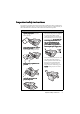
Important safety instructions Your projector is designed and tested to meet the latest standards for safety of information technology equipment. However, to ensure safe use of this product, it is important that you follow the instructions mentioned in this manual and marked on the product. Safety Instructions 1. Please read this manual before you operate your projector. Save it for future reference. 2. Do not look straight at the projector lens during operation.
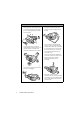
Safety Instructions (Continued) 7. 10. The lamp becomes extremely hot during operation. Allow the projector to cool for approximately 45 minutes prior to removing the lamp assembly for replacement. 11. 8. Do not operate lamps beyond the rated lamp life. Excessive operation of lamps beyond the rated life could cause them to break on rare occasions. Do not place this product on an unstable cart, stand, or table. The product may fall, sustaining serious damage.
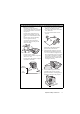
Safety Instructions (Continued) 13. Do not place this projector in any of the 14. following environments. - Space that is poorly ventilated or confined. Allow at least 50 cm clearance from walls and free flow of air around the projector. - Locations where temperatures may become excessively high, such as the inside of a car with all windows rolled up. - Locations where excessive humidity, dust, or cigarette smoke may contaminate optical components, shorten the projector's life span and darken the image.
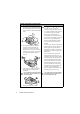
Safety Instructions (Continued) 17. Do not step on the projector or place any objects upon it. Besides probable physical damage to the projector, doing so may result in accidents and possible injury. Ceiling mounting the projector We want you to have a pleasant experience using your BenQ projector, so we need to bring this safety matter to your attention to prevent possible damage to person and property.
Introduction Projector features The projector integrates high-performance optical engine projection and a user-friendly design to deliver high reliability and ease of use. The projector offers the following features.
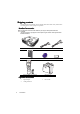
Shipping contents Carefully unpack and verify that you have all of the items shown below. If any of these items are missing, please contact your place of purchase. Standard accessories The supplied accessories will be suitable for your region, and may differ from those illustrated. *The warranty card is only supplied in some specific regions. Please consult your dealer for detailed information.
Projector exterior view 1. Front/upper side 6 1 2 3 2. 3. 4. 5. 6. 7. 8. 9. 10. 11. 12. 13. 14. 15. 16. 17. 18. 19. 7 8 4 9 5 Rear/lower side 14 15 16 17 18 19 20 21 22 10 20. 11 23 21. 22. 23. 12 13 4 24 24. External control panel (See "Controls and functions" on page 10 for details.
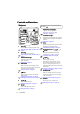
Controls and functions Projector For details, see the info provided behind the hand sign . 8. 1 8 2 Lights up red if the projector's temperature becomes too high. 9 3 "Indicators" on page 58 10 4 9. 11 5 12 6 13 11 "Indicators" on page 58 10. "Auto-adjusting the image" on page 24 Adjusts the focus of the projected image. 2. 11. Zoom ring Adjusts the size of the image. POWER indicator light MENU/EXIT "Locking control keys" on page 38, "Using the menus" on page 25 13. Power 6.
Remote control For details, see the info. provided behind the hand sign . 5. CONTRAST Adjusts contrast. 1 2 13 3 "Adjusting Contrast" on page 33 6. TEST PATTERN Displays the test pattern. 14 4 "Test Pattern" on page 50 5 15 6 7 16 8 17 7. Emits visible laser pointer light for presentation purposes. "Operating the LASER pointer" on page 12 18 9 8.MENU/EXIT 8.MENU/EXIT 19 Turns on the On-Screen Display (OSD) menu. Goes back to previous OSD menu, exits and saves menu settings.
15. TIMER ON 20. Activates or displays an on-screen timer based on your own timer setting. Displays the source selection bar. "Switching input signal" on page 29 "Setting the presentation timer" on page 35 16. 21. TIMER SET UP "Setting the presentation timer" on page 35 18. AUTO "Muting the sound" on page 39 22. MODE Automatically determines the best picture timings for the displayed image. Depending upon the input signal in use, selects an available picture mode.
Remote control effective range Infra-Red (IR) remote control sensors are located on the front and the back of the projector. The remote control must be held at an angle within 30 degrees perpendicular to the projector's IR remote control sensors to function correctly. The distance between the remote control and the sensors should not exceed 8 meters (~ 26 feet). Make sure that there are no obstacles between the remote control and the IR sensors on the projector that might obstruct the infra-red beam.
Positioning your projector Choosing a location Your projector is designed to be installed in one of four possible installation locations: 1. Front Table Select this location with the projector placed on the table in front of the screen. This is the most common way to position the projector for quick setup and portability. 3. Rear Ceiling Select this location with the projector suspended upside-down from the ceiling behind the screen.
Obtaining a preferred projected image size The distance from the projector lens to the screen, the zoom setting, and the video format each factors in the projected image size. 4:3 is the native aspect ratio of this projector. To be able to project a complete 16:9 (widescreen) aspect ratio image, the projector can resize and scale a widescreen image to the projector's native aspect width. This will result in a proportionally smaller height equivalent to 75% of the projector's native aspect height.
For example, if you are using an 120-inch screen, the recommended projection distance is 4246 mm and the vertical offset is 137 mm. How to determine the recommended screen size for a given distance This method can be used for situations where you have purchased this projector and would like to know what screen size will fit in your room. The maximum screen size is limited by the physical space available in your room. 1. Measure the distance between the projector and where you want to position the screen.
Projection dimensions Refer to "Dimensions" on page 61 for the center of lens dimensions of this projector before calculating the appropriate position. Maximum zoom Minimum zoom Screen Center of lens Vertical offset Projection distance Screen size Distance from screen (mm) Diagonal W (mm) H (mm) Inch mm Min length (max. zoom) Average Max length (min.
Connection When connecting a signal source to the projector, be sure to: 1. 2. 3. Turn all equipment off before making any connections. Use the correct signal cables for each source. Ensure the cables are firmly inserted. • In the connections shown below, some cables may not be included with the projector (see "Shipping contents" on page 8). They are commercially available from electronics stores. • For detailed connection methods, see pages 19-22.
Connecting a computer or monitor Connecting a computer The projector can connect to both IBM® compatibles and Macintosh® computers. A Mac adapter (an optional accessory) is needed if you are connecting legacy version Macintosh computers. To connect the projector to a notebook or desktop computer: 1. 2. 3. 4. Take the supplied VGA cable and connect one end to the D-Sub output jack of the computer. Connect the other end of the VGA cable to the COMPUTER 1 or COMPUTER 2 signal input jack on the projector.
Connecting video source devices You need only connect the projector to a video source device using just one of the connecting methods, however each provides a different level of video quality.
Connecting an HDMI device You should use an HDMI cable when making connection between the projector and HDMI devices. To connect the projector to an HDMI device: 1. 2. Take an HDMI cable and connect one end to the HDMI-output port of the video device. Connect the other end of the cable to the HDMI-input port on the projector.
Connecting an S-Video/Composite Video source device Examine your video source device to determine if it has an unused S-Video/Video output jack available: • • • If it has both jacks, use the S-Video output jack for connection as the S-Video terminal provides better picture quality than the Video terminal. If it has either of the output jack, you can also continue with this procedure. If not, you will need to reassess which method you can use to connect to the device.
Operation Starting up the projector 1. Plug the power cord into the projector and into a power outlet. Turn on the power outlet switch (where fitted). Check that the POWER indicator light on the projector lights orange after power has been applied. 2. Open the lens cover. If it is closed, it could become deformed due to the heat produced by the projection lamp. 3. Press Power on the projector or remote control to start the projector.
signal which is compatible with the projector's resolution or set the input signal to a lower setting. See "Timing chart" on page 62 for details. Adjusting the projected image Adjusting the projection angle The projector is equipped with 1 quick-release adjuster foot and 1 rear adjuster foot. These adjusters change the image height and projection angle. To adjust the projector: 1. Press the quick-release button and lift the front of the projector.
Using the menus The projector is equipped with On-Screen Display (OSD) menus for making various adjustments and settings. Below is the overview of the OSD menu. Main menu icon Main menu DISPLAY Off Wall Color Auto Aspect Ratio Keystone Off Auto Keystone Sub-menu Status Position ENTER Phase 0 H. Size 0 Press MENU/ EXIT to the previous page or to exit. Digital Zoom Highlight Current input signal Analog RGB MENU Exit The following example describes how to set the OSD language. 1.
Securing the projector Using a security cable lock The projector has to be installed in a safe place to prevent theft. Otherwise, purchase a lock, such as the Kensington lock, to secure the projector. You can locate a Kensington lock slot on the rear side of the projector. See item 11 on page 9 for details. A Kensington security cable lock is usually a combination of key(s) and the lock. Refer to the lock’s documentation for finding out how to use it.
If you forget the password If the password function is activated, you will be asked to enter the six-digit password every time you turn on Password Error the projector. If you enter the wrong password, the Please try again. password error message as pictured to the right displays lasting for 3 seconds, and the INPUT PASSWORD message follows.
Disabling the password function To disable password protection, go back to the SYSTEM SETUP: Advanced > Security Settings > Power On Lock menu after opening the OSD menu system. Press MODE/ ENTER. ENTER. The message “INPUT PASSWORD” displays. Enter the current password. i. If the password is correct, the OSD menu returns to the Security Settings page. Press to highlight Power On Lock and press / to select Off. Off You will not have to enter the password next time when turning on the projector. ii.
Switching input signal The projector can be connected to multiple devices at the same time. However, it can only display one full screen at a time. When starting up, the projector automatically search for the available signals. Be sure the Quick Auto Search function in the SOURCE menu is On (which is the default of this projector) if you want the projector to automatically search for the signals. You can also manually cycle through the available input signals. 1. 2.
Magnifying and searching for details If you need to find the details on the projected picture, magnify the picture. Use the direction arrow keys for navigating the picture. • Using the remote control 1. Press Digital Zoom+/ Zoom+/- to display the Zoom bar. Press Digital Zoom+ to magnify the center of the picture. Press the key repeatedly until the picture size is suitable for your need. 2. Use the directional arrows ( , , , ) on the projector or remote control to navigate the picture. 3.
2. 3. Press to highlight Aspect Ratio. Ratio Press / to select an aspect ratio to suit the format of the video signal and your display requirements. About the aspect ratio • In the pictures below, the black portions are inactive areas and the white portions are active areas. • OSD menus can be displayed on those unused black areas. 1. Auto: Auto Scales an image proportionally to fit 3. the projector's native resolution in its horizontal or vertical width.
Optimizing the image Using Wall Color In the situation where you are projecting onto a colored surface such as a painted wall which may not be white, the Wall Color feature can help correct the projected picture’s colors to prevent possible color difference between the source and projected pictures. To use this function, go to the DISPLAY > Wall Color menu and press / to select a color which is closest to the color of the projection surface.
This function is only available when User 1 or User 2 mode is selected up in the Picture Mode sub-menu item. 5. 6. 7. 8. Press / to select a picture mode that is closest to your need. Press to select a menu item to be changed and adjust the value with / . See "Fine-tuning the image quality in user modes" below for details. When all settings have been done, highlight Save Settings and press MODE/ENTER to store the settings. The confirmation message “Setting Setting Saved” Saved displays.
Adjusting Brilliant Color This feature utilizes a new color-processing algorithm and system level enhancements to enable higher brightness while providing truer, more vibrant colors in picture. It enables a greater than 50% brightness increase in mid-tone images, which are common in video and natural scenes, so the projector reproduces images in realistic and true colors. If you prefer images with that quality, select On. On If you don’t need it, select Off.
4. Press to highlight Hue and press / to select its range. Increase in the range will include colors consisted of more proportions of its two adjacent colors. Please refer to the illustration to the right for how the colors relate to each other. 5. For example, if you select Red and set its range at 0, only pure red in the projected picture will be selected. Increasing its range will include red close to yellow and red close to magenta.
4. Press to highlight Timer Position and set the timer position by pressing Top-Left 5. 7. 8. Top-Right . Bottom-Right Press to highlight Timer Counting Direction and select your desired counting direction by pressing / . Selection Count Up Count Down 6. Bottom-Left / Description Increases from 0 to the preset time. Decreases from the preset time to 0. Press to highlight Sound Reminder and decide if you want to activate sound reminder by pressing / .
Freezing the image Press FREEZE on the remote control to freeze the image. The word “FREEZE FREEZE” FREEZE will display in the upper left corner of the screen. To release the function, press any key on the projector or remote control. Even if an image is frozen on the screen, the pictures are running on the video or other device. If the connected devices have active audio output, you will still hear the audio even though the image is frozen onscreen.
Locking control keys With the control keys on the projector locked, you can prevent your projector settings from being changed accidentally (by children, for example). When the Panel Key Lock is on, no control keys on the projector will operate except 1. 2. Power. Power Press / on the projector or remote control or go to the SYSTEM SETUP: Basic > Panel Key Lock menu, and select On by pressing / on the projector or remote control. A confirmation message displays.
Adjusting the sound The sound adjustments made as below will have an effect on the projector speakers. Be sure you have made a correct connection to the projector audio input. See "Connection" on page 18 for how the audio input is connected. Muting the sound To temporarily turn off the sound: 1. 2. 3. Press MENU/EXIT and then press / until the SYSTEM SETUP: Advanced menu is highlighted. Press to highlight Audio Settings and press MODE/ENTER. MODE/ENTER The Audio Settings page displays.
Controlling the projector through a Lan environment Lan Control Settings allow you to manage the projector from a computer using a web browser when the computer and the projector are properly connected to the same local area network. Configuring the Lan Control Settings If you are in a DHCP environment: 1. 2. 3. 4. 5. 6. 7. Take a RJ45 cable and connect one end to the RJ45 LAN input jack of the projector and the other end to the RJ45 port.
Controlling the projector remotely through a web browser Once you have the correct IP address for the projector and the projector is on or in standby mode, you can use any computer that is on the same local area network to control the projector. 1. Enter the address of the projector in the address bar of your browser and click GO. GO 2. The remote network operation page opens. This page allows you to operate the projector as if you were using the remote control or control panel on the projector.
The tools page allows you to manage the projector, configure the Lan control settings and secure access of remote network operation on this projector. i iii ii iv v i. You can name the projector, keep track of its location and the person in charge of it. ii. You can adjust the Lan Control Settings. iii. Once set, access to the remote network operation on this projector has been password-protected. iv. Once set, access to the tools page has been password-protected.
Shutting down the projector 1. Press Power and a confirmation message will display prompting you. If you don't respond in a few seconds, the message will disappear. 2. Press Power a second time. The POWER indicator light flashes orange, the projection lamp shuts down, and the fans will continue to run for approximately 90 seconds to cool down the projector. To protect the lamp, the projector will not respond to any commands during the cooling process.
Menu operation Menu system Please note that the on-screen display (OSD) menus vary according to the signal type selected and the projector model you are using. Main menu Sub-menu Wall Color 1. DISPLAY Aspect Ratio Auto Keystone Keystone Position Phase H.
Main menu Sub-menu Options Language Projector Position 4. SYSTEM SETUP: Basic Menu Settings Menu Position Auto Power Off Blank Timer Panel Key Lock Sleep Timer 5.
Main menu Sub-menu 5. SYSTEM SETUP: Advanced 6.
Description of each menu Function (Default setting/value) Wall Color (Off) Description Corrects the projected picture’s color when the projection surface is not white. See "Using Wall Color" on page 32 for details. (Auto) There are four options to set the image's aspect ratio depending on your input signal source. See "Selecting the aspect ratio" on page 30 for details. Auto Keystone Automatically corrects any keystoning of the image. See "Correcting keystone" on page 28 for details.
Function (default setting/value) Description Adjusts the color saturation level -- the amount of each color in a video image. See "Adjusting Color" on page 33 for details. Color (0) This function is only available when a Video or S-Video signal is selected and the system format is NTSC or PAL. Adjusts the red and green color tones of the image. See "Adjusting Tint" on page 33 for details. Tint (0) This function is only available when a Video or S-Video signal is selected and the system format is NTSC.
Function Description (default setting / value) Projector Position (Front Table) 4. SYSTEM SETUP: Basic menu Menu Settings Auto Power Off (Disable) Blank Timer (Disable) Panel Key Lock (Off) Sleep Timer (Disable) Splash Screen (BenQ logo) 5. SYSTEM SETUP: Advanced menu Quick Cooling The projector can be installed on a ceiling or behind a screen, or with one or more mirrors. See "Choosing a location" on page 14 for details.
Function Description (default setting / value) Standby Monitor Out (Off) Selecting On enables the function. The projector can output a VGA signal when it is in standby mode and the COMPUTER 1 jack is correctly connected to devices. See "Connecting a monitor" on page 19 for how to make the connection. Enabling this function slightly increases the standby power consumption. Lamp Mode (Normal) See "Setting Lamp Mode as Economic" on page 53 for details. 5.
Function (default setting / value) 5. SYSTEM SETUP: Advanced menu Lan Control Settings Reset All Settings FAQ-Image and Installation 6. INFORMATION menu FAQFeatures and Service Description Control By (RS232) DHCP (On) Projector IP Address Subnet Mask Default Gateway DNS Server Apply See "Controlling the projector through a Lan environment" on page 40 for details. Returns all settings to the factory preset values. The following settings will still remain: Position, Phase, H.
Maintenance Care of the projector Your projector needs little maintenance. The only thing you need to do on a regular basis is to keep the lens and case clean. Never remove any parts of the projector except the lamp. Contact your dealer if other parts need replacing. Cleaning the lens Clean the lens whenever you notice dirt or dust on the surface. • • • Use a canister of compressed air to remove dust.
Lamp information Getting to know the lamp hour When the projector is in operation, the duration (in hours) of lamp usage is automatically calculated by the built-in timer. The method of calculating the equivalent lamp hour is as follows: Total (equivalent) lamp hour = 1 (hours used in Economic mode) + 3/2 (hours used in normal mode) See "Setting Lamp Mode as Economic" below for more information on Economic mode. To obtain the lamp hour information: 1.
Timing of replacing the lamp When the Lamp indicator lights up red or a message appears suggesting it is time to replace the lamp, please install a new lamp or consult your dealer. An old lamp may cause a malfunction in the projector and in some instances the lamp may explode. Go to http://lamp.benq.com for a replacement lamp. The LAMP indicator light and TEMPerature warning light will light up if the lamp becomes too hot. Turn the power off and let the projector cool for 45 minutes.
Replacing the lamp • To reduce the risk of electrical shock, always turn the projector off and disconnect the power cord before changing the lamp. • To reduce the risk of severe burns, allow the projector to cool for at least 45 minutes before replacing the lamp. • To reduce the risk of injuries to fingers and damage to internal components, use caution when removing lamp glass that has shattered into sharp pieces.
7. Lift the handle so that it stands up. Use the handle to slowly pull the lamp out of the projector. • Pulling it too quickly may cause the lamp to break and scatter broken glass in the projector. • Do not place the lamp in locations where water might splash on it, children can reach it, or near flammable materials. • Do not insert your hands into the projector after the lamp is removed.
13. Tighten the screws that secure the lamp cover. • Loose screw may cause a bad connection, which could result in malfunction. • Do not over tighten the screw. 14. Connect the power and restart the projector. Do not turn the power on with the lamp cover removed. Resetting the lamp timer 15. After the startup logo, open the On-Screen Display (OSD) menu. Go to the SYSTEM SETUP: Advanced > Lamp Settings menu. Press MODE/ENTER. MODE/ENTER The Lamp Settings page displays. Highlight Reset lamp timer.
Indicators Light Status & Description Power events Orange Green Flashing Green Off Off Stand-by mode. Off Off Powering up. Off Off Orange Flashing Off Off Normal operation. • The projector needs 90 seconds to cool down as it was abnormally shut down without the normal cooling down process. • The projector needs to cool for 90 seconds after the power is turned off. • The projector has shutdown automatically. If you try to restart the projector, it will shutdown again.
Troubleshooting The projector does not turn on. Cause There is no power from the power cord. Attempting to turn the projector on again during the cooling process. Remedy Plug the power cord into the AC power jack on the projector, and plug the power cord into the power outlet. If the power outlet has a switch, make sure that it is switched on. Wait until the cooling down process has completed. No picture Cause The video source is not turned on or connected correctly.
Specifications Projector specifications All specifications are subject to change without notice. Optical Input terminals Resolution 1024 x 768 XGA Display system 1-CHIP DMD Lens F/Number F = 2.59-2.92 Lamp 280 W lamp Computer input RGB input D-Sub 15-pin (female) x 2 Video signal input S-VIDEO Mini DIN 4-pin port x 1 VIDEO RCA jack x 1 SD/HDTV signal input Analog - Component RCA jack x 3 Electrical (through RGB input) Power supply Digital - HDMI V1.3 x 1 AC100–240V, 4.
Dimensions 290 mm (W) x 94 mm (H) x 252 mm (D) 290 252 94 61.99 71.15 Ceiling mount installation 242.04 149.50 Unit: mm 84.00 Ceiling mount screw: M4 x 8 (Max. L = 8 mm) 228.00 364.40 397.40 452.65 86.73 84.00 145.50 132.31 251.83 289.
Timing chart Supported timing for PC input Resolution Mode 720 x 400 720 x 400_70 VGA_60 VGA_72 VGA_75 VGA_85 SVGA_60 SVGA_72 SVGA_75 SVGA_85 XGA_60 XGA_70 XGA_75 WXGA_60 WXGA_75 WXGA_85 SXGA_60 SXGA_75 1280 x 960_60 WXGA+_75 UXGA MAC13 MAC16 MAC19 MAC21 Netbook_timing Netbook_timing 640 x 480 120Hz VESA DMT0D 120Hz 800X600 120Hz VESA DMT14 120Hz 640 x 480 800 x 600 1024 x 768 1280 x 800 1280 x 1024 1280 x 960 1440 x 900 1600 x 1200 640 x 480@67Hz 832 x 624@75Hz 1024 x 768@75Hz 1152 x 870@75Hz 1024 x
Supported timing for HDMI (HDCP) input - MP776 Resolution Mode 720 x 400 720 x 400_70 VGA_60 VGA_72 VGA_75 VGA_85 SVGA_60 SVGA_72 SVGA_75 SVGA_85 XGA_60 XGA_70 XGA_75 XGA_85 Netbook_timing Netbook_timing WXGA_60 WXGA_75 WXGA_85 SXGA_60 SXGA_75 SXGA_85 1280 x 960_60 1280 x 960_85 WXGA+_60 WXGA+_75 SXGA+_60 UXGA MAC13 MAC16 MAC19 MAC21 480p 576p 720p_60 720p_50 1080i_60 1080i_50 1080p 1080P 640 x 480 800 x 600 1024 x 768 1024 x 576 1024 x 600 1280 x 800 1280 x 1024 1280 x 960 1440 x 900 1400 x 1050 160
Supported timing for Component-YPbPr input Signal Format Horizontal Frequency (kHz) Vertical Frequency (Hz) 480i(525i)@60Hz 480p(525p)@60Hz 576i(625i)@50Hz 576p(625p)@50Hz 720p(750p)@60Hz 720p(750p)@50Hz 1080i(1125i)@60Hz 1080i(1125i)@50Hz 1080p@60Hz 1080p@50Hz 15.73 31.47 15.63 31.25 45.00 37.50 33.75 28.13 67.50 56.26 59.94 59.94 50.00 50.00 60.00 50.00 60.00 50.00 60.00 50.00 Displaying a 1080i(1125i)@60Hz or 1080i(1125i)@50Hz signal may result in slight image vibration.
Warranty and Copyright information Limited warranty BenQ warrants this product against any defects in material and workmanship, under normal usage and storage. Proof of purchase date will be required with any warranty claim. In the event this product is found to be defective within the warranty period, BenQ's only obligation and your exclusive remedy shall be replacement of any defective parts (labor included).
Regulation statements FCC statement CLASS B B: This equipment generates, uses and can radiate radio frequency energy and, if not installed and used in accordance with the instructions, may cause harmful interference to radio communications. However, there is no guarantee that interference will not occur in a particular installation.
Accessibility Requirements for Rehabilitation Act of 1973, Section 508 BenQ's commitment to accessible products allows us to support government in making accessible technology choices BenQ's LCD monitors and projectors are compliant with Section 508 guidelines by including the assistive features as below: • • • • • • • • • • BenQ's monitors have colored "Power" indicators. While the indicator shows green, it means that the monitor is using the full power.