
Operation Manual




24 Working with computer and AV system
English
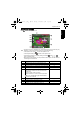
Connecting the camera to an AV system
You can play files in your camera from an AV system such as TV or projector.
To connect the camera to an AV system:
1. Connect the end of the smaller plug of the 2-in-1 USB and AV cable to the camera.
2. Connect the yellow video plug and the white audio plug of the 2-in-1 USB and AV cable to a
video-input jack and an audio-input jack (left channel) on your AV system.
3. Turn on the AV system, and then switch to the AV source connecting to the camera.
4. Turn on the camera.
5. Follow the on-screen instructions to operate the camera via the TV or projector screen.
Printing images
In addition to printing images by connecting the camera to a printer via a computer or
bringing the memory card (if available) to a photo-processing center, you can choose to
print using a PictBridge-compatible printer.
Printing with PTP
You can directly print images by connecting your camera to a PictBridge-compatible
printer without using a computer.
To print images from a PictBridge-compatible printer:
1. Set the USB Mode to PTP (See "USB Mode" on page 18 for details.)
2. Connect the end of the smaller plug of the 2-in-1 USB and AV cable to the camera.
3. Turn on the printer. Wait for a while until it finishes starting up and is ready to print.
4. Turn on the camera.
5. The Printer Connecting screen displays on the LCD display.The Print menu will then pop
up automatically.
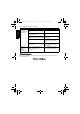
6. Press or to select an option.
7. Press and follow the remaining instructions on the screen.
• The above procedure may vary depending on the printer type you are using.
• If you connect the camera to your printer while the printer is still starting up, the
camera will be automatically turned off.
• Failure to follow the above procedure will make the camera show an error message.
Please disconnect the camera and the camera will be automatically turned off.
E1020_UM - EN.book Page 24 Tuesday, November 18, 2008 6:32 PM