
Operation Manual




Playback mode 21
English
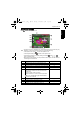
Slideshow
Presents a series of captured image and video files.
To play a slideshow:
1. Press > > > Slideshow > .
2. Press > > Interval > to set the interval between 3 ~ 30 seconds, and then
press .
3. Select Loop to decide whether to resume playback once the slideshow playback ends.
4. Select Start, and then press to start the slideshow (to stop the slideshow at any time,
press ).
Resize
Changes an image file to a smaller size, and saves it as another new file.
To resize an image:
1. Press > or to move to the image you want to resize.
2. Press > > Resize > .
3. Press or to select the target image size to which you want to reduce.
4. Press to save the resized image file to another new file.
Rotate
Changes the orientation of an image.
To rotate an image:
1. Press > or to move to the image you want to rotate.
2. Press > > Rotate > .
3. Press to rotate the image counter-clockwise, or to rotate the image clockwise.
4. Repeat step 3 until desired orientation is achieved.
5. Select > OK > to save the file (the original file will be overwritten), or Exit if you do
not want to rotate the image.
Protect
Prevents selected files from accidental removal.
To protect files:
1. Press > or to move to the image you want to protect.
2. Press > > Protect.
3. Press . You will then see the icon indicating the file is protected.
You can remove the protection anytime by following the same procedure as shown above.
E1020_UM - EN.book Page 21 Tuesday, November 18, 2008 6:32 PM