
Operation Manual




12 Capture mode
English
Resolution
To select a resolution:
1. Press > > Resolution.
2. Press or .
3. Press or to select a setting.
4. Press to confirm setting.
5. Press .
Quality
To select an image quality level:
1. Press > > Quality.
2. Press or .
3. Press or to select a setting.
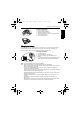
• The above screen is for illustrations only. Actual items showing on the screen may vary
depending on the scene mode you select.
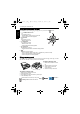
• In the Capture mode, press to toggle among 4 display modes (standard,
complete, none, and rule of thirds). Use the rule of thirds display mode to improve your
composition by placing subjects on at least one of the intersections of these 4
imaginary lines.
• While the shutter is pressed down halfway, the AF area color changes to yellow-green,
camera shake warning (appears only if the camera itself detects possible shaking),
aperture, shutter speed and ISO setting are also shown on the screen.
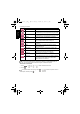
Icon Description Icon Description
10 megapixels (3664 x 2748) 3 megapixels (2048 x 1536)
3:2 (3664 x 2442) 16:9 (1920 x 1080)
8 megapixels (3264 x 2448) 2 megapixels (1600 x 1200)
5 megapixels (2576 x 1932) VGA (640 x 480)
Icon Mode Description
Super Fine Best image quality with the lowest compression rate. File size is
the largest.
Fine Better image quality with medium compression rate. File size is
medium.
Normal Good image quality with the highest compression rate. File size
is the smallest.
E1020_UM - EN.book Page 12 Tuesday, November 18, 2008 6:32 PM