E1020_UM - EN.
E1020_UM - EN.book Page 2 Tuesday, November 18, 2008 6:32 PM Copyright Copyright 2008 by BenQ Corporation. All rights reserved. No part of this document may be reproduced, transmitted, transcribed, stored in a retrieval system or translated into any language or computer language, in any form or by any means, electronic, mechanical, magnetic, optical, chemical, manual or otherwise, without the prior written permission of this company.
E1020_UM - EN.book Page 3 Tuesday, November 18, 2008 6:32 PM FCC Statement This equipment has been tested and found to comply with the limits for a Class B digital device, pursuant to Part 15 of the FCC Rules. These limits are designed to provide reasonable protection against harmful interference in a residential installation.
E1020_UM - EN.book Page 4 Tuesday, November 18, 2008 6:32 PM force majeure events as well as incorrect usage of electricity or use of non-original accessories. • It is the sole responsibility of the user if problems (such as data loss and system failure) occurred due to non-factory installed software, parts, and/or non-original accessories. • The only way of replacing the battery and the memory card is to open the Battery / Memory card cover. • Do not dismantle the camera under any circumstances.
E1020_UM - EN.book Page 5 Tuesday, November 18, 2008 6:32 PM • The camera operating temperature is between 0 and 40 degrees Celsius. It is normal for the operating time to be shortened when the temperature is low.
E1020_UM - EN.book Page 6 Tuesday, November 18, 2008 6:32 PM adapter. Next, remove the foreign substance or water and send it to the maintenance center. • Whenever there is data in the internal memory or the external memory card, you should make a backup copy to a computer or disc. So, you can have a backup solution if data loss occurs. • If the lens cannot retract into the camera, please replace the battery first (usually this is because of a drained battery). Then the lens should retract automatically.
E1020_UM - EN.book Page 1 Tuesday, November 18, 2008 6:32 PM Table of Contents Touring the camera ................................................. 1 Checking the package contents .......................................1 Camera: front view and bottom views ......................................... 1 Camera: rear view ......................................................................... 2 Preparing the camera for use .................................. 2 Charging the battery .........................
E1020_UM - EN.book Page 2 Tuesday, November 18, 2008 6:32 PM Table of Contents English White Balance .................................................................15 ISO ..................................................................................15 Metering .........................................................................16 Effect ...............................................................................16 Setting Sharpness, Saturation and Contrast .................
E1020_UM - EN.book Page 1 Tuesday, November 18, 2008 6:32 PM Touring the camera 1 Checking the package contents Carefully unpack your kit box and ensure that you have the following items. ( ) 1. User Manual / Quick Guide 2. Digital camera 3. Battery 4. Hand strap 5. Pouch / leather case 6. Software & User Manual CD 7. Power adapter 8. 2-in-1 USB and AV cable • All images, screen captures, and icons used in this manual are for illustration only.
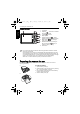
E1020_UM - EN.book Page 2 Tuesday, November 18, 2008 6:32 PM 2 Preparing the camera for use Camera: rear view English 1. LCD display 2. W (Wide) - Zoom-out or thumbnail view (Playback mode) 3. T (Tele) - Zoom-in 4. Strap eyelet 5. Playback mode button - Toggle between Capture and Playback modes) 6. MENU button (for entering or exiting menu) 7. Multifunctional buttons (including a 4way control) plus an button (for entering or exiting a setting) 8.
E1020_UM - EN.book Page 3 Tuesday, November 18, 2008 6:32 PM Preparing the camera for use 3 1. 2. 3. 4. Open the battery cover. Press and hold the battery. Release the battery lock lever. When the battery has come out a little, gently pull it out the rest of the way. 5. Close the battery cover. D Charging the battery The battery charge status affects the camera performance.
E1020_UM - EN.book Page 4 Tuesday, November 18, 2008 6:32 PM 4 Preparing the camera for use Using multifunctional buttons You can choose camera settings by pressing the 4-way control or the button. English 1. Left/Macro/Auto Focus: • Scrolls left in menus. • Activates Macro mode or Auto Focus mode. • Press to fast rewind video playback. 2. Up/Flash: • Scrolls up in menus. • Selects a flash mode. 3. Right/Drive: • Scrolls right in menus. • Selects a drive mode.
E1020_UM - EN.book Page 5 Tuesday, November 18, 2008 6:32 PM Initial setting 5 Initial setting Setting language Language Selects the language version shown on the screen. English To select a language: Español Français 1. Press > > Language > . (Step 1 is skipped when you first time use the camera.) 2. Press , or to locate the language you want. 3. Press English You will be prompted to set up the language and the date and time when the camera is turned on for the first time.
E1020_UM - EN.book Page 6 Tuesday, November 18, 2008 6:32 PM 6 Operating the camera English If the focus frame color turns to red instead of yellow-green, then the automatic focus is not completed. This situation can happen for many reasons (for example, the subject is too dark). If you encounter this situation, release the shutter and see if you can find a better shooting environment. Then, try Step 5 again. 6. Press the shutter down fully to capture. 7. Release the shutter. 8.
E1020_UM - EN.book Page 7 Tuesday, November 18, 2008 6:32 PM Operating the camera 7 Battery status Description English Icon Battery power is full. Battery power remains adequate. Battery power is low. Battery power is very low. You should replace the battery ASAP. Scene mode Select one of the following scene modes to fit your shooting condition. Icon Mode Description Auto The camera automatically decides most settings, so you can capture images with ease.
E1020_UM - EN.book Page 8 Tuesday, November 18, 2008 6:32 PM 8 Operating the camera English Snow Used under a very bright light environment such as snow scenes. Fireworks Adds exposure time to shoot firework trails. Please keep the camera steady or use a tripod while using this mode. Night Portrait Shoots night scenes and portraits clearly. Please keep the camera steady or use a tripod while using this mode. Sunset Captures the warmth and atmosphere of sunrise or sunset.
E1020_UM - EN.book Page 9 Tuesday, November 18, 2008 6:32 PM Operating the camera 9 Movie Record mode settings Description Video Format: VGA (640 x 480), QVGA (320 x 240) White balance: Auto, Daylight, Tungsten, Fluorescent, and Cloudy. See "White Balance" on page 15 for more details. Effect: Vivid, Normal, B&W, Sepia. See "Effect" on page 16 for more details. • See "Setting Sharpness, Saturation and Contrast" on page 17 for information on saturation and contrast.
E1020_UM - EN.book Page 10 Tuesday, November 18, 2008 6:32 PM 10 Operating the camera Macro mode Icon Mode Description English Auto focus Adjusts focus automatically. Macro Used when capturing images at a close distance. To select Macro mode: 1. Go to the Capture mode. 2. Keep pressing to toggle between Auto focus and Macro modes. Drive mode Icon -- Mode Description Standard Takes one picture at a time. Self-timer Automatically takes a picture after 2 or 10 second delay.
E1020_UM - EN.book Page 11 Tuesday, November 18, 2008 6:32 PM Capture mode 11 English Capture mode 224 P 11 OK: Select 17 Item Description 12 18 Page reference 1 Scene mode 7 2 Flash mode 9 3 Focus mode 10 4 Drive mode 10 5 AEB 14 6 S.S.F.
E1020_UM - EN.book Page 12 Tuesday, November 18, 2008 6:32 PM 12 Capture mode English • The above screen is for illustrations only. Actual items showing on the screen may vary depending on the scene mode you select. • In the Capture mode, press to toggle among 4 display modes (standard, complete, none, and rule of thirds). Use the rule of thirds display mode to improve your composition by placing subjects on at least one of the intersections of these 4 imaginary lines.
E1020_UM - EN.book Page 13 Tuesday, November 18, 2008 6:32 PM Capture mode 13 to confirm setting. . AF Area Icon Mode Description Multi Focuses on a wide range of multiple objects. Center Focuses on the center area of the objects. Selected Area (available in Focuses on the region you selected. the Program mode only) To select an automatic focus area: 1. Press > > AF Area. 2. Press or 3. Press or . 4. Press 5. Press to confirm setting. . to select a setting.
E1020_UM - EN.book Page 14 Tuesday, November 18, 2008 6:32 PM 14 Capture mode Face Tracking English While Face Tracking is on, point the camera to where the people (your subjects) are located. Focus frames of face tracking will automatically detect faces (maximum 10) and show on the LCD screen. Then press the shutter to capture the image. To turn on/off Face Tracking: 1. Press > 2. Press or 3. Press or > Face Tracking. . to select a setting. 4. Press to confirm setting. 5. Press .
E1020_UM - EN.book Page 15 Tuesday, November 18, 2008 6:32 PM Capture mode 15 Compensates for color temperatures in different lighting conditions, so white and other colors can display properly when you capture images. Icon Mode Description Auto Adjusts white balance automatically. Daylight Used in bright daylight conditions. Tungsten Used when subjects lit by tungsten (incandescent) lighting. Fluorescent Adjusts for fluorescent lighting. Corrects the green hue of fluorescent lighting.
E1020_UM - EN.book Page 16 Tuesday, November 18, 2008 6:32 PM 16 Capture mode 4. Press 5. Press to confirm setting. . English Metering Icon Mode Description Matrix Detects the exposure based on multiple points in the subject area. Spot Detects the exposure based on the center spot in the subject area. Average Detects the exposure based on the average reading in the subject area. To select an AE metering option: 1. Press > > Metering. 2. Press or 3. Press or . 4. Press 5.
E1020_UM - EN.book Page 17 Tuesday, November 18, 2008 6:32 PM Setting menu 17 Setting Sharpness, Saturation and Contrast To set sharpness, saturation, or contrast: 1. Press > 2. Press or 3. Press or 4. Press > , and then select Sharpness, Saturation, or Contrast. . , and then select High, Normal, or Low. . Setting menu Press > , and then select an option. Option Description LCD Brightness Sets the degree of brightness for the screen. File No.
E1020_UM - EN.book Page 18 Tuesday, November 18, 2008 6:32 PM 18 Setting menu English USB Mode Sets the transfer method between the camera and a computer. • PTP: Used when the camera is connected to a Pictbridge-compatible printer via a USB cable. • MSDC (default): The camera acts as a mass storage device providing file transfer between the camera and a computer. Date Stamp Imprints the date when a picture was taken on the picture itself. To set the date stamp: 1. Press > > Date Stamp. 2.
E1020_UM - EN.book Page 19 Tuesday, November 18, 2008 6:32 PM Playback mode 19 Playback mode to enter the Playback mode. 2008/08/06 17:48:44 English Press 24/131 IMGOO24.JPG 2.37 MB 1/40 F2.9 P • The above screen is for illustrations only. Actual items showing on the screen may vary depending on the file type and the settings you chose while capturing. • In the Capture mode, press to enter the Playback mode. • In the Playback mode, press to switch to the Capture mode.
E1020_UM - EN.book Page 20 Tuesday, November 18, 2008 6:32 PM 20 Playback mode Options for playback and editing English When the camera is in the Playback mode, press can also select any of the following options. , or to move to different files. You Enlarging an image Magnifies an image, so more details can be seen. To enlarge an image: 1. Press . 2. Press , or 3. Press to zoom-in or to move to the image you want to enlarge. 4. Press , , , or to zoom-out.
E1020_UM - EN.book Page 21 Tuesday, November 18, 2008 6:32 PM Playback mode 21 Slideshow To play a slideshow: 1. Press 2. Press > > > > Slideshow > > Interval > . to set the interval between 3 ~ 30 seconds, and then press . 3. Select Loop to decide whether to resume playback once the slideshow playback ends. 4. Select Start, and then press press to start the slideshow (to stop the slideshow at any time, ). Resize Changes an image file to a smaller size, and saves it as another new file.
E1020_UM - EN.book Page 22 Tuesday, November 18, 2008 6:32 PM 22 Playback mode Divide (for videos only) English This video trimming function, available in the playback mode when a video file is selected, extracts a portion from the original video. To use the Divide function: 1. Press > 2. Press > or 3. Keep pressing (starting frame) 4. Press to move to the video you want to divide. > or > Divide > . , and then keep pressing as the mark-out point (ending frame) 5. Press .
E1020_UM - EN.book Page 23 Tuesday, November 18, 2008 6:32 PM Working with computer and AV system 23 Startup Image To select a startup image: 1. Press > > > Startup. 2. Press or and then select one of the following options: • Off: No welcome image when you turn on the camera. • Default: uses the original startup image. • My photos: uses or to move to the image you want to use as the startup image. 3. Press .
E1020_UM - EN.book Page 24 Tuesday, November 18, 2008 6:32 PM 24 Working with computer and AV system Connecting the camera to an AV system You can play files in your camera from an AV system such as TV or projector. English To connect the camera to an AV system: 1. Connect the end of the smaller plug of the 2-in-1 USB and AV cable to the camera. 2.
E1020_UM - EN.book Page 25 Tuesday, November 18, 2008 6:32 PM Troubleshooting and service information 25 If your camera cannot operate normally, see the frequently encountered problems and solutions listed below. If the problem persists, contact your nearest service center or technical support. Problem The camera cannot power up. Cause The battery has no power. The battery power is draining quickly. Solution There is no battery or the battery is Insert the battery correctly. not inserted correctly.
E1020_UM - EN.book Page 26 Tuesday, November 18, 2008 6:32 PM 26 Troubleshooting and service information English The camera does not shoot even when pressing the shutter button. The battery is running low. Recharge the battery. The camera is not in the Capture mode. Switch to the Capture mode. The shutter button was not pressed Press the shutter button all the way all the way down. down. The internal memory or memory Load a new card or delete card does not have any free space. unwanted files.
E1020_UM - EN.book Page 27 Tuesday, November 18, 2008 6:32 PM Specifications 27 Sensor Sharp 10 Mega Pixels CCD Size: 1/2.33 inch Zoom Optical: 3X (not available in the Movie Record mode) Digital: 5X (capture) / 8X (playback; 2X for VGA images) Lens f = 5.7 (W) ~ 17.1 (T) mm (35mm film equivalent: 32 ~ 96 mm) F/2.9 (W) ~ 5.2 (T) Focus range Normal: 60cm ~ Infinity Macro: 10cm ~ 70 cm (Wide) LCD 2.
E1020_UM - EN.book Page 28 Tuesday, November 18, 2008 6:32 PM 28 Specifications Accessories English User Manual / Quick Guide Li-ion battery Hand strap Pouch / leather case Software & User Manual CD Power adapter 2-in-1 USB and AV cable Battery retail pack: DLI-215 (optional) All information, designs, and specifications are subject to change without prior notice.