X735 UM.
X735 UM.book Page 2 Tuesday, September 4, 2007 4:16 PM Copyright Copyright 2007 by BenQ Corporation. All rights reserved. No part of this publication may be reproduced, transmitted, transcribed, stored in a retrieval system or translated into any language or computer language, in any form or by any means, electronic, mechanical, magnetic, optical, chemical, manual or otherwise, without the prior written permission of this company.
X735 UM.book Page 3 Tuesday, September 4, 2007 4:16 PM A “Declaration of Conformity” in accordance with the above Directives has been made and is available from BenQ Corp. upon request. FCC Statement This equipment has been tested and found to comply with the limits for a Class B digital device, pursuant to Part 15 of the FCC Rules. These limits are designed to provide reasonable protection against harmful interference in a residential installation.
X735 UM.book Page 1 Tuesday, September 4, 2007 4:16 PM Table of Contents Table of Contents English Touring the camera ......................1 Playback mode ............................ 16 Checking the package contents ..... 1 Camera components ..................... 1 Front view and bottom view ...........1 Rear view ..........................................2 Preparing the camera for use .......2 Charging the battery ...................... 3 Using multifunctional buttons ..... 3 Using an SD card ....
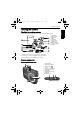
X735 UM.book Page 1 Tuesday, September 4, 2007 4:16 PM Touring the camera 1 Checking the package contents Carefully unpack your kit box and ensure that you have the following items. 1. User Manual 2. Digital camera 3. USB cable 4. Battery 5. Hand strap 6. Leather case 7. Software CD 8. Battery charger 9. AC power adapter 10. AV cable • Available accessories may vary depending on sales region. • If any items are missing or damaged, contact your dealer.
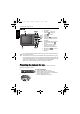
X735 UM.book Page 2 Tuesday, September 4, 2007 4:16 PM 2 Preparing the camera for use Rear view English 1. LCD display 2. W (Wide) : Zoom-out or thumbnail view (playback) 3. T (Tele) : Zoom-in 4. Strap eyelet 5. Play button 6. Capture mode (toggling between still image capturing and movie recording) 7. Multifunctional buttons (including a 4-way control and an button) 8. On-screen instructions (when selecting a scene mode) or delete photos (playback mode) or return to 9.
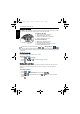
X735 UM.book Page 3 Tuesday, September 4, 2007 4:16 PM Preparing the camera for use 3 1. 2. 3. 4. Open the battery/SD card cover. Press and hold the battery. Release the battery lock lever. When the battery has come out a little, gently pull it out the rest of the way. 5. Close the battery/SD card cover. D Charging the battery The battery charge status affects the camera performance.
X735 UM.book Page 4 Tuesday, September 4, 2007 4:16 PM 4 Preparing the camera for use Using an SD card English The camera comes with internal memory for storing captured images, video clips, or audio files. You can also add an SD (Secure Digital) card to store more files. To install an SD card: 1. 2. 3. 4. Make sure the camera is turned off. Open the battery/SD card cover. Insert an SD card in the correct direction. Close the battery/SD card cover. To remove an SD card: 1. 2. 3. 4.
X735 UM.book Page 5 Tuesday, September 4, 2007 4:16 PM Operating the camera 5 The procedure below is a general guideline for basic operation. It is particularly useful if you are new to the camera. 1. Press 2. Press , . > and , , , or to locate a desired options (under three different tabs: ), and then press or to make selections. Remember to follow the on-screen display and instructions (wherever available) or press for more information.
X735 UM.
X735 UM.book Page 7 Tuesday, September 4, 2007 4:16 PM Capture mode 7 Scene mode Icon Mode Description Auto Lets the camera automatically decide most settings, so you can capture images with ease. Manual Lets you decide all available shooting parameters. Movie Record Captures videos with sound. When viewing the captured video file later, the icon shows indicating that this is a video file. S.S.F.
X735 UM.book Page 8 Tuesday, September 4, 2007 4:16 PM 8 Capture mode English Landscape Portrait Makes the subject (usually a person) stand out while the background is blurred slightly. Web Auction Optimizes image file size for use on the Internet. High ISO Portrait Takes a clear picture In a low-light environment. Flash is always off. Food Captures food by enhancing color brightness and giving more vivid colors.
X735 UM.book Page 9 Tuesday, September 4, 2007 4:16 PM Capture mode 9 The flash offers an additional light source (usually used in a low-light environment). You can capture an image using one of the following flash modes. Icon Mode Description Auto flash The flash fires automatically based on the photographic conditions. Force off The flash does not fire. Select this mode when flash photography is prohibited, or when the distance to the subject is beyond the effective range of the flash.
X735 UM.book Page 10 Tuesday, September 4, 2007 4:16 PM 10 Capture mode English Pan Focus Used when you want to capture everything (for example, fast-moving objects or subjects in the dark) from near to far in an acceptable focus. Infinity Used when capturing images at long distance. To select a focus mode: 1. Go to the capture mode. 2. Keep pressing to toggle among different focus modes and select a desired option. Drive mode Icon Mode Description Standard Takes one picture at a time.
X735 UM.book Page 11 Tuesday, September 4, 2007 4:16 PM Capture mode 11 2. Press or , and then select an image size. 3. Press or > Image quality Icon Mode Description Fine Best image quality with the lowest compression rate. File size is the largest. Normal Better image quality with medium compression rate. File size is medium. Economy Good image quality with the highest compression rate. File size is the smallest. To select an image quality level: 1. Press > > Quality. 2.
X735 UM.book Page 12 Tuesday, September 4, 2007 4:16 PM 12 Capture mode English 5. Press the shutter to capture the image. • Due to environmental factors such as lighting, the number of detected faces might be different from that of the actual faces. • To achieve the best result, ask your subjects not to turn their faces partially away from the lens. Battery status Icon Description Battery power remains adequate. Battery power is low. Battery power is very low. You should replace the battery ASAP.
X735 UM.book Page 13 Tuesday, September 4, 2007 4:16 PM Capture mode 13 Compensates for color temperatures in different lighting conditions, so white and other colors can display properly when you capture images. Icon Mode Description Auto Adjusts white balance automatically. Daylight Used in bright daylight conditions. Cloudy Used in twilight or shady conditions. Tungsten Used when subjects lit by tungsten (incandescent) lighting. Fluorescent Used when subjects lit by fluorescent lighting.
X735 UM.book Page 14 Tuesday, September 4, 2007 4:16 PM 14 Capture mode Effect Adds color filter effects to the image or video you want to capture. English Icon Mode Description Normal No effects are added. Vivid Adds an effect with very clear and bright color tones. Sepia Adds an effect with dark reddish brown color tones, so the image or video looks as if it is old. Black and White (B/W) Adds an effect with monochromatic color tones. To select an effect: 1. Press > > Effect. 2.
X735 UM.book Page 15 Tuesday, September 4, 2007 4:16 PM Frame Rate: 30/15 fps (frames per second) Timer Record Setup: Records videos at the time and the duration you set. After setup, follow the procedure below to activate Timer Record. To select a Movie Record option: 1. Press and make sure you can see the icon 2. Press > on the screen. , and then select an option. 3. Press or to select a setting. 4. Press or > . To activate Timer Record: 1.
X735 UM.book Page 16 Tuesday, September 4, 2007 4:16 PM 16 Playback mode Playback mode Press to enter the playback mode. English • When the camera is off, pressing • In the capture mode, press • In the playback mode, press Item while holding will enter the playback mode. to enter the playback mode. or the Shutter to switch to the capture mode. Description Page reference 1 Indicates that the camera is in the playback mode. -- 2 Indicates that the file is protected and cannot be deleted.
X735 UM.book Page 17 Tuesday, September 4, 2007 4:16 PM Playback mode 17 Options for playback and editing , or to move to different files. You can English When the camera is in the playback mode, press also select any of the following options. Enlarging an image Magnifies an image, so more details can be seen. To enlarge an image: 1. Press . 2. Press 3. Press , or to move to the image you want to enlarge. to zoom-in or to zoom-out. 4. Press 5.
X735 UM.book Page 18 Tuesday, September 4, 2007 4:16 PM 18 Playback mode Rotating an image Changes the orientation of an image. English To rotate an image: 1. Press 2. Press 3. Press > or to move to the image you want to rotate. . or 4. Press to change the image to a different orientation. to confirm the change and save the image file. You can also press > > Rotate > or to rotate an image.
X735 UM.book Page 19 Tuesday, September 4, 2007 4:16 PM Working with computer and AV system 19 Voice memo To add a voice memo: 1. Press > or to move to the image you want to add a voice memo. 2. Press > to start recording your voice. 3. Press to stop recording. You can also press Then you can press > > Voice Memo > or to add a voice memo. to play the voice memo. Startup screen Sets the welcome image when the camera is powering on. To select a startup image: 1. Press > 2. Press or 3.
X735 UM.book Page 20 Tuesday, September 4, 2007 4:16 PM 20 Working with computer and AV system Connecting the camera to an AV system You can play files in your camera from an AV system such as TV or projector. English To connect the camera to an AV system: 1. Connect the end of the smaller plug of the AV cable to the camera. 2. Connect the yellow video plug and the white audio plug of the AV cable to a video-input jack and an audio-input jack (left channel) on your AV system. 3.
X735 UM.book Page 21 Tuesday, September 4, 2007 4:16 PM Troubleshooting and service information 21 If your camera cannot operate normally, see the frequently encountered problems and solutions listed below. If the problem persists, contact your nearest service center or technical support. Problem Cause Solution I cannot play back video clips by using Windows Media Player. The MPEG-4 video compression method is in the XviD format.
X735 UM.book Page 22 Tuesday, September 4, 2007 4:16 PM 22 Troubleshooting and service information English I cannot download images from the camera to my computer. The camera does not shoot even when pressing the shutter button. The free space on the hard disk of your computer is insufficient. Ensure that the hard disk has enough space for running Windows and that the drive for loading image files has free space equal to or greater than the memory card in the camera.
X735 UM.book Page 23 Tuesday, September 4, 2007 4:16 PM Specifications 23 Image sensor 7.2-megapixel CCD; size: 1/2.5-inch LCD display 2.5-inch LTPS LCD; 230K dots Zoom Optical: 3X Digital: 4X (preview) / 12X (playback) Wise Zoom: 30X (Optical Zoom + Digital Zoom) when the image size is VGA (640 x 480) Lens F2.7 ~ F5.2 Wide: 6.2 mm (135 camera: 37.5 mm) Tele: 18.6 mm (135 camera: 112.
X735 UM.book Page 24 Tuesday, September 4, 2007 4:16 PM 24 Specifications English Power source Rechargeable Lithium-ion battery Working temperature 0 - 40 degrees Celsius Dimensions (W x H x D) 91 x 59 x 14.7 mm (slimmest 12.