DC E510 Digital Camera User’s Manual Welcome
Copyright Copyright 2005 by BENQ Corporation. All rights reserved. No part of this publication may be reproduced, transmitted, transcribed, stored in a retrieval system or translated into any language or computer language, in any form or by any means, electronic, mechanical, magnetic, optical, chemical, manual or otherwise, without the prior written permission of this company.
2. Preparing Your DC E510 for Use .................................... 3 2.1 2.2 2.3 2.4 Installing the Battery ................................................... 3 Charging the Battery ................................................... 3 Using an AC power adapter .........................................4 Inserting an SD Memory Card (Optional Accessory) .......4 3. Using the DC E510 ......................................................... 5 3.1 About the Touch Screen ..................................
English Table of Contents BenQ DC 5330 Table of Contents 3.4.6 Playing Back Video Clips ...................................20 3.5 Setup Mode ............................................................21 3.6 Connecting to a TV ..................................................23 4. PC DEPENDENT FEATURES ...................................... 24 4.1 Installing the Digital Camera Software .........................24 4.2 Transferring Files To/From a Computer ......................25 4.2.
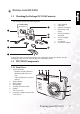
BenQ DC 5530 User’s Manual 1 TOURING YOUR DC E510 English 1.1 Checking the Package DC E510 Contents The package includes the following items: User's Manual 5 1 1. 2. 3. 4. 6 5. 7 6. 2 7. 8. 3 User’s manual USB cable Lithium-ion battery Hand strap (with stylus) DC E510 software CD-ROM DC E510 digital camera AC adapter Conversion adapter 8 4 If any of the items are missing or appear to be damaged, contact your dealer. Save the packaging in the event you need to ship your camera for service.
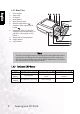
BenQ DC 5530 User’s Manual 1.2.2 Rear View English 1. 2. 3. 4. 5. Power button Status LED LCD panel Menu button Photo Frame button 1 2 3 4 5 6 6. 7. Playback mode button Snapshot/Video capture mode button 8. Navigation (refer to “Using the Navigation and Mode Buttons” on page 8 for a description of each button.) 9. Battery/SD card compartment 10. Display button 11.
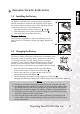
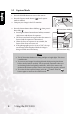
BenQ DC 5530 User’s Manual 2 PREPARING YOUR DC E510 FOR USE English 2.1 Installing the Battery We highly recommend you to use the specified rechargeable lithium-ion battery to realize the full capability of your digital still camera. Make sure that the power of the digital still camera is off before inserting or removing the battery. 1. Open the battery/SD memory card cover (A) and (B). 2. Insert the battery in the correct orientation shown (C). 3. Close the battery/SD memory card cover.
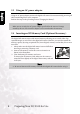
BenQ DC 5530 User’s Manual 2.3 Using an AC power adapter English Using an AC power adapter prevents the digital still camera from automatically powering off while transferring files to your computer. Perform the steps in the preceding section "Charging the Battery". Note Make sure to use only the AC power adapter specified for the camera. Damage caused by the use of an incorrect adapter is not covered under the warranty. 2.
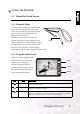
BenQ DC 5530 User’s Manual 3 USING THE DC E510 English 3.1 About the Touch Screen 3.1.1 Using the Stylus Use the stylus attached to the included hand strap to perform operations on the touch screen. You can also use your finger, but the stylus is more accurate and won’t cause fingerprints on the screen. Unfold the stylus from the clip to use it. Operate the touch screen by tapping an icon with the stylus.
BenQ DC 5530 User’s Manual 3.2 Capture Mode English 1. Press the POWER button to turn on the camera. 2. Press the Capture mode button [ ] until capture mode is enabled. 3. Compose your image in the LCD monitor. 4. Press the shutter button down halfway (1), then press it down fully (2). • Pressing the shutter button down halfway automatically focuses and adjusts the exposure. • The focus-area frame turns green when the camera is focused and the exposure is determined.
BenQ DC 5530 User’s Manual 3.2.1 Capture Mode LCD Monitor Information Shooting Mode [ [ [ [ [ 2. 3. A M ] ] ] ] ] Auto Manual Portrait Landscape Sport 4 5 1 15 14 13 6 7 8 9 10 +2.0 11 [ ] Backlight [ ] Night Scene [ ] Night Scene Portrait Flash Mode [ ] Auto Flash [ ] Red Eye Reduction [ ] Forced Flash [ ] No Flash [ ] Slow Sync Capture Mode [ [ 1 ] Single Shot ] Continuous [ ] 2-second Delay [ ] 10-second Delay [ 4. 2 3 1 English 1.
BenQ DC 5530 User’s Manual 3.2.2 Using the Navigation and Mode Buttons English Use the Mode buttons to switch between Video/Snapshot capture 1 mode and Playback mode. Camera 2 settings can be changed with the navigation button. 3 1. Playback: Press this button to 4 enter playback mode, and view or manage snapshots and videos. 5 You can also set this button to 6 power on the camera. Refer to 3.5 “Setup Mode” on page 21. 7 2.
BenQ DC 5530 User’s Manual The table below will help you to choose the appropriate flash mode: Flash Mode Description AUTO FLASH The flash fires automatically according to the photographic conditions. RED EYE REDUCTION Use this mode to reduce the red-eye phenomenon when you want to capture natural-looking images of people and animals in low-light conditions.
BenQ DC 5530 User’s Manual 3.2.2.3 Using Self-Timer and Continuous Capture Mode English The self-timer can be set in capture [ ] mode. This feature is useful for situations where you may wish to join into the scene when taking group shots. Continuous capture enables you to take two shots in quick succession. You can also use continuos capture mode with self-timer mode. 1. Secure the camera to a tripod or place it on a stable surface. 2. Enter capture mode. 3.
BenQ DC 5530 User’s Manual 3.2.2.4.1 Using the Digital Zoom 3.2.2.5 Adding a Photo Frame Use this function to add a decorative frame around a picture. There are 65 frames available with the included software package. Fifteen frames can be embedded in the camera. Refer to 4.2.3 “Using the QLink Frame” on page 26 for more information. To add a frame: 1. Enter capture mode. 2. Press the Frame button. A frame select screen appears. 3. Tap Next to view the next frame, or Previous view the previous frame.
BenQ DC 5530 User’s Manual English Icon (default) Item A SHOOTING MODE RESOLUTION IMAGE QUALITY CONTINUOUS SHOTS Off INTERVAL SHOOT Functional Description Sets the mode in which images will be captured. [ A ] AUTO [ M ] MANUAL [ ] PORTRAIT [ ] LANDSCAPE [ ] SPORT [ ] BACKLIGHT [ [ ] NIGHT SCENE ] NIGHT SCENE PORTRAIT Sets the size of the image that will be captured.
BenQ DC 5530 User’s Manual Icon (default) Item WHITE BALANCE Functional Description The human eye adapts to changes in light so that white objects still appear white even when the light changes. With a digital camera, however, the color of the subject is influenced by the color of the light surrounding it. This setting allows you to set the white balance when capturing images under specific lighting conditions.
BenQ DC 5530 User’s Manual 3.2.3.1 Continuous Capture English In continuous capture mode, you can capture a rapid sequence of images with one press of the shutter button. This function is very useful for photographing objects in motion where it is difficult to determine the precise moment of capture. Afterwards, you may review the sequence of images to select the best one. 1. Enable Continuos capture mode in the Capture Continuous mode icon mode menu. 2.
BenQ DC 5530 User’s Manual 3.3.1 Video Mode LCD Monitor Information Video mode Metering White balance Exposure value Available recording time Autofocus area Battery power indicator 1 2 3 4 +2.0 5 00:03:57 7 6 3.3.2 Video Mode Menu Settings 1. Enter video mode. Auto/Manual 2. Press the button to access the Video mode menu. • The displayed icon shows the current setting.
BenQ DC 5530 User’s Manual English Icon (default) Item METERING Functional Description Enables you to set the metering average. [ [ ] CENTER AVERAGE 100 [ TIMER RECORDING ] SPOT ] AVERAGE Enables you to set the camera to start recording video at a specified time. 3.4 Playback Mode In the playback mode, you can view, magnify, delete images, play video clips, or run a slide show. This mode also provides a thumbnail image display, allowing you to quickly search for the desired image. 1.
BenQ DC 5530 User’s Manual 3.4.2 Viewing Images Magnifying Images While reviewing your images, you may enlarge a selected portion of an image. This magnification allows you to view the details. Images that are being displayed can be enlarged in 4 times enlargement. 1. Adjust the zoom ratio by using the zoom button. A • To enlarge the selected image, rotate the zoom dial (A). • To return to normal magnification, rotate the zoom dial (B). • The magnification factor is displayed on the LCD monitor. 2.
BenQ DC 5530 User’s Manual 3.4.2.2 Thumbnail Display (Index Playback) English This function allows you to view six thumbnail images on the LCD monitor simultaneously so you may search for a particular image. 1. Rotate the zoom dial until thumbnail view appears. Up to six thumbnail images are displayed simultaneously. 2. Tap the image to be displayed at regular size, or use the navigation buttons and press the OK button to display the selected image on full screen. 10/10 2005.01.
BenQ DC 5530 User’s Manual 3.4.4 Playback Mode Menu Settings . 2. Press the button to access the Playback mode menu. • The displayed icon shows the current setting. • Tap the desired item with your finger or the stylus, or use the navigation buttons to select the desired item, then press the OK button. • Tap to go to the next menu page. Tap return to the previous page. 3. To exit from the menu, press the Icon Item English 1. Press Playback mode Scrawling to button.
BenQ DC 5530 User’s Manual 3.4.5 Playback Mode LCD Monitor Information (Video) English 1. 2. 3. 4. 5. 6. Playback mode Frame number Date video was taken. Video length Video mode Battery power indicator 2 1 3 1/10 2005.01.24 6 Tap to go to the previous file 00:00:05 Tap to play video 4 5 Tap to go to the next file 3.4.6 Playing Back Video Clips Tap the play button to start playing back a video clip.
BenQ DC 5530 User’s Manual 3.5 Setup Mode Memory 2. Press the button to access the menu. 3. Tap to access the Camera mode setup menu. • The displayed icon shows the current setting. • Tap the desired item with your finger or the stylus, or use the navigation buttons to select the desired item, then press the OK button. • Tap to go to the next menu page. Tap return to the previous page. 4.
BenQ DC 5530 User’s Manual English Icon (default) Item DIGITAL ZOOM Functional Description Enables or disables digital zoom. [ [ VIDEO OUT ] ON 100 [ [ En LANGUAGE RESET ] NTSC 100 ᓄ̚ ᖎ̚ En ] ENGLISH [ Es ] SPANISH [ De ] GERMAN [ Fr ] FRENCH [ It ] ITALIAN [ Pt ] PORTUGUESE Resets the camera settings to the factory default values. [ 22 ] TRADITIONAL CHINESE ] SIMPLIFIED CHINESE [ [ TOUCH PANEL CALIB. ] PAL Sets the OSD language.
BenQ DC 5530 User’s Manual 3.6 Connecting to a TV Connect the yellow RCA jack to the television’s Video In port. Connect the white RCA jack to the television’s left or right Audio In port. AV Audio L R Video R Connect the small end of the AV cable to the camera’s Earphone Jack/TV out port. 1. Turn the camera off and connect the AV cable’s mini-plug to the camera’s Earphone Jack/TV out port. 2. Connect the two RCA jacks to your television as illustrated above. 3. Turn the camera on.
BenQ DC 5530 User’s Manual English 4 PC DEPENDENT FEATURES Connecting the DC E510 to your computer enables you to perform the following functions: • • 4.1 Upload photos and movie clips to your computer for storage and organization Update built-in photo-frames Before using this feature on a computer running Microsoft Windows, you must first install the software that is included on the software installation CD-ROM that came with the DC E510.
BenQ DC 5530 User’s Manual 4.2 Transferring Files To/From a Computer 4.2.1 Transferring Photos and Video Clips This section shows you how to use the Windows Explorer utility to manipulate files between your camera and a PC. 1. Turn on the computer. TV OUT LCD PDIF-OUT SDIF-OUT 2. Turn on the camera. 3. Connect the camera to the PC with the included USB cable. Ensure that the connection is secure. 4. Tap “QLink-Storage” on the camera’s LCD screen. 5.
BenQ DC 5530 User’s Manual 4.2.2 Using the QLink Software English The included QLink software is a useful tool for downloading photos from your camera to your computer, and then displaying, e-mailing, printing, or editing them. After successfully installing the software (see 4.1 “Installing the Digital Camera Software” on page 24), follow the steps below to get started with QLink. 1. Turn on the computer and start the QLink software. 2. Turn on the camera. 3.
BenQ DC 5530 User’s Manual English 5. The QLink Frame software will automatically launch as shown. 6. If you’ve downloaded frames from our Web site (refer to 4.2.3.1 “Downloading Frames” ), click and browse to the location of the downloaded frames to transfer them to the QLink Frame PC window. 7. Select frames in either the PC or BenQ Camera window, and click to copy frames from the PC to the camera or click to transfer frames from the camera to the PC.
BenQ DC 5530 User’s Manual English A screen appears prompting you to print one picture, print all pictures, or print an index of the pictures on the camper. Note • Some printers do not support the Print Index feature. If the printer does not support Print Index, the option is not available for selection Clicking Print One displays the following print page.
BenQ DC 5530 User’s Manual 5 TROUBLESHOOTING Symptom Cause Measure The power does not come on. The battery is not loaded. The battery is exhausted. Load the battery correctly. Recharge or use the AC power adapter. Reconnect it properly. The AC power adaptor is not connected correctly. The battery runs out It is being used in extreme low quickly. temperature. Many shots are being captured in dark places, requiring flash. The battery is not fully charged.
BenQ DC 5530 User’s Manual English Symptom Cause Measure Even if I press the shutter button, the camera does not shoot. The battery is running low. Recharge or use the AC power adapter. Cannot format a memory card. Cannot download images. The film cannot play on a computer. 30 The camera is not in shooting mode. Press to enter capture or video mode. The shutter button is not pressed all Press the shutter button all the way. the way.
BenQ DC 5530 User’s Manual 6 SPECIFICATIONS Digital Zoom LCD Monitor Focus Range Shutter Speed Exposure ISO Equivalent White Balance Flash Self-Timer File Format Video Mode Image size Voice Memo Storage Type Interface Power Source Dimensions (WxHxD) Weight 1/2.5-inch 5.36 megapixel CCD with 5.0 megapixel effective resolution f=5.8 ~ 17.4 mm (35 ~ 105 mm, 35 mm film equivalent) F 2.6/F 4.8 Digital: 4X 2.