
User manual



Using the Camera12
English
3.1.10.2.2 Preview
Set to display a photographed image on the LCD monitor immediately after you have taken
the shot.
[ON]: Display quick view
[OFF]: Do not display quick view
3.1.10.2.3 Date Print
If you set the imprint function, your image will be displayed with the date information on it.
[ON]: Date will be shown on the captured image.
[OFF]: Date will not be shown on the captured image.
3.1.10.2.4 Exit
Select this option if you wish to exit from the menu mode.
3.2 Video mode
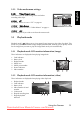
Video mode [ ] allows you to record video clips at a resolution of 320 x 240 pixels.
1. Press the MODE button to enter the Video mode [ ].
2. To start recording a video clip, press the shutter button.
3. To stop recording, press the shutter button again.
• In Video mode [ ], resolution, quality, self-timer cannot be set or activated.
• In Video mode [ ], the flash mode is automatically set to Flash off [ ].
• To set [EV] or [White Balance], you may access them from the [Video] menu.
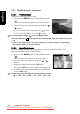
3.2.1 Video mode LCD monitor information
These indicators are displayed when recording video clips:
1. Video mode
2. Video counter
3. Card indicator
4. Battery level
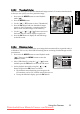
3.2.2 Recording video clips
This mode allows you to record video clips with sound via
built-in microphone.
1. Press the MODE button to enter the Video mode [ ].
2. To start recording, press the shutter button.
3. To stop recording, press the shutter button again.
12:20
Downloaded from ManualsCamera.com Manuals