
User's Manual



BenQ DC 5530 User’s Manual
Using the DC C60
33
English
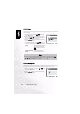
3.10.8. Erasing Images [ ]
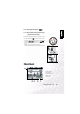
The [ ] button provides to erase image file. While pressing [ ] button during monitoring
mode, the latest image data and erase menu appears on the LCD monitor.
1. Press the [ ] button.
• The Delete menu is displayed on the LCD monitor.
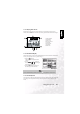
2. Use the or button to select the Delete sub-menu (Single/
All/Select).
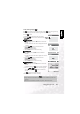
Erasing Single Image
Single: Erase this image.
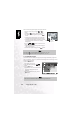
a. Select [Single] and press the SET button to confirm the
selection.
• "Delete This Picture?" sub-menu is displayed on the LCD
monitor.
b. Use the or button to select Execute/Cancel.
[Execute]: Erase this image.
[Cancel]: Cancel the deletion
C. Press the SET button to confirm the setting.
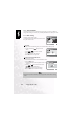
Erasing All Images
All: Erase all images.
a. Select [All] and press the SET button to confirm the
selection.
• "Delete All Pictures?" sub-menu is displayed on the LCD
monitor.
b. Use the or button to select Execute/Cancel.
[Execute]: Erase all images.
[Cancel]: Cancel the deletion
C. Press the SET button to confirm the setting.
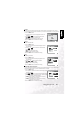
Erasing Selected Image
Select: Erase the selected image.
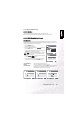
a. Select [Select] and press the SET button to confirm the
selection.
• Thumbnail display and [ ] appear on the LCD monitor.
b. Use the , , or button to select the image you
want to erase and press the [ ] button to confirm the
selection.
• [ ] icon appears on the selected image.
C. Press the SET button to confirm the setting.
Set:Enter or :Select
Delete This Picture?
Cancel
Execute
Delete
Note
•
Images cannot be erased when they are protected or the SD Memory Card is write-
protected.
• This function is available for all modes except for PC and SET-UP modes.