
Operation Manual



37 How to adjust your monitor
Using Smart Scaling
You can resize your display by Smart Scaling.
1. Go to Picture Advanced and Smart Scaling.
2. Adjust the value.
Choosing an appropriate picture mode
Your monitor provides various picture modes that are suitable for different types of images.
See Picture Mode on page 44 for all the available picture modes.
Go to
Picture Advanced and Picture Mode for a desired picture mode.
Connecting the monitor to your MacBook series product
While the monitor is connected to your MacBook series product, switch to M-book mode
which represents MacBook’s color matching and visual representation on your monitor.
1. Connect your monitor to the MacBook series product.
2. Go to Picture Advanced and Picture Mode.
3. Select M-book. The setting will take effect immediately.
Video source selection in PIP/PBP mode (for models with
PIP/PBP function)
Your monitor scans for the available video sources in the following order: DVI-D, HDMI, DP,
and mini DP, and displays the first available one. This video source will become the main source
in PIP/PBP mode. You will need to decide the second source for PIP/PBP mode from the menu
in PIP/PBP source on page 40. Menu options that are not available will become grayed out.
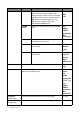
Refer to the following table to find your main source and its supporting second sources.
• If one of the custom keys is preset for Smart Scaling, you can press the custom key and adjust the value
directly.
• Your display may become unstable temporarily when being resized. This is a normal phenomenon and should
not be considered as manufacturing defect.
• For more information on
Smart Scaling, go to Smart Scaling on page 46.
Possible second sources
Inputs
DVI-D HDMI 1 HDMI 2 DP Mini DP
Main source
DVI-D VVVV
HDMI 1V VVV
HDMI 2 V V V V
DP V V V V
Mini DP V V V V