BL Series LCD Monitor User Manual
Copyright Copyright © 2018 by BenQ Corporation. All rights reserved. No part of this publication may be reproduced, transmitted, transcribed, stored in a retrieval system or translated into any language or computer language, in any form or by any means, electronic, mechanical, magnetic, optical, chemical, manual or otherwise, without the prior written permission of BenQ Corporation.
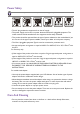
Power Safety Please follow these safety instructions for best performance, and long life for your monitor. 0~40 C 10~90 % 0~3000 m -20~60 C 10~60 % 0~12000 m • The AC plug isolates this equipment from the AC supply. • The power supply cord serves as a power disconnect device for pluggable equipment. The socket outlet should be installed near the equipment and be easily accessible. • This product should be operated from the type of power indicated on the marked label.
• The equipment is to be secured to the building structure before operation. • (For models that support wall or ceiling mounting) • Install your monitor and monitor mounting kit on a wall with flat surface. • Ensure that the wall material and the standard wall mount bracket (purchased separately) are stable enough to support the weight of the monitor. • Turn off the monitor and the power before disconnecting the cables from the LCD monitor. • Always unplug the product from the power outlet before cleaning.
Table of Contents Copyright ...................................................................................................................................... 2 Getting started ............................................................................................................................. 6 Getting to know your monitor ................................................................................................ 8 Front view ................................................................
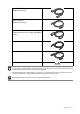
Getting started When unpacking please check you have the following items. If any are missing or damaged, please contact the place of purchase for a replacement. BenQ LCD Monitor Monitor Stand Monitor Base Quick Start Guide CD-ROM Power Cord (Picture may differ from product supplied for your region.
Video Cable: DVI-D (Optional accessory) Video Cable: DP (Optional accessory) Video Cable: HDMI (Optional accessory for models with HDMI inputs) Audio Cable USB Cable Headphone hook • Available accessories and the pictures shown here may differ from the actual contents and the product supplied for your region. And the package contents may subject to change without prior notice. For cables that are not supplied with your product, you can purchase them separately.
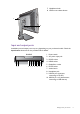
Getting to know your monitor Front view 1. Light sensor / Eco sensor 2. Control buttons 3. Power button 1 2 3 Back view 4. Cable management hole 5. Input and output ports (vary by model, see Input and output ports on page 9) 6.
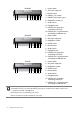
7. Headphone hook 8. VESA mount release button 7 8 Input and output ports Available input and output ports may vary depending on your purchased model. Check the Specification document on the provided CD for details. BL2420P 1 2 3 4 5 6 7 8 9 10 1. 2. 3. 4. 5. 6. 7. 8. 9. Power switch AC power input jack DVI-D socket HDMI socket DisplayPort socket D-Sub socket Audio Line In Headphone jack USB 2.0 port (upstream; connecting to the PC) 10. USB 2.
BL2420U 1 2 3 4 5 6 7 8 9 10 BL2420Z 1 2 3 4 5 67 8 9 BL2423 1 2 3 4 5 67 8 9 1. 2. 3. 4. 5. 6. 7. 8. 9. Power switch AC power input jack DVI-D socket HDMI-1 (1.4) socket HDMI-2 (2.0) socket (*)(**) DisplayPort socket (**) Audio Line In Headphone jack USB 3.0 port (upstream; connecting to the PC) 10. USB 3.0 port x 2 (downstream; connecting to USB devices) 1. 2. 3. 4. 5. 6. 7. 8.
Connection The following connection illustrations are for your reference only. For cables that are not supplied with your product, you can purchase them separately. For detailed connection methods, see page 17 - 19. BL2420P USB peripherals (USB 2.
BL2420U USB peripherals (USB 3.0) HDMI 1.4 HDMI 2.
BL2420Z USB peripherals (USB 2.
BL2423 USB peripherals (USB 3.
How to assemble your monitor hardware • If the computer is turned on you must turn it off before continuing. Do not plug-in or turn-on the power to the monitor until instructed to do so. • The following illustrations are for your reference only. The location and available input and output jacks may vary depending on the purchased model. 1. Attach the monitor base. Please be careful to prevent damage to the monitor.
Tighten the thumbscrew on the bottom of the monitor base as illustrated. 1 2 Orient and align the stand arm with the monitor ( ), push them together until they click and lock into place ( ). Gently attempt to pull them back apart to check that they have properly engaged. Carefully lift the monitor, turn it over and place it upright on its stand on a flat even surface. You might want to adjust the monitor stand height. See Adjusting the monitor height on page 24 for more information.
2. Connect the PC video cable. Do not use both DVI-D cable and D-Sub cable on the same PC. The only case in which both cables can be used is if they are connected to two different PCs with appropriate video systems. To Connect the D-Sub Cable Connect the plug of the D-Sub cable (at the end without the ferrite filter) to the monitor video socket. Connect the other end of the cable (at the end with the ferrite filter) to the computer video socket.
To Connect the DP Cable Connect the plug of the DP cable to the monitor video socket. Connect the other end of the cable to the computer video socket. After the monitor is powered on, if the image is not displayed, disconnect the cable. Go to System and DisplayPort on the OSD menu of the monitor and change the setting from 1.2 to 1.1, and then connect the cable again. To go to the OSD menu, see Basic menu operation on page 35.
4. Connect USB devices. Connect the USB cable between the PC and the monitor (via the upstream USB port at the back). This upstream USB port transmits data between the PC and the USB devices connected to the monitor. TV OUT SDIF-OUT PDIF-OUT Connect USB devices via other USB ports (downstream) on the monitor. These downstream USB ports transmit data between connected USB devices and the upstream port. 5. Connect the power cable to the monitor.
7. Install the headphone hook (optional step). You can install the headphone hook to place your headphone. It is useful when your headphone is not in use. Orient and align the headphone hook with the hole on the monitor stand, and attach the hook to the hole ( ). Turn the hook clockwise until you cannot go further ( ). The headphone hook is ready to use. The maximum load capacity of the headphone hook is 500g. 8. Connect-to and turn-on the power.
Turn on the computer too, and select an input source by the OSD control keys. Turn on the computer too, and follow the instructions in Getting the most from your BenQ monitor on page 28 to install the monitor software. To extend the service life of the product, we recommend that you use your computer's power management function.
How to detach the stand and the base 1. Prepare the monitor and area. Turn off the monitor and the power before unplugging the power cable. Turn off the computer before unplugging the monitor signal cable. Protect the monitor and screen by clearing a flat open area on your desk and placing a soft item like a towel on the desk for padding, before laying the screen face down on a flat clean padded surface. Please be careful to prevent damage to the monitor.
Turn the stand counterclockwise until you cannot go further. And then detach the base from the stand. You can remove the headphone hook as illustrated. Keep the headphone hook somewhere safe.
Adjusting the monitor height To adjust the monitor height, hold both the left and the right sides of the monitor to lower the monitor or lift it up to the desired height. • Avoid placing hands on the upper or lower part of the height-adjustable stand or at the bottom of the monitor, as ascending or descending monitor might cause personal injuries. Keep children out of reach of the monitor while performing this operation.
Rotating the monitor 1. Pivot the display. Before rotating the monitor with a portrait viewing orientation, the display has to be rotated 90 degrees. To have the Auto Pivot function that sets the display to rotate with the monitor automatically, please install the Display Pilot software from www.benq.com or CD. To enable, go to Display > Auto Pivot and check Enable. And then go to Display and Auto Pivot on your monitor. Select ON.
4. Adjust the monitor to the desired viewing angle. Viewing angle adjustment You may position the screen to the desired angle with the monitor tilt, swivel, and height adjustment functions. Refer to the product specifications for details.
Using the monitor wall mounting kit The back of your LCD monitor has a VESA standard mount with 100mm pattern, allowing the installation of a wall mount bracket. Before starting to install a monitor wall mounting kit, please read the precautions carefully. Precautions • Install your monitor and monitor mounting kit on a wall with flat surface. • Ensure that the wall material and the standard wall mount bracket (purchased separately) are stable enough to support the weight of the monitor.
Getting the most from your BenQ monitor To gain the most benefit from your new BenQ LCD monitor, you should install the custom BenQ LCD Monitor driver software as provided on the BenQ LCD Monitor CD-ROM. The circumstances under which you connect and install your BenQ LCD Monitor will determine which process you need to follow to successfully install the BenQ LCD Monitor driver software.
How to install the monitor on a new computer This instruction details the procedure for selecting and installing the BenQ LCD Monitor driver software on a new computer which has never had a monitor driver installed before. This instruction is only suitable for a computer which has never been used before, and for which the BenQ LCD Monitor is the first ever monitor to be connected to it.
How to upgrade the monitor on an existing computer This instruction details the procedure for manually updating the existing monitor driver software on your Microsoft Windows computer. It is currently tested as compatible for Windows 10, Windows 8 (8.1), and Windows 7 Operating System (OS).
How to install on Windows 10 system (selected models only) 1. Open Display Properties. Go to Start, Settings, Devices, Devices and Printers and right-click the name of your monitor from the menu. 2. 3. 4. 5. 6. Select Properties from the menu. Click the Hardware tab. Click Generic PnP Monitor, and then the Properties button. Click the Driver tab and the Update Driver button. Insert the BenQ LCD Monitor CD-ROM into a CD drive on the computer. 7.
How to install on Windows 8 (8.1) system 1. Open Display Properties. Move the cursor to the lower-right of the screen or press the Windows + C buttons on the keyboard to bring up the Charm bar. Go to Settings, Control Panel, Devices and Printers and right-click the name of your monitor from the menu. Alternatively, right-click the desktop and select Personalize, Display, Devices and Printers, and right-click the name of your monitor from the menu. 2. 3. 4. 5. 6. 7. Select Properties from the menu.
How to install on Windows 7 system 1. Open Display Properties. Go to Start, Control Panel, Hardware and Sound, Devices and Printers and right-click the name of your monitor from the menu. Alternatively, right-click the desktop and select Personalize, Display, Devices and Printers, and right-click the name of your monitor from the menu. 2. 3. 4. 5. 6. 7. Select Properties from the menu. Click the Hardware tab. Click Generic PnP Monitor, and then the Properties button.
How to adjust your monitor The control panel 1 No. Name 2 Description 1. Control keys Accesses the functions or menu items displayed on the screen, right next to each key. 2. Power key Turns the power on or off. The control keys are embedded in a touchpad and are indicated by the LED indicators. Touch of an LED indicator represents pressing the corresponding control key.
Basic menu operation All OSD (On Screen Display) menus can be accessed by the control keys. You can use the OSD menu to adjust all the settings on your monitor. 1 2 4 3 1. Press any of the control keys. 2. The hot key menu is displayed. The left three controls are custom keys and are designated for particular functions. 3. Select (Menu) to access the main menu. 4. In the main menu, follow the icons next to the control keys to make adjustments or selection.
No. OSD in hot key menu OSD icon in main menu • By default, the key is the hot key for Input. To change the default settings, see Customizing the hot keys on page 37. • For Down/Decrease adjustment. Custom Key 2 Custom Key 3 Function / • By default, the key is the hot key for Volume. To change the default settings, see Customizing the hot keys on page 37. • Enters sub menus. • Selects menu items. Menu • Activates the main menu. • Returns to the previous menu. Exit Exits OSD menu.
Picture optimization (for models with D-Sub inputs) The easiest way to obtain an optimal display from an analog (D-Sub) input is to use the Auto Adjustment function. Go to Display and Auto Adjustment to optimize the currently displayed image to the screen. When you connect a digital input signal using a digital (DVI, HDMI, or DP) cable to your monitor, the Auto Adjustment function will be disabled, because the monitor will automatically display the best image.
Choosing an appropriate picture mode Your monitor provides various picture modes that are suitable for different types of images. See Picture Mode on page 44 for all the available picture modes. Go to Picture Advanced and Picture Mode for a desired picture mode. Connecting the monitor to your MacBook series product While the monitor is connected to your MacBook series product, switch to M-book mode which represents MacBook’s color matching and visual representation on your monitor. 1.
Navigating the main menu You can use the OSD (On Screen Display) menu to adjust all the settings on your monitor. Press any of the control keys to bring up the hot key menu, and press the main menu. See Basic menu operation on page 35 for details. (Menu) to access Available menu options may vary depending on the input sources, functions and settings. Menu options that are not available will become grayed out. And keys that are not available will be disabled and the corresponding OSD icons will disappear.
Display menu Available menu options may vary depending on the input sources, functions and settings. Menu options that are not available will become grayed out. And keys that are not available will be disabled and the corresponding OSD icons will disappear. For models without certain functions, their settings and related items will not appear on the menu. Mode: Standard Display Auto Adjustment Picture Auto Pivot Picture Advanced Input Audio H. Position System V.
Item Function Range Use this to change the input to that appropriate to your video cable connection type. Input •D-Sub •DVI •HDMI •DisplayPort Available options vary by model. Check the Specifications document on the provided CD for available input connectors of the purchased model. H. Position Adjusts the horizontal position of the screen image. 0 to 100 V. Position Adjusts the vertical position of the screen image.
Picture menu Available menu options may vary depending on the input sources, functions and settings. Menu options that are not available will become grayed out. And keys that are not available will be disabled and the corresponding OSD icons will disappear. For models without certain functions, their settings and related items will not appear on the menu.
Item Gamma Function Range Adjusts the tone luminance. The default value is 3 (the standard value for Windows). Color Normal Temperature •1 •2 •3 •4 •5 Allows video and still photographs to be viewed with natural coloring. This is the factory default color. Bluish Applies a cool tint to the image and is factory pre-set to the PC industry standard white color. Reddish Applies a warm tint to the image and is factory pre-set to the news print standard white color.
Picture Advanced menu Available menu options may vary depending on the input sources, functions and settings. Menu options that are not available will become grayed out. And keys that are not available will be disabled and the corresponding OSD icons will disappear. For models without certain functions, their settings and related items will not appear on the menu.
Item Function Range Presentation Minimizes the differences of color, contrast, and brightness between the images displayed on the monitor and projected by a projector. Standard For basic PC application. Low Blue Light Decreases the blue light emitted from the display to reduce the risk of blue light exposure to your eyes. The value for each Low Blue Light mode indicates how much blue light is decreased compared with the Standard mode. Multimedia For viewing multimedia files.
Item Display Mode Function Range This feature is provided to allow aspect ratios other than 16:9 to be displayed without geometric distortion. The options under Display Mode will be different depending on the input signal sources. Depending on your selection of Picture Mode, different Display Mode option is pre-set. Change the setting if needed. Color Format (for models with D-Sub inputs) Full Scales the input image to fill the screen. Ideal for 16:9 aspect images.
Audio menu Available menu options may vary depending on the input sources, functions and settings. Menu options that are not available will become grayed out. And keys that are not available will be disabled and the corresponding OSD icons will disappear. For models without certain functions, their settings and related items will not appear on the menu. Mode: Standard Display Volume Picture Mute Picture Advanced Audio Select 92 50 Audio System Ergonomics Eco 1. Select 2. Use 3. Select 4.
System menu Available menu options may vary depending on the input sources, functions and settings. Menu options that are not available will become grayed out. And keys that are not available will be disabled and the corresponding OSD icons will disappear. For models without certain functions, their settings and related items will not appear on the menu. Mode: Standard Display OSD Settings Language 5 sec. Picture Custom Key 1 Display Time 10 sec. Picture Advanced Custom Key 2 OSD Lock 15 sec.
Item OSD Settings Function Language Range Sets the OSD menu language. • English • Français The language options displayed on your OSD may • Deutsch differ from those shown on the right, depending • Italiano on the product supplied in your region. • Español • Polski • Česky • Magyar • SiCG/BiH/CRO • Română • Nederlands • Русский • Svenska • Português •日本語 • 繁體中文 • 简体中文 Display Time Adjusts the display time of the OSD menu. OSD Lock Prevents all the monitor settings from being accidentally changed.
Item Function Custom Key Sets the function to be accessed by custom key 1. 1 Custom Key Sets the function to be accessed by custom key 2. 2 Custom Key Sets the function to be accessed by custom key 3.
Item Function Range When this function is activated, HDMI port will be in the input auto select loop. Otherwise, HDMI can only be selected by input select or by hot key. • ON Auto Power Off Sets the time to power off the monitor automatically in power saving mode. • OFF • 10min. • 20min. • 30min. Resolution Notice Sets whether to display the resolution notice of the recommended resolution when a new input source is detected by the monitor.
Ergonomics menu Available menu options may vary depending on the input sources, functions and settings. Menu options that are not available will become grayed out. And keys that are not available will be disabled and the corresponding OSD icons will disappear. For models without certain functions, their settings and related items will not appear on the menu. Mode: Standard Display Eye Protect ON Picture Eye Protect meter OFF Picture Advanced Smart Reminder Audio Time Interval (min.
Item Eye Protect Meter (for BL2420) Bright Intelligence (for BL2423) Function Range Sets to display the light condition around the monitor on the screen. • ON • OFF Turns the Bright Intelligence function on or off. The built-in • ON light sensor works with Bright Intelligence technology to • OFF detect the ambient light, image brightness and contrast, and then balance the screen automatically. Sets to display the light condition around the monitor on the screen.
Eco menu Available menu options may vary depending on the input sources, functions and settings. Menu options that are not available will become grayed out. And keys that are not available will be disabled and the corresponding OSD icons will disappear. For models without certain functions, their settings and related items will not appear on the menu. Mode: Standard Display ECO Sensor ON Picture ECO Sensor Meter OFF Picture Advanced Sensor Range Audio System Ergonomics Eco 1. Select 2.
Item Function ECO Sensor Sets to display the countdown to turn off the monitor. Meter Sensor Range Decides how far the sensor can detect.
Troubleshooting Frequently asked questions (FAQ) The image is blurred. • Read the instructions on the link "Adjusting the Screen Resolution" on the CD, and then select the correct resolution, refresh rate and make adjustments based on these instructions. • (For models with D-Sub inputs) If a VGA extension cable is used, remove the extension cable for the test.
The LED indicator is white or orange. • If the LED lights up in solid white, the monitor is powered on. • If the LED is illuminated in white and there is a message Out of Range on the screen, this means you are using a display mode that this monitor does not support, please change the setting to one of the supported mode. Please read the "Preset display modes" section from the link "Adjusting the Screen Resolution". • If the LED is illuminated in orange, the power management mode is active.
No sound can be heard from the built-in speakers: • Check whether Line In is properly connected. • Increase the volume (volume may be muted or too low). • Remove your headphone and/or external speakers. (If they are connected to the monitor, the built-in speakers are automatically muted.) The light sensor of the monitor does not work well. The light sensor is located at the front bottom of the monitor. Please check: • (For BL2420) If the Eye Protect function is set to ON. Check Ergonomics > Eye Protect.