
Operation Manual






38
1DYLJDWLRQDOPRGH
6DYLQJGHVWLQDWLRQ
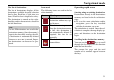
The 6DYH button opens an entry menu for
entering a name for the destination en-
tered. If a name has been entered and
adopted using 2., the destination is
transferred to rapid access and protected
there. The entry menu allows you to
change between upper and lower case
letters.
6WDUWLQJQDYLJDWLRQ
The
6WDUW
button can be used to start nav-
igation straight away. All the data entered
so far is processed in the route calcula-
tion
.
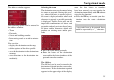
X Press the 6WDUW key to start navigation.
The route is calculated. The map display
then appears and directions to the desti-
nation begin.
6WRSSLQJQDYLJDWLRQ
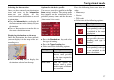
There are three ways in which you can
stop directions to the destination.
X Press the map display.
X Press the 0DLQPHQX key.
X Press the 2. key to confirm that you
want to stop.
or
X Press the map display.
X Press the 4XLWQDYLJDWLRQ key.
X Press the 2. key to confirm that you
want to stop.
or
X Press the back key.
X Press the 2. key to confirm that you
want to stop.
'HVWLQDWLRQ3RLQWVRILQWHUHVW VHOHFW
Points of interest, or POI for short (3oint
Rf ,nterest), are included in the map and
can be displayed on the map. Points of
interest include airports and ferry termi-
nals, restaurants, hotels, petrol stations,
public buildings etc. Points of interests
can be used as navigational destinations.
You can select between:
• a nearby destination,
• a nationwide destination and
• a destination in a town.
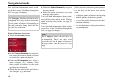
X
Press the Point of interest key to display
the points of interest.
6058
1RWH
Points of interest from the present sur-
roundings can only be selected if the re-
ception is good enough to locate their
position.
6004