
Operation Manual






33
1DYLJDWLRQDOPRGH
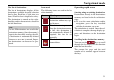
7KH1DYLJDWLRQPHQX
If you do not want to select a destination
quickly or if the planned destination is
not yet available in the destinations
memory, you can use the navigation
menu to determine a new destination.
X In rapid access, press the 1DYLJDWLRQ
PHQX key at the upper edge of the
screen.
The navigation menu appears.
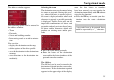
6WUXFWXUHRIWKHQDYLJDWLRQ
PHQX
1DYLJDWLRQ
The (QWHUGHVWLQDWLRQ key is pressed for
the various stages from selecting a desti-
nation to starting directions for the desti-
nation.
• See "Navigation menu: Navigation"
on page 34.
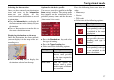
5RXWHSODQQLQJ
A route with several interim destinations
can be planned using the 5RXWHSODQQLQJ
key.
• See "Navigation menu: Route plan-
ning" on page 42.
6HWWLQJV
Various general specifications for navi-
gation mode can be made using the Set-
tings key.
• See "Navigation menu: Settings" on
page 44.
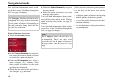
6WDWXV
GPS reception is crucial to the quality of
the navigation process. Its present status
can be detected using the 6WDWXV key.
• See "Navigation menu: Status" on
page 50.
/RDGPDS
The Traffic Assist operates using the
map material saved on the SD card. The
files appropriate for the visit and desti-
nation should be loaded. The loaded
map material is displayed by pressing
the Load map key.
• See "Navigation menu: Load map" on
page 50.
+RPH
If a home address has been saved, direc-
tions to this destination are given
straight away by pressing the +RPH key.
• See "Navigation menu: Home" on
page 51.
6001
6002