
User`s manual


Quick Boot
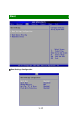
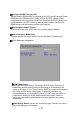
Enabling this setting will cause the BIOS power-on self test routine to skip some
of its tests during bootup for faster system boot.
Quiet Boot
This BIOS feature determines if the BIOS should hide the normal POST
messages with the motherboard or system manufacturer's full-screen logo. When
it is enabled, the BIOS will display the full-screen logo during the boot-up
sequence, hiding normal POST messages. When it is disabled, the BIOS will
display the normal POST messages, instead of the full-screen logo. Please note
that enabling this BIOS feature often adds 2-3 seconds of delay to the booting
sequence. This delay ensures that the logo is displayed for a sufficient amount of
time. Therefore, it is recommended that you disable this BIOS feature for a faster
boot-up time.
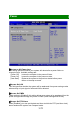
Bootup Num-Lock
This setting is to set the Num Lock status when the system is powered on.
Setting to [On] will turn on the Num Lock key when the system is powered on.
Setting to [Off] will allow users to use the arrow keys on the numeric keypad.
Wait For ‘F1’ If Error
When this setting is set to [Enabled] and the boot sequence encounters an error,
it asks you to press F1. If disabled, the system continues to boot without waiting
for you to press any keys.
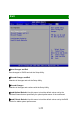
Flash Write Protection
This function protects the BIOS from accidental corruption by unauthorized users
or computer viruses.
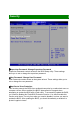
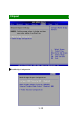
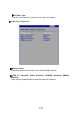
Boot Device Priority, Removable Drives
The items allow you to set the sequence of boot devices/removable drives. First
press <Enter> to enter the sub-menu. Then you may use the arrow keys (↑↓) to
select the desired device, then press <+>, <-> or <PageUp>, <PageDown> key to
move it up/down in the priority list.
3
-
16