
Owner`s manual





7. Installation Mode
How to change the Slot Selection?
1. Push the cursor key ↑ or ↓ to highlight Slot Selection.
2. Press ENTER to toggle between [AUTOMATIC] or [MANUAL].
Note: The default setting for the Slot Selector is [AUTOMATIC].
[AUTOMATIC] The projector will scan the inputs one by one, if one source is found, this source will
be projected, if different sources are found the priority is as follow (Input 1: 5 Cable
Input, Input 2: Computer).
[MANUAL] The user will select the desired input.
Possible results for the fixed inputs (1&2)
Source
Indication
RGB analog RGB-SS [CS OR HS&VS] : Separate Sync is Composite Sync or Horizontal & Vertical Sync
RGB-SOG : Sync On Green
DVI DVI
What if a switcher is connected to the projector?
If a RCVDS (switched on) or VS05 is connected to the projector, it will be also indicated on the menu by adding +800 peripheral.
If no 800 peripheral indication is made on the menu, there are still two possibilities, no RCVDS or VS05 connected or RCVDS is
switched off.
When a 800 peripheral is connected to the projector, the input slots are not accessible with the cursor key to toggle their function.
7.4 No Signal
Overview
• Starting Up No Signal
• Changing the Background Color
• Changing the Shutdown Setting
• Changing the Shutdown Time Setting
7.4.1 StartingUpNoSignal
How to Start Up No Signal?
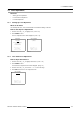
1. Push the cursor key ↑ or ↓ to highlight No Signal. (menu 7-5)
2. Press ENTER to select.
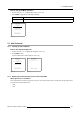
The N o Signal menu will be displayed. (menu 7-6)
INSTALLATION
INPUT SLOTS
NO SIGNAL
LENS
MENU POSITION [CENTER]
800-PERIPHERAL
CONFIGURATION
OSD COLOR
INTERNAL PATTERNS
Select with ↑ or ↓
then <ENTER>
<EXIT> to return
Menu 7-5
NO SIGNAL
COLOR [BLUE]
SHUTDOWN [OFF]
SHUTDOWN TIME 0 MIN
Select with ↑ or ↓
then <ENTER>
<EXIT> to return
Menu 7-6
7.4.2 Changing the Background Color
What can be done?
When no source signal is present a Blue or Black background color will be displayed.
R5976661 BARCO TRACE 04122003
117