Avaya User’s Guide AVAYA P332MF STACKABLE SWITCH SOFTWARE VERSION 3.
Preface FCC Notice This equipment has been tested and found to comply with the limits for a Class A digital device, pursuant to part 15 of the FCC Rules. These limits are designed to provide reasonable protection against harmful interference when the equipment is operated in a commercial environment. This equipment generates, uses, and can radiate radio frequency energy and, if not installed and used in accordance with the instruction manual, may cause harmful interference to radio communications.
Notes, Cautions and Warnings Note: Notes contain helpful information or hints or reference to material in other documentation. Caution: You should take care. You could do something that may damage equipment or result in loss of data. Warning: This means danger. Failure to follow the instructions or warnings may result in bodily injury.
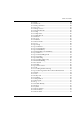
Table of Contents Preface .................................................................................................................. I FCC Notice........................................................................................................... I Conventions Used in the Documentation ....................................................... I CLI .............................................................................................................I Notes, Cautions and Warnings .........
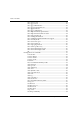
Table of Contents Positioning......................................................................................................... 19 Rack Mounting ................................................................................................. 20 Connecting Stacked Switches ......................................................................... 21 To connect stacked switches: ...............................................................21 Installing Expansion Sub-modules .........................
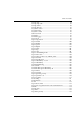
Table of Contents show time ............................................................................................... 45 show timezone ...................................................................................... 45 show time parameters .......................................................................... 45 show ip route ......................................................................................... 46 show image version .......................................................
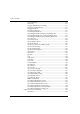
Table of Contents show rmon event ...................................................................................72 show ppp session ..................................................................................72 show ppp authentication .....................................................................72 show ppp incoming timeout ...............................................................73 show ppp baud-rate .............................................................................
Table of Contents set snmp trap ......................................................................................... 94 set snmp trap auth ................................................................................ 95 set snmp retries ..................................................................................... 95 set snmp timeout .................................................................................. 96 set system location ......................................................
Table of Contents set autopartition ..................................................................................116 set license ..............................................................................................116 set ppp authentication incoming ......................................................117 set ppp incoming timeout ..................................................................117 set ppp baud-rate ............................................................................
Table of Contents no username ........................................................................................ 135 show username ................................................................................... 136 set ppp chap-secret ............................................................................. 136 show radius authentication ............................................................... 136 set radius authentication ...............................................................
Table of Contents Avaya Approved GBIC Transceivers ...................................152 Specifications ............................................................................152 Agency Approval ....................................................................153 MTBF .........................................................................................153 X330GT2 Gigabit Ethernet Expansion Module ...............................153 Installing the Expansion Module in the Avaya P330 .........
List of Figures Figure 2.1 Backbone Figure 2.2 Figure 2.3 Figure 3.1 Figure 3.2 Figure 3.3 Figure 3.4 Figure 4.1 Figure 4.2 Figure 4.3 Figure 7.1 Figure 7.2 Avaya P332MF User’s Guide Avaya P333T and Avaya P334T stacks with an Avaya P882 ......................................................................................................... 5 Avaya P330 stacks with an Avaya 330 backbone .................... 6 Avaya P332MF with an Avaya P882 backbone ....................... 7 Avaya P332MF Front Panel .....
List of Figures x Avaya P332MF User’s Guide
List of Tables Table 3.1 Table 3.2 Table 4.1 Table 4.2 Table 4.3 Table 5.1 Table 7.1 Table A.1 Table A.2 Table A.3 Table A.4 Table A.5 Table B.6 Table B.7 Avaya P332MF User’s Guide Avaya P332MF LED Descriptions ............................................. 9 Avaya P330 <- -> Select buttons............................................... 10 Default Switch Settings ............................................................. 26 Default Port Settings ..........................................................
List of Tables xii Avaya P332MF User’s Guide
Chapter 1 Avaya P330 Overview The Avaya P330 family of stackable Ethernet workgroup switches includes a range of modules with 10/100/1000 Mbps ports and a Layer 3 capability/ATM Expansion Module. The Avaya P332MF switch has 12x100BaseFX MT-RJ ports and an Expansion Module slot. The optional expansion modules provide additional Ethernet, Fast Ethernet, and Gigabit Ethernet connectivity. An Avaya P330 stack can contain up to 10 switches and up to 3 backup power supply units.
Chapter 1 Avaya P330 Overview Avaya P330 Standards Supported The Avaya P330 complies with the following standards. IEEE • • • • • 802.3x Flow Control on all ports 802.1Q VLAN Tagging support on all ports and 802.1p compatible 802.1D Bridges and STA 803.2z Gigabit Ethernet ports 803.2u Ethernet/Fast Ethernet ports • • • • • MIB-II - RFC 1213 Bridge MIB for Spanning Tree - RFC 1492 RMON - RFC 1757 SMON - RFC 2613 Bridge MIB Groups - RFC 2674 dot1dbase and dot1dStp fully implemented.
Chapter 1 Avaya P330 Overview Avaya Multi-Service Network Manager™ When you need extra control and monitoring or wish to manage other Cajun Campus equipment, then the Avaya Multi-Service Network Manager network management suite is the answer. This suite provides the ease-of-use and features necessary for optimal network utilization. • Avaya Multi-Service Network Manager is available for Windows® NT®/2000 and Solaris 8.
Chapter 1 Avaya P330 Overview SMON The Avaya P330 supports Avaya’s ground-breaking SMON Switched Network Monitoring, which the IETF has now adopted as a standard (RFC2613). SMON provides an unprecedented top-down monitoring of switched network traffic at the following levels: • Enterprise Monitoring • Device Monitoring • VLAN Monitoring • Port-level Monitoring This top-down approach gives you rapid troubleshooting and performance trending to keep the network running optimally.
Chapter 2 Applications The following sections describe typical applications for the Avaya P330 in a network with other Cajun Campus products. Application 1 This application shows Avaya P882 as the network backbone with Avaya P333T and Avaya P334T stacks as closet devices with LAG and redundant links. Figure 2.
Chapter 2 Applications Application 2 This application shows an Avaya P330 stack forming the backbone of a Small/ Medium-sized Enterprise (SME) network with Avaya P330 stacks as closet devices with LAN and redundant links. Figure 2.
Chapter 2 Applications Application 3 This application shows Avaya P880 as the network backbone with Avaya P332MF deployed as a distribution switch. An Avaya P333R multilayer switch provides local IP routing. The Avaya P333T stacks act as closet devices with LAG and redundant links. Figure 2.
Chapter 3 Avaya P332MF Front and Back Panels Avaya P332MF Front Panel The Avaya P332MF front panel contains LEDs, controls, connectors and an expansion Module slot, as well as a console connector. The status LEDs and control buttons provide at-a-glance information. The front panel LEDs consist of Port LEDs and Function LEDs. The Port LEDs display information for each port according to the illuminated function LED.
Chapter 3 Figure 3.2 Avaya P332MF Front and Back Panels Avaya P332MF LEDs Port LEDs 51 52 53 54 55 56 57 58 59 60 61 62 63 64 65 66 1 2 Tx Rx 3 4 5 6 7 8 9 10 11 12 EXPANSION SLOT LNK COL FDX FC Hspd LAG SYS OPR PWR FIV Left/Right and Reset (both) Switches FIV Switch Function LEDs Note: All LEDs are lit during a reset. Table 3.
Chapter 3 Avaya P332MF Front and Back Panels Table 3.
Chapter 3 Avaya P332MF Front and Back Panels Note: To perform “Force Initial Version” reset the module and at the same time press the FIV reset button (use an opened paper clip or other pointed object). Release the reset buttons first and 1 or 2 seconds later, release the FIV button. Note: The Port LEDs of the P332MF are numbered from 1-12. Expansion Module ports are numbered from 51. Port LED numbers 49-50 are reserved.
Chapter 3 Avaya P332MF Front and Back Panels Avaya P330 Back Panel The Avaya P330 back panel contains a stacking sub-module slot, power supply and BUPS connector. Figure 3.3 shows the back panel of the AC switch (top) and the DC switch (bottom) with a stacking sub-module installed. Figure 3.3 Avaya P330 AC and DC Back Panels Note: Further illustrations of the Avaya P330 Back Panel will be that of the AC model, the topmost panel in Figure 3.3. Figure 3.
Chapter 3 Avaya P332MF User’s Guide Avaya P332MF Front and Back Panels 13
Chapter 3 14 Avaya P332MF Front and Back Panels Avaya P332MF User’s Guide
Chapter 3 Avaya P332MF User’s Guide Avaya P332MF Front and Back Panels 15
Chapter 3 16 Avaya P332MF Front and Back Panels Avaya P332MF User’s Guide
Chapter 3 Avaya P332MF User’s Guide Avaya P332MF Front and Back Panels 17
Chapter 3 18 Avaya P332MF Front and Back Panels Avaya P332MF User’s Guide
Chapter 4 Installation and Setup The Avaya P332MF is ready to work after you carry out the installation instructions given below. All the Avaya P332MF ports provide complete connectivity and no configuration is required to make the system work. Installing the X330STK Stacking Sub-module in the P330 Caution: The stacking sub-modules contain components sensitive to electrostatic discharge. Do not touch the circuit board unless instructed to do so.
Chapter 4 Installation and Setup Note: Use Octaplane cables to interconnect with other switches. Rack Mounting The Avaya P330 case fits in most standard 19-inch racks. Avaya P330 is 2U (88mm, 3.5”) high. Place the Avaya P330 in the rack as follows: 1 Snap open the hinged ends of the front panel to reveal the fixing holes. 2 Insert the unit into the rack. Ensure that the four Avaya P330 screw holes are aligned with the rack hole positions as shown in Figure 4.1. Figure 4.
Chapter 4 Installation and Setup Connecting Stacked Switches Note: The two ends of the Octaplane cable terminate with different connectors. Each connector can only be connected to its matching port. The following cables are used to connect stacked switches: • Short Octaplane cable (X330SC) – ivory-colored, used to connect adjacent switches (Catalog No. CB0223) or switches separated by a BUPS unit.
Chapter 4 Installation and Setup Note: You can build a stack of up to 10 Avaya P330 switches. If you do not wish to stack all the switches in a single rack, use long Octaplane cables to connect two physical stacks as shown in Figure 4.3. Figure 4.
Chapter 4 Figure 4.
Chapter 4 Installation and Setup Installing Expansion Sub-modules Caution: The expansion sub-modules contain components sensitive to electrostatic discharge. Do not touch the circuit board unless instructed to do so. Installing the Expansion Sub-module into the Avaya P330 1 Remove the blanking plate or other sub-module (if installed). 2 Insert the sub-module gently into the slot, ensuring that the Printed Circuit Board (PCB) is aligned with the guide rails.
Chapter 4 Installation and Setup Powering On – Avaya P330 Module AC For the AC input version of the Avaya P330, insert the AC power cord into the power inlet in the back of the unit. The unit powers up even if no direct AC power is applied to it. 1 If you are using a BUPS, insert a power cord from the BUPS into the BUPS connector in the back of the unit. The unit powers up. 2 After power up or reset, the Avaya P330 performs a self test procedure.
Chapter 4 Installation and Setup Configuring the Switch The Avaya P330 may be configured using the text-based Command Line Interface (CLI), the built-in Avaya P330 Device Manager (Embedded Web) or Avaya MultiService Network Manager™. For instructions on the text-based utility, see the CLI chapter. For instructions on installation of the graphical user interfaces, see the Avaya P330 Device Manager Appendix.
Chapter 4 Table 4.
Chapter 4 Installation and Setup Cabling Avaya P330 modules include the following types of ports (according to the speed and standard they support): 10Base-T, 100Base-TX, 100Base-FX, 1000Base-SX and 1000Base-LX. Note: To interconnect Avaya P330 switches with twisted pairs, crossed cables are required. • • • • The maximum UTP cable length connected to a 10/100 Mbps port operating as 10Base-T, is 100 m (328 ft.). A UTP Category 5 cable must be connected to any 100Base-TX port, via an RJ45 connector.
Chapter 4 Installation and Setup Connecting the Console Cable The Avaya P330 has one serial port on the front panel of the switch for connecting a terminal, a terminal emulator, or a modem. The serial port on the front panel is labelled “Console” and has a RJ-45 connector. Connect the P330 to a terminal or a terminal emulator using the supplied console cable and the RJ-45 to DB-9 adaptor. To connect a modem, use the supplied cable and an RJ-45 to DB-25 adaptor.
Chapter 4 Installation and Setup 5 6 Set the baud rate, ppp authentication, and ppp time out required to match your modem. These commands are described in the “Command Line Interface” chapter. At the prompt, type: set interface ppp enable The CLI responds with the following: Entering the Modem mode within 60 seconds... 7 8 9 Please check that the proprietary modem cable is plugged into the console port Use the DB-25 to RJ-45 connector to plug the console cable to the modem’s DB25 connector.
Chapter 5 Avaya CLI – Architecture, Access & Conventions This chapter describes the Avaya P330 CLI architecture and conventions, and provides instructions for accessing the Avaya P330 for configuration purposes. The configuration procedure involves establishing a Telnet session or a serial connection and then using the Avaya P330’s internal CLI. The CLI is command-line driven and does not have any menus. To activate a configuration option, you must type the desired command at the prompt and press Enter.
Chapter 5 Avaya CLI – Architecture, Access & Conventions Establishing a Telnet Connection Perform the following steps to establish a Telnet connection to the Avaya P330 for configuration of Stack or Router parameters. You can Telnet either the Stack Master IP address or directly to one of the Router IP address: 1 Connect your station to the network. 2 Verify that you can communicate with the Avaya P330 using Ping to the IP of the Avaya P330.
Chapter 5 Avaya CLI – Architecture, Access & Conventions Command Line Prompt When you start the CLI, the initial prompt shows the number of the Master module in the Avaya P330 stack. For example, if the stack Master is Module 5, counting from the bottom up, then the prompt is: P330-5> In this document the Module number in the prompt is generic and is represented by “N”.
Chapter 5 Avaya CLI – Architecture, Access & Conventions Security Levels There are four security access levels – User, Privileged, Configure and Supervisor. • The User level is a general access level used to show system parameter values. • The Privileged level is used by site personnel to access stack configuration options. • The Configure level is used by site personnel for Layer 3 configuration. • The Supervisor level is used to define user names, passwords, and access levels of up to 10 local users.
Chapter 5 Avaya CLI – Architecture, Access & Conventions Entering the CLI To enter the CLI, enter your username and password.
Chapter 5 Avaya CLI – Architecture, Access & Conventions Navigation, Cursor Movement and Shortcuts The CLI contains a simple text editor with these functions: Table 5.1 Navigation, Cursor Movement and Shortcuts Keyboard Functions Backspace Deletes the previous character Up arrow/Down arrow Scrolls back and forward through the command history buffer Left arrow/Right arrow Moves the cursor left or right Tab Completes the abbreviated command.
Chapter 5 Avaya CLI – Architecture, Access & Conventions Universal Commands Universal commands are commands that can be issued anywhere in the hierarchical tree. Top and Up commands The Up command moves you up to the next highest level in the CLI command hierarchy. The Top command moves you to the highest level. Retstatus command Use the retstatus command to show whether the last CLI command you performed was successful. It displays the return status of the previous command.
Chapter 5 38 Avaya CLI – Architecture, Access & Conventions Avaya P332MF User’s Guide
Chapter 6 CLI – Layer 2 This chapter provides all the Layer 2 CLI commands, parameters and their default values. The CLI is command-line driven and does not have any menus. To activate a configuration option, you must type the desired command at the prompt and press Enter. Note: The terms “module” and “switch” are used interchangeably. User Level Commands This section describes all commands that are available from the User level.
Chapter 6 CLI – Layer 2 session Use the session command to open a session with a specific entity in a switch of the stack. For example, you can open a session with the Routing entity of a P332G-ML switch in the stack, or with an the X330 ATM sub-module entity plugged into a specific switch. The syntax for this command is: session [ [switch|router|atm|mgp|wan]] mod_num (optional) The switch number.
Chapter 6 CLI – Layer 2 clear screen The clear screen command clears the current terminal display. The syntax for this command is: clear screen ping Use the ping command to send ICMP echo request packets to another node on the network. The syntax for this command is: ping [host[number]] host Host IP address/Internet address of route destination. If missing then the last host IP is used. number Number of packets to send. If missing, then the last number is used.
Chapter 6 CLI – Layer 2 Show Commands Summary Table Following is a table of the show commands: 42 • show time Shows the current time. Page 45 • show timezone Shows the current timezone offset. Page 45 • show time parameters Shows the status and parameters. Page 45 • show ip route Shows the IP routing table entries. Page 46 • show image version Shows the image version. Page 46 • show download status Shows the last download operation.
Chapter 6 CLI – Layer 2 • show port self-loopdiscovery Displays which port or switch has an enabled IBM™ token ring cable loop discovery status. Page 57 • show internal buffering Shows the current internal buffering capacity. Page 57 • show boot bank Displays the software bank from which the switch will load. Page 58 • show module Shows switch status and information. Page 58 • show port flowcontrol Shows the per-port status information related to flow control.
Chapter 6 44 CLI – Layer 2 • show rmon event Shows the existing event entries. Page 72 • show ppp session Shows the PPP parameters of the active PPP session. Page 72 • show ppp authentication Shows the authentication method used for PPP sessions. Page 72 • show ppp incoming timeout Shows the amount of time PPP sessions can remain idle before being disconnected. Page 73 • show ppp baud-rate Shows the baud rate. Page 73 • show ppp configuration Displays the ppp configuration.
Chapter 6 • dir CLI – Layer 2 Displays the file types that have been downloaded to the module. Page 79 show time Use the show time command to display the current stack time. The syntax for this command is: show time Output Example: P330-N> show time 10:32:34 27 JAN 2000 GMT show timezone Use the show timezone command to display the current stack timezone.
Chapter 6 CLI – Layer 2 show ip route Use the show ip route command to display IP routing table entries. The syntax for this command is: show ip route Output Example: P330-N> show ip route Destination ----------149.49.1.1 190.20.0.0 172.20.0.0 Gateway ----------172.20.22.201 172.20.22.202 172.20.22.96 show image version Use the show image version command to display the software version of the image on both memory banks of a specified switch.
Chapter 6 CLI – Layer 2 show download status Use the show download status command to display a summary of the last software download operation. The syntax for this command is: show download status [slot] Output Example: P330-1(super)# sh download status 1 Mod Bank Download State Activity Status Download Size ----- ------ --------------- ---------------- --------------1. Bank B idle Download idle 0 Mod Version Host File ----- --------- ------------- -----------------1. 3.5.18 149.49.70.
Chapter 6 CLI – Layer 2 show snmp retries Use the show snmp retries command to display the number of retries initiated by the Device Manager application when it tries to send SNMP messages to the device. The syntax for this command is: show snmp retries Output Example: P330-N> show snmp retries the SNMP Retries Number is 3 show snmp timeout Use the show snmp timeout command to display the default SNMP timeout in seconds. This command is useful for access using the Device Manager.
Chapter 6 CLI – Layer 2 The syntax for this command is: show logout Output Example: P330-N> show logout CLI timeout is 10 minutes show interface Use the show interface command to display information on network interfaces. The syntax for this command is: show interface Output Example: To display the interface: P330-N> show interface Interface Name VLAN IP address Netmask -------------- ---- --------------- --------------- inband 1 10.0.0.1 255.255.255.0 ppp disable 1 0.0.0.0 0.0.0.
Chapter 6 CLI – Layer 2 show port Use the show port command to display port status. The syntax for this command is: show port [[/]] mod_num (Optional) Number of the switch. If you do not specify a number, the ports on all switches are shown. port_num (Optional) Number of the port on the switch. If you do not specify a number, all the ports on the switch are shown. You can also specify a range of ports separated by a dash, e.g., 5-13 for ports 5 to 13.
Chapter 6 Type CLI – Layer 2 Port type, for example: For the P332-ML and P332GT-ML switches - 100BaseT, 1000BaseT, 1000BaseS. For the P333T/P334T/P332MF/P333R/P333R-LB switches 10BaseT, 10BaseFL, 100BaseTX, 100BaseFX MM, 100BaseFX SM, 10/100BaseTX. show port trap Use the show port trap command to display information on SNMP generic link up/down traps sent for a specific port.
Chapter 6 CLI – Layer 2 show port classification Use the show port classification command to display a port’s classification. The syntax for this command is: show port classification [module/[port] module/port The switch number/the port number Output Example: P330-1(super)# show port classification Port Port Classification ------ --------------------1/1 regular 1/2 regular 1/3 regular 1/4 regular 1/5 regular 1/6 regular 1/7 regular etc...
Chapter 6 CLI – Layer 2 show intermodule port redundancy Use the show intermodule redundancy command to display the intermodule redundancy entry defined for the stack. The syntax for this command is: show intermodule port redundancy Output Example: P330-N> show intermodule port redundancy Primary-Port : 1/1 Primary-Port status : Disable Secondary-Port : 1/2 Secondary-Port status : Disable show port mirror Use the show port mirror command to display mirroring information for the stack.
Chapter 6 CLI – Layer 2 Output Example: P330-N> show port vlan-binding-mode port 1/1 is statically bound port 1/2 is statically bound port 1/3 is statically bound port 1/4 is statically bound port 1/5 is statically bound port 1/6 is statically bound port 1/7 is statically bound port 1/8 is statically bound port 1/9 is statically bound port 1/10 is statically bound show port security Use the show port security command to list the security mode of the ports of a switch or stack.
Chapter 6 CLI – Layer 2 show port blocking Use the show port blocking command to display the port blocking mode on a particular switch. Use the session command to change switches before using this command. The show port blocking command is used with the show self-loop discovery command to confirm a port’s blocking mode. The syntax for this command is: show port blocking Note: This command is not supported by the P330-ML switches.
Chapter 6 CLI – Layer 2 Output Example: P330-N> show port blocking +-------------------+ | Port | Blk /Fwd | +-------------------+ | 1 | Blocking | | 2 | Blocking | | 3 | Blocking | | 4 | Blocking | | 5 | Blocking | | 6 | Blocking | | 7 | Blocking | | 8 | Blocking | | 9 | Blocking | | 10 | Blocking | | 11 | Blocking | | 12 | Forwarding | | 13 | Blocking | | 14 | Blocking | | 15 | Blocking | | 16 | Blocking | | 17 | Blocking | | 18 | Blocking | | 19 | Blocking | | 20 | Blocking | | 21 | Blocking | | 22 | B
Chapter 6 CLI – Layer 2 show port self-loop-discovery Use the show port self-loop-discovery command to display which port or switch has an enabled IBM™ token ring cable loop discovery status. Note: This command is not supported by the P330-ML switches. Note: If this command is to be implemented on a switch other than the stack master, a session should be opened to the relevant switch.
Chapter 6 CLI – Layer 2 show boot bank Use the show boot bank command to display the software bank from which the switch will boot at the next boot process. This command should be issued separately for each switch in the stack using the session command. Note: This command is not supported by the P333R and P333R-LB switches. Note: If this command is to be implemented on a switch other than the stack master, a session should be opened to the relevant switch.
Chapter 6 No Expansion P330STK BUPS Avaya P332MF User’s Guide 2.
Chapter 6 CLI – Layer 2 Output Fields Field Description Mod Switch number Type Module Type/Expansion sub-module type S/N Serial number of the switch C/S (Hardware) Configuration Symbol of the module/ expansion sub-module Statuses Status of the module/expansion sub-module show port flowcontrol Use the show port flowcontrol command to display per-port status information related to flow control.
Chapter 6 CLI – Layer 2 Output Fields Field Description Port Switch and port number SendFlowcontrolAdmin Send flow-control administration. Possible settings: • ON indicates that the local port is allowed to send flow control frames to the far end. • OFF indicates that the local port is not allowed to send flow control frames to the far end. SendFlowcontrolOper Send flow-control operation mode. Possible modes: • ON indicates that the local port will send flow control frames to the far end.
Chapter 6 CLI – Layer 2 show cam Use the show cam commands to display the CAM table entries for a specific port. Note: MACs associated with LAGs appear under the LAG ID, not under the LAG port. The syntax for this command is: show cam [mac mac-addr]/[module[/port]] Output Example: P330-N> show cam 1/1 Dest MAC/Route Dest ------------------00-40-0d-59-03-78 00-d0-79-0a-0a-da 00-40-0d-43-1e-e9 etc...
Chapter 6 CLI – Layer 2 show port auto-negotiation-flowcontrol-advertisement Use the show port auto-negotiation-flowcontrol-advertisement command to display the flowcontrol advertisement for a Gigabit port used to perform auto-negotiation.
Chapter 6 CLI – Layer 2 Output Example: P330-N> show trunk 1/5 Port Mode Binding mode Native vlan Vlans allowed on trunk ------ ----- -------------- ----------- ---------------------1/5 off statically bound 1 1 Output Fields: Field Description Port Switch and port number(s) Mode Tag status of the port (dot1q - dot1Q tagging mode, off - clear mode). Binding mode Binding mode of the port Native VLAN Number of the Port VLAN ID (the VLAN to which received untagged traffic will be assigned).
Chapter 6 CLI – Layer 2 show leaky-vlan Use the show leaky-vlan command to display the leaky VLAN status. The syntax for this command is: show leaky-vlan Output Example: P330-N> show leaky-vlan Leaky VLAN mode Disable show spantree Use the show spantree command to display spanning-tree information.
Chapter 6 CLI – Layer 2 Output Fields: 66 Field Description Spanning tree Status of whether Spanning-Tree Protocol is enabled or disabled Designated Root MAC address of the designated spanning-tree root bridge Designated Root Priority Priority of the designated root bridge Designated Root Cost Total path cost to reach the root Designated Root Port Port through which the root bridge can be reached (shown only on nonroot bridges) Root Max Age Amount of time a BPDU packet should be considered
Chapter 6 CLI – Layer 2 show autopartition Use the show autopartition command to display the automatic partition. Note: Autopartition for the P330-ML switches will always have the value disabled. This command is used to display the autopartition status for the other P330 switches in the stack.
Chapter 6 CLI – Layer 2 00000000 0 00004242 0205 0 0 0 0 0 0 0 0 0 0 MODULE 1, MESSAGE 03: 00000000 0 00002395 0205 0 0 0 0 0 0 0 0 0 0 show module-identity Use the show module identity command to display the switch identity required for acquiring a license.
Chapter 6 CLI – Layer 2 show system Use the show system command to display the up time, system name, location, and contact person. The syntax for this command is: show system Output Example: P330-N> show system Uptime d,h:m:s -----------------------0,2:40:55 System Name System Location System Contact --------------------- ------------------------- ------------------------P332_version-3.0.
Chapter 6 CLI – Layer 2 RMON Tools The following are a series of RMON commands, however we recommend using the P330 Device Manager. show rmon statistics Use the show rmon statistics command to show the RMON statistics counters for a certain interface number according to the MIB-2 interface table numbering scheme.
Chapter 6 CLI – Layer 2 show rmon history Use the show rmon history command to show the most recent RMON history log for a given History Index. The history index is defined using the rmon history command on Page 126 or using an RMON management tool. The syntax for this command is: show rmon history [] P330-N> show rmon history 1026 history Entry 1026 is active, owned by amir Monitors ifEntry.1.
Chapter 6 CLI – Layer 2 show rmon event Use the show rmon event command to show the parameters of an Event entry defined by the rmon event command on Page 128 or using the P330 Device Manager.
Chapter 6 CLI – Layer 2 show ppp incoming timeout Use the ppp incoming timeout command to see the amount of time in minutes that a PPP session can remain idle before being automatically disconnected. The syntax for this command is: show ppp incoming timeout Output Example: P330-N> show ppp incoming timeout PPP incoming timeout is 10 minutes show ppp baud-rate Use the show ppp baud-rate command to display the set baud-rate.
Chapter 6 CLI – Layer 2 show tftp download/upload status Use the show tftp download status and show tftp upload status commands to display the status of the current TFTP configuration file copy process into/from the device. The syntax for this command is: show tftp {download|upload} status [] Output Example: P330-N> show tftp upload status 1 Module : 1 Source file : stack-config Destination file : c:\conf.cfg Host : 149.49.36.
Chapter 6 CLI – Layer 2 show web aux-files-url Use the show web aux-files-url command to display the URL/Directory from where the P330 can access the Device Management auxiliary files (for example help files). The syntax for this command is: show web aux-files-url show intelligent-multicast Use the show intelligent-multicast command to display the intelligent multicast configuration.
Chapter 6 CLI – Layer 2 show intelligent-multicast hardware-support Use the show intelligent-multicast hardware-support command to display the intelligent multicast hardware support configuration.
Chapter 6 CLI – Layer 2 show secure mac port Use the show secure mac port command to display the secure MAC addresses of a port from the sub-agent CLI. This command is accessed only through connection to a particular switch. Note: This command is not supported by the P330-ML switches. Note: If this command is to be implemented on a switch other than the stack master, a session should be opened to the relevant switch.
Chapter 6 CLI – Layer 2 The syntax for this command is: show arp-aging-interval Output Example: P330-N> show arp-aging-interval ARP table aging interval for gateways was set to 10 minutes. show self-loop-discovery Use the show self-loop-discovery command to display a switch’s IBM token ring cable discovery status. Note: This command is not supported by the P330-ML switches.
Chapter 6 CLI – Layer 2 show allowed managers table Use the show allowed managers table command show the list of the twenty possible allowed managers IP addresses. show allowed managers table Output Example: P330-N> show allowed managers status 1 ) 149.49.32.
Chapter 6 CLI – Layer 2 Output Example: P330-N> dir M# file ver num -- ---- -------- file type file location file description ---------- ------------- ---------------- 1 Booter_Image 3.5.17 SW BootImage Nv-Ram Booter Image 1 module-config N/A Running Conf Ram Module Configuration 1 stack-config N/A Running Conf Ram Stack Configuration 1 EW_Archive N/A SW Web Image Nv-Ram Web Download 2 Booter_Image 3.2.
Chapter 6 CLI – Layer 2 Privileged Level Commands Following is a table of the Privileged Level commands. This level includes all the commands from the User Level described above (see the User Level Commands Section for a description of these common commands). • no hostname Returns the prompt to its default. Page 82 • no rmon history Deletes an existing history entry. Page 82 • no rmon alarm Deletes an existing alarm entry. Page 82 • no rmon event Deletes an existing event entry.
Chapter 6 CLI – Layer 2 • copy tftp moduleconfig Downloads a switch configuration file (using TFTP). Page 130 • copy tftp EW_Archive Downloads the Device Manager S/W (Embedded Web Archive file), using TFTP, into the device. Page 131 • copy tftp SW_image Updates the software image and device manager application of a designated switch. Page 131 • radius authentication3 Sets radius authentication parameters.
Chapter 6 CLI – Layer 2 no rmon event Use the no rmon event command to delete an existing RMON event entry. The syntax for this command is: no rmon event hostname Use the hostname command to change the Command Line Interface (CLI) prompt. The current switch number always appears at the end of the prompt. The syntax for this command is: hostname [] hostname_string none – displays current hostname string – the string to be used as the hostname (up to 20 characters).
Chapter 6 CLI – Layer 2 clear timezone Returns the timezone to its default, Coordinated Universal Time (UTC) The syntax for this command is: clear timezone clear ip route Use the clear ip route command to delete IP routing table entries.
Chapter 6 CLI – Layer 2 clear vlan Use the clear vlan command to delete an existing VLAN and return ports from this VLAN to the default VLAN #1. When you clear a VLAN, all ports assigned to that VLAN are assigned to the default VLAN #1. The syntax for this command is: clear vlan [name ] vlan_id Number of the VLAN (range is 1to 3071) vlan_name VLAN name Note: If you wish to define a name which includes spaces, you must enclose the entire name in quotation marks, e.g. "new york".
Chapter 6 CLI – Layer 2 clear port static-vlan Use the clear port static-vlan command to delete VLANs statically configured on a port. The syntax for this command is: clear port static-vlan [module/port range][vlan num] module/port range Port range vlan num The VLAN to unbind from the port Output Example: P330-1(super)# clear port static-vlan 1/10 5 VLAN 5 is unbound from port 1/10 clear cam Use the clear cam command to delete all entries from the CAM table.
Chapter 6 CLI – Layer 2 Output Example: P330-N# clear port mirror 1/2/1/4 this command will delete the port mirror entry - do you want to continue (Y/N)? y Mirroring packets from port 1/2 to port 1/4 is cleared clear secure mac Use the clear secure mac command to remove a MAC address from the CAM table of a secured port. Note: This command is not supported by the P330-ML switches.
Chapter 6 CLI – Layer 2 Set Commands Summary Table Following is a Table of the Privileged Level set commands. 88 • set logout Sets the number of minutes before an inactive CLI session automatically logs out. Page 91 • set timezone Sets the timezone for the system. Page 92 • set time protocol Sets the time protocol for use in the system. Page 92 • set time server Sets the NTP server address. Page 93 • set time client Enables or disables the time client.
Chapter 6 CLI – Layer 2 • set port disable Administratively disables a port. Page 100 • set port speed Sets the speed for a 10/100 port. Page 101 • set port duplex Sets the duplex mode of a port. Page 101 • set port name Assigns a name to a port. Page 102 • set port trap Enables/disables the SNMP up/down link traps sent for port. Page 102 • set port vlan Assigns the Port VLAN ID (PVID). Page 102 • set port vlan-bindingmode Defines the port binding method.
Chapter 6 90 CLI – Layer 2 • set port spantree cost Sets the port spantree cost. Page 110 • set port security Enables MAC security on a range of ports. Page 111 • set cascading Sets switch cascading fault-monitoring mode. Page 111 • set inband vlan Sets the management VLAN ID. Page 111 • set vlan Creates VLANs. Page 112 • set port flowcontrol Sets the flow control mode of a port.
Chapter 6 CLI – Layer 2 • set intelligent-multicast router-port-pruning time Sets the aging time for router ports. Page 119 • set intelligent-multicast group-filtering-delay time Sets the time delay before a filter is applied to a specific group. Page 119 • set secure mac Adds a unicast MAC address into the CAM table of a secured port. Page 119 • set security mode Enables or disables the stack’s MAC security. Page 120 • set arp-aging-interval Sets the ARP aging interval.
Chapter 6 CLI – Layer 2 automatically: P330-N# set logout 20 Sessions will be automatically logged out after 20 minutes of idle time. Output Example: To disable the automatic disconnection of idle sessions: P330-N# set logout 0 Sessions will not be automatically logged out. set timezone Use the set timezone command to assign a timezone name and set the time difference of your P330 relative to the Coordinated Universal Time (UTC/GMT). The minutes parameter can only be set to 30.
Chapter 6 CLI – Layer 2 The protocol has been set to TIME protocol set time server The set time server command is used to set the TIME server address. The syntax for this command is: set time server ip IP address of the TIME server. set time client The set time client command is used to enable or disable the periodic network time acquisition by the switch from the network time server (SNTP or TIME protocol).
Chapter 6 CLI – Layer 2 ROUTE HOST TABLE destination gateway flags Refcnt Use Interface -----------------------------------------------------------------------127.0.0.1 127.0.0.1 5 2 131 lo0 10.10.10.10 192.168.1.1 7 0 0 se0 ------------------------------------------------------------------------ set snmp community Use the set snmp community command to set or modify the switch’s SNMP community strings.
Chapter 6 CLI – Layer 2 Output Example: To enable SNMP ConfigChange traps to a specific manager: P330-N# set snmp trap 192.168.173.42 enable config SNMP config change traps enabled. Output Example: To enable all traps to a specific manager: P330-N# set snmp trap 192.168.173.42 enable all All SNMP traps enabled. Output Example: To disable SNMP config traps to a specific manager: P330-N# set snmp trap 192.168.173.42 disable config SNMP config traps disabled.
Chapter 6 CLI – Layer 2 set snmp timeout Use the set snmp timeout command to set the SNMP timeout in seconds. This command is useful for access using the Device Manager. The syntax for this command is: set snmp timeout set system location Use the set system location command to set the mib2 system location MIB variable. The syntax for this command is: set system location [] string Location name. The location name is cleared if this field is left blank.
Chapter 6 CLI – Layer 2 set device-mode Use the set device-mode command to change the Basic Mode of Operation of the P332-ML/P332GT-ML/P333R/P333R-LB switches between Router and Layer 2 modes. Note: This command is not supported by the P333T/P334T/P332MF switches which do not have Router mode. The syntax for this command is: set device-mode mode Router | Layer2 set interface Use the set interface command to configure the management interface on the Master agent of the stack.
Chapter 6 CLI – Layer 2 set interface ppp Use the set interface ppp command to configure the P330 PPP interface IP parameters, exit modem mode, disconnect the PPP session, or reset the connected modem. A PPP connection can be established only after the P330 is configured with an IP address and net-mask. The IP address is a dummy address that is shared between two peers, and must be taken from a subnet that is different from the agent’s IP subnet.
Chapter 6 CLI – Layer 2 Output Example: P330-N# set interface ppp enable Entering the Modem mode within 60 seconds... Please check that the proprietary modem cable is plugged into the console port Output Example: P330-N# set interface ppp disable Entering the Terminal mode immediately set port level Use the set port level command to set the priority level of a port. Untagged (without an 802.
Chapter 6 CLI – Layer 2 The syntax for this command is: set port negotiation / {enable|disable} Output Example: To disable autonegotiation on port 1, module 4: P330-N# set port negotiation 4/1 disable Link negotiation protocol disabled on port 4/1. set port enable Use the set port enable command to enable a port or a range of ports.
Chapter 6 CLI – Layer 2 set port speed Use the set port speed command to configure the speed of a 10/100Base-T port. If autonegotiation mode is enabled for such ports, the port's speed is determined by autonegotiation, and an error message is thus generated if you attempt to perform the set port speed command in this case. Note: This command does not apply to P332G-ML and P332GT-ML ports. An error message is generated if you attempt to perform the set port speed command for P332G-ML and P332GT-ML ports.
Chapter 6 CLI – Layer 2 set port name Use the set port name to configure a name for a port. If you do not specify a name, the port name remains empty. The syntax for this command is: set port name / [] name Name assigned to the port. Output Example: P330-N# set port name 1/2 arthur Port 1/2 name set. Note: If you wish to define a name which includes spaces, you must enclose the entire name in quotation marks, e.g. "new york".
Chapter 6 CLI – Layer 2 Output Example: To set VLAN 850 to include ports 4 through 7 on module 3. P330-N# set port vlan 850 3/4-7 VLAN 850 modified. VLAN Mod/Ports ---- ----------------------850 3/4-7 set port vlan-binding-mode Use the set port vlan-binding-mode command to define the binding method used by ports.
Chapter 6 CLI – Layer 2 Example: P330-N# set port static-vlan 1/4-6 9 set port self-loop-discovery Admin_Status Use the set port self-loop-discovery Admin_Status command to enable or disable a port’s IBM token ring discovery mode. The port’s self-loopdiscovery feature is activated only after you enable the self-loop-discovery mode at the module level using the set self-loop-discovery Admin_status command. Note: This command is not supported by the P330-ML switches.
Chapter 6 name CLI – Layer 2 Channel name Note: If you wish to define a name which includes spaces, you must enclose the entire name in quotation marks, e.g. "new york". Output Example: P330-1(super)# set port channel 1/1-3 on test Port 1/1 channel mode set to on Port 1/2 was added to channel Port 1/3 was added to channel set port classification Use the set port classification command to set the port classification to either regular or valuable.
Chapter 6 CLI – Layer 2 set port redundancy on/off Use the set port redundancy command to define/delete port redundancy schemes between a Primary and a Secondary link. There should not be any redundancy scheme already defined on any of the links.
Chapter 6 CLI – Layer 2 set internal buffering The set internal buffering command allows you to set the size (either Maximum or Minimum) of the Receive (Rx) buffer allocated to each port of the specified switch. This command is meaningless when any port of the switch is operating with flow control ON. Note: This command is not supported by P332G-ML and P332GT-ML switches.
Chapter 6 CLI – Layer 2 Output Example: P330-1(super)# set boot bank bank-a Boot bank set to bank-a set intermodule port redundancy Use the set intermodule port redundancy command to define or delete the stack’s unique intermodule redundancy scheme. The defined scheme can be cleared using the set intermodule port redundancy off command.
Chapter 6 CLI – Layer 2 set port mirror Use the set port mirror command to define a port mirroring sourcedestination pair in the stack.
Chapter 6 CLI – Layer 2 set port spantree priority Use the set port spantree priority command to set the priority level of a port. This value defines the priority of a port to be blocked in case two ports with the same costs cause a loop. The syntax for this command is: set port spantree priority [module/port] [value] module/port The switch number/the port number. value Number representing the priority of the port.
Chapter 6 CLI – Layer 2 set port security Use the set port security command to enable MAC security on a port or a range of ports at the module level. The port security is activated only after you enable the secutity mode at the stack level using the set security mode command. Note: This command is not supported in P332G-ML and P332GT-ML switches. This command is used to set port security for ports in other P330 switches in the stack.
Chapter 6 CLI – Layer 2 The syntax for this command is: set inband vlan value A VLAN number between 1 and 3071. Output Example: P330-N# set inband vlan 1 Management VLAN number set to 1 set vlan Use the set vlan command to create VLANs. The syntax for this command is: set vlan [name ] vlan-id vlan number vlan-name vlan name Output Example: P330-N# set vlan 3 name v3 VLAN ID 3 is named v3.
Chapter 6 CLI – Layer 2 Field Description receive Controls the receipt of IEEE802.3x flow-control frames on Gigabit ports only: • ON indicates that the local port will act upon flow control frames received from the far end. • OFF indicates that the local port will discard flow control frames received from the far end. send Controls the sending of IEEE802.3x flow-control frames from Gigabit ports only: • ON indicates that the local port is allowed to send flow control frames to the far end.
Chapter 6 CLI – Layer 2 set port auto-negotiation-flowcontrol-advertisement The set port auto-negotiation-flowcontrol-advertisement command sets the flowcontrol advertisement for a Gigabit port when performing autonegotiation. The syntax for this command is: set port auto-negotiation-flowcontrol-advertisement / {no-flowcontrol|asym-tx-only|sym-only|sym-and-asym-rx} no-flowcontrol The port will advertise no pause capabilities.
Chapter 6 CLI – Layer 2 set leaky-vlan Use the set leaky-vlan command to define the P330 stack’s leaky VLAN mode. In this mode, VLAN test is done only on broadcast/multicast/unknown frames, and not on unicast frames. The syntax for this command is: set leaky-vlan Output Example: P330-N# set leaky-vlan enable Leaky VLAN mode enabled set spantree Use the set spantree command to enable/disable the spanning-tree protocol for the stack.
Chapter 6 CLI – Layer 2 Example: To set the priority to 45000: P330-N# set spantree priority 45000 Priority enabled set autopartition Use the set autopartition command to enable or disable auto-partitioning on specific switches of the stack. Note: This command can not be executed on the P332G-ML and P332GT-ML switches. This command is used to set the autopartition status for the other P330 switches in the stack.
Chapter 6 CLI – Layer 2 set ppp authentication incoming Use the set ppp authentication incoming command to define the authentication method used for a PPP server or client session.
Chapter 6 CLI – Layer 2 set web aux-files-url Use the set web aux-files-url command to allow the Device Manager to automatically locate the URL (the http://www address and path) of the Web server containing the Device Manager help files and Java plug-in. Note: Ensure that the Web server is always accessible otherwise Web access to the device may take a few minutes. The syntax for this command is: set web aux-files-url Example: P330-N# set web aux-files-url //192.168.47.
Chapter 6 CLI – Layer 2 Example: P330-N> set intelligent-multicast client-port-pruning-time 20 Done! set intelligent-multicast router port pruning time Use the set intelligent-multicast router-port-pruning time command to define aging time for router ports. The syntax for this command is: set intelligent-multicast router-port-pruning time
Chapter 6 CLI – Layer 2 The syntax for this command is: set secure mac port / set security mode Use the set security mode command to enable or disable MAC security at the stack level. When enabled, the ports are secured based on their individual configuration. When disabled, all the ports in a stack are non-secured. The syntax for this command is: set security mode { enable | disable } Output Example: P330-N> set security mode enable Security mode enabled.
Chapter 6 CLI – Layer 2 Output Example: P330-N# set arp-tx-interval 15 ARP tx interval was set to 15 seconds. set self-loop-discovery Admin_Status Use the set self-loop-discovery Admin_Status command to enable or disable IBM token ring discovery feature at the module level. Note: You must disable Spanning Tree before you can enable self-loop-discovery. Note: This command is not supported by the P332G-ML and P332GT-ML switches.
Chapter 6 CLI – Layer 2 Note: If you wish to define a string which includes spaces, you must enclose the entire string in quotation marks, e.g. "new york". set allowed managers Use the set allowed managers command toenable/disable the Allowed Managers feature. When this feature is enabled, only those stations whose IP addresses are listed in the Allowed Managers table can access the device over Telnet, SNMP, or HTTP.
Chapter 6 CLI – Layer 2 The syntax for this command is: set psu type [AC|DC][module number] Output Example: P330-N> set psu type DC 3 Power supply type was changed to DC on module 3 sync time Use the sync time command to synchronize the time used by all switches in a stack. The syntax for this command is: sync time Output Example: P330-N# sync time Time has been distributed. get time Use the get time command to retrieve the time from the network.
Chapter 6 CLI – Layer 2 reset Use the reset command to restart the system or an individual switch. If no switch number is defined or the switch number of the Master is defined, the command resets the entire system. If the switch number is defined, the command resets the specified switch only. Note: You should perform a reset after downloading software to the switch.
Chapter 6 CLI – Layer 2 reset mgp Use the reset mgp command to perform a software reset in the G700 Media Gateway Processor. The syntax for this command is: reset mgp reset wan Use the reset wan command to perform a software reset in the X330 WAN Access Router Module. The syntax for this command is: reset wan [module number][bank-a] module number Optional - the module number where the WAN module to be reset resides. bank-a Optional - boot the WAN module from bank-a after reset.
Chapter 6 CLI – Layer 2 The syntax for this command is: nvram initialize [switch|all] switch Resets all the switching level parameters (Layer 2 only) throughout the stack all Resets all parameters including licenses and routing parameters of the Layer 3 switches present in the stack Output Example: P330-N# nvram initialize This command will force a factory default and switch-over to the master module and disconnect your telnet session.
Chapter 6 CLI – Layer 2 Note: If you wish to define a name which includes spaces, you must enclose the entire name in quotation marks, e.g. "new york". rmon alarm Use the rmon alarm command to create a new RMON alarm entry.
Chapter 6 CLI – Layer 2 alarm 1026 was created successfully rmon event Use the rmon event command to create an RMON event entry. The syntax for this command is: rmon event description owner event number This is the event index number of this entry. type The type of the event. The possible parameters are: trap, log, logAndTrap, none.
Chapter 6 CLI – Layer 2 This operation may take a few minutes... Please refrain from any other operation during this time. For more information , use 'upload status' command ******************************************************************** * If you are currently running the P330 Device Manager application,* * it is recommended to exit from it before performing configuration* * download operations.
Chapter 6 CLI – Layer 2 For more information , use 'show tftp upload status' command ******************************************************************** * If you are currently running the P330 Device Manager application,* * it is recommended to exit from it before performing configuration* * download operations.
Chapter 6 CLI – Layer 2 The syntax for this command is: copy tftp module-config filename The file name (full path) ip The ip address of the TFTP server Example: P330-N# copy tftp module-config 192.168.49.10 5 c:\config\switch1.cfg copy tftp EW_archive Use the copy tftp EW_archive command to download the P330 Device Manager application into the switch via TFTP. To use this command, you need to have an active TFTP server, and to create a file into which to download the data.
Chapter 6 CLI – Layer 2 image-file Common name for the files that contain the Software Image and Embedded Web archive (full path) filename Embedded Web Manager image file name (full path) ip The ip address of the TFTP server mod_num Target switch number Example: P330-N# copy tftp SW_image c:\p330\p330web101 EW_archive c:\p330\p330web201 192.168.49.10 5 Radius Commands The following radius commands are accessible from Privileged mode.
Chapter 6 CLI – Layer 2 set radius authentication secret Use the set radius authentication secret command to enable secret authentication for the P330 unit. The syntax for this command is: set radius authentication secret string text password Example: P330-N(super)# set radius authentication secret sodot set radius authentication server Use the set radius authentication server command to set a primary or secondary RADIUS server IP address.
Chapter 6 CLI – Layer 2 set radius authentication retry-time Use the set radius authentication retry-time command to set the time to wait before re-sending an access request. The syntax for this command is: set radius authentication retry time
Chapter 6 CLI – Layer 2 Supervisor Level Commands This level includes all the commands of the User and Privileged Levels (including all show and set commands). username Use the username command to add a local user account. You can only do this from within the Supervisor Level.
Chapter 6 CLI – Layer 2 show username Use the show username command to display the username. The syntax for this command is: show username Output Example: P330-N> show username User account password access-type -------------- ------------------------------ ----------- root **** admin set ppp chap-secret Use the set ppp chap-secret command to configure the shared secret used in PPP sessions with CHAP authentication.
Chapter 6 CLI – Layer 2 Example: P330-N(super)# show radius authentication RADIUS authentication parameters: --------------------------------Mode: Enabled Primary-server: 192.168.42.252 Secondary-server: 192.168.48.134 Retry-number: 4 Retry-time: 5 UDP-port: 1645 Shared-secret: sodot set radius authentication Use the set radius authentication command to enable or disable authentication for the P330 unit. RADIUS authentication is disabled by default.
Chapter 6 138 CLI – Layer 2 Avaya P332MF User’s Guide
Chapter 7 Installing the Embedded Web Manager The Embedded Web Manager provides the following: • Managing and monitoring Power over Ethernet. • Device Configuration - Viewing and modifying the different device configurations. • Virtual LANs - Viewing and editing Virtual LAN information. • Link Aggregation Groups (LAGs) - Viewing and editing LAG information. • Software Redundancy - Setting software redundancy for ports in an Avaya P330 Switch.
Chapter 7 Installing the Embedded Web Manager • Microsoft® Internet Explorer® or Netscape Navigator/Communicator® (see table) Table 7.1 Embedded Web Manager/Browser Compatability Windows 95 or NT Windows 98, ME or 2000 Internet Explorer 5.0 or higher 5.01 or higher Netscape Navigator/ Communicator 4.7 4.73 Note for users of Netscape Navigator: The Java plug-in requires certain services from Windows 95 which are not present if Internet Explorer is not installed.
Chapter 7 Installing the Embedded Web Manager The welcome page is displayed: Figure 7.
Chapter 7 Installing the Embedded Web Manager — If you have the Java plug-in installed, the Web-based manager should open in a new window (see Figure 7.2). Figure 7.2 Web-based Manager — If you do not have the Java plug-in installed, follow the instructions on the Welcome page that offers a variety of options to install the plug-in (see Figure 7.1).
Chapter 7 Installing the Embedded Web Manager Installing the Java Plug-in If the network manager has configured the system, the plug-in should be installed automatically. Note: Ensure that Java or JavaScript is enabled on your Web browser. Please refer to your browser on-line help or documentation for further information.
Chapter 7 Installing the Embedded Web Manager Installing the On-Line Help and Java Plug-In on your Web Site Note: This procedure is optional. Copying the help files and Java plug-in to a local Web server allows users to access the on-line help for the Embedded Manager and enables automatic installation of the Java plug-in the first time the users tries to manage the device. 1 Copy the emweb-aux-files directory from the “Avaya P330 Documentation and Utilities” CD to your local Web server.
AppendixA Specifications Avaya P332MF Switch Physical Height 2U (88 mm, 3.5”) Width 482.6 mm (19”) Depth 450 mm (17.7”) Weight 8 kg (17.6 lb) Power Requirements – AC Input voltage 100 to 240 VAC, 50/60 Hz Power dissipation 150 W max Input current 5.3 A Power Requirements – DC Input voltage -36 to -72 VDC Power dissipation 150 W max Input current 5.
Appendix A Specifications Output power dissipation 0.60 W max Transmit power -19 dbm min, -14 dbm max Receive power -31 dbm max Environmental Operating Temp. -5 to 50°C (23 to 122°F) Relative Humidity 5% to 95% non-condensing Safety • • • • • UL for US approved according to UL195O Std. C-UL(UL for Canada) approved according to C22.2 No.950 Std. CE for Europe approved according to EN 60950 Std. Laser components are “Class 1 Laser Products”: — EN-60825/IEC-825-1 for Europe — FDA 21 CFR 1040.
Appendix A • Specifications Japan - VCCI-A Immunity Approved according to: • EN55024 • EU - EN61000-3-3 Other Approved according to: • CLEI Code: According to Tecordia (Bellcore) KS-22022 Standard • NEBS Level 3: — AC Product with optional brackets — DC Product certified Interfaces • • 12 x 100BASE-FX MT-RJ port connectors. RS-232 for terminal setup via RJ45 connector on front panel. Standards Compliance The Avaya P330 complies with: IEEE • 802.3x Flow Control on all ports • 802.
Appendix A Specifications • 140,000 hrs minimum (see Section MTBF in Various Configurations) Stacking Module Table A.1 Stacking Module Number of Ports Name X330STK 2 Expansion Modules Gigabit Ethernet Expansion Modules Table A.
Appendix A Specifications Laser Classification CLASS 1 LASER PRODUCT Note: Class 1 lasers are inherently safe under reasonably foreseeable conditions of operation. Caution: The use of optical instruments with this product will increase eye hazard. Usage Restriction The optical ports of the module must be terminated with an optical connector or a dust plug when not in use. Laser Data Avaya P330S2 Expansion Modules Wavelength: 850 nm Output power dissipation: Max. 0.63W Transmit power: Min. -9 dbm, Max.
Appendix A Specifications Fast Ethernet Fiber Expansion Module Table A.3 Name Fiber Fast Ethernet Expansion Module Number of Ports X330F2 2 Interface 100Base-FX Ethernet/Fast Ethernet Expansion Module Table A.
Appendix A Specifications GBIC Expansion Module The Avaya X330G2 Expansion Module is the GBIC (1.25 Gbit/s Gigabit Ethernet) Expansion Module for the Avaya P330 family of stackable switches. Note: In order to use this module the Avaya P330 switch must must have Embedded S/W Version 2.2 or higher. You can download this from: http://www.avayanetwork.com/ The X330G2 can be used either as a Gigabit Ethernet link or as a high Bandwidth backplane for connecting switches.
Appendix A Specifications Avaya Approved GBIC Transceivers Caution: All Avaya approved GBICs are 5V. Do not insert a 3.3V GBIC. Avaya supplies the following two GBIC transceivers for the Avaya P330 X330G2 Expansion Modules.
Appendix A Specifications Agency Approval The transceivers comply with: • EMC Emission: US – FCC Part 15, Subpart B, Class A; Europe – EN55022 class A • Immunity: EN50082-1 • Safety: UL for US UL 1950 Std., C-UL (UL for Canada) C22.2 No.950 Std., Food and Drug Administration (FDA) 21 CFR 1040.10 and 1040.11, and CE for Europe EN60950 Std. Complies with EN 60825-1. MTBF The Mean Time Between Failures (MTBF) for the X330G2 Expansion Sub-module is 594,639 hours.
Appendix A Specifications Removing an Existing Expansion Module 1 Loosen the screws by turning the knobs. 2 Grasp the two knobs one near each side of the front panel, and pull gently but firmly towards yourself. 3 Insert another expansion module or the blanking plate. Note: The Avaya P330 switch must not be operated with the expansion slot open; the expansion module should be covered with the supplied blanking plate if necessary.
Appendix A Specifications ATM Expansion Modules There are three Avaya P330 ATM Expansion Modules: • X330-OC12F1: 500m, Multimode fiber, can also be OC-3 reduced range • X330-OC12S1: 15 km, Single-mode fiber, can also be OC-3 The ATM Modules can be installed in the following Avaya P330 Family switches: • Avaya P333T Hardware Version C/S 1.3 and higher, with Embedded S/W 2.4 and higher. Note: The ATM Expansion Module cannot be used in Avaya P333T hardware Versions lower than C/S 1.3.
Appendix A Specifications Multi-Mode Module LED Warning The following warnings apply to the X330 ATM Modules equipped with multimode fiber. Class 1 LED Product Warning: Class 1 LED Product. Do not view the LED through any magnifying device while it is powered on. Never look directly at the fiber Tx port and fiber cable ends when powered on. Backup Power Supply (BUPS) Physical Height 2U (88 mm, 3.5”) Width 482.6 mm (19”) Depth 450 mm(17.
Appendix A Specifications Environmental Operating Temp. 0-500C (32-1220F) Rel. Humidity 5% to 95% non-condensing Safety • • • • UL for US approved according to UL195O Std. C-UL(UL for Canada) approved according to C22.2 No.950 Std. CE for Europe approved according to EN 60950 Std. Overcurrent Protection: A readily accessible Listed safety-approved protective device with a 16A rating must be incorporated in series with building installation AC power wiring for the equipment under protection.
Appendix A Specifications MTBF in Various Configurations The following table provides the MTBF for the Avaya P333T-PWR P332MFin various configurations. Table B.
Index of CLI Commands clear cam 86 clear dynamic vlans 85 clear log 86 clear port mirror 86 clear port static-vlan 86 clear radius authentication server 133 clear screen 41 clear secure mac 87 clear snmp trap 84 clear timezone 84 clear vlan 85 copy module-config tftp 129 copy stack-config tftp 128 copy tftp EW_archive 131 copy tftp module-config 130 copy tftp stack-config 130 copy tftp SW_image 131 dir 79 dir 79 get time 123 hostname 83 no hostname 82 no rmon alarm 82 no rmon event 83 no rmon history 82 no
Index of CLI Commands set port flowcontrol 112 set port level 99 set port mirror 109 set port name 102 set port negotiation 99 set port redundancy 106 set port redundancy on/off 106 set port security 111 set port self-loop-discovery Admin_Status 104 set port spantree 109 set port spantree cost 110 set port spantree priority 110 set port speed 101 set port static-vlan 103 set port trap 102 set port vlan 102 set port vlan-binding-mode 103 set ppp authentication incoming 117 set ppp baud-rate 117 set ppp chap
Index of CLI Commands show port channel 51 show port classification 52 show port flowcontrol 60 show port mirror 53 show port redundancy 52 show port security 54 show port self-loop-discovery 57 show port trap 51 show port vlan-binding-mode 53 show ppp authentication 72 show ppp baud-rate 73 show ppp configuration 73 show ppp incoming timeout 73 show ppp session 72 show radius authentication 136 show rmon alarm 71 show rmon event 72 show rmon history 71 show rmon statistics 70 show secure mac port 77 show
Index of CLI Commands 162 Avaya P332MF User’s Guide
How to Contact Us To contact Avaya’s technical support, please call: In the United States Dial 1-800-237-0016, press 0, then press 73300.
How to Contact Us Country Local Dial-In Number Country Local Dial-In Number Lebanon +31 70 414 8053 Slovakia +31 70 414 8066 Lithuania +370 2 756 800 Slovania +31 70 414 8040 Luxemburg +352 29 6969 5624 South Africa +0800 995 059 Macedonia +31 70 414 8041 Spain +34 91 375 3023 Malta +31 70 414 8022 Sweden +46 851 992 080 Mauritius +31 70 414 8054 Switzerland +41 22 827 8741 Morocco +31 70 414 8055 Tanzania +31 70 414 8060 Netherlands +31 70 414 8023 Tunisia +31 70 414 806
How to Contact Us In the AP (Asia Pacific) Region Country Local Dial-In Number Country Local Dial-In Number Australia +1800 255 233 Malaysia +1800 880 227 Hong Kong +2506 5451 New Zealand +00 800 9828 9828 Indonesia +800 1 255 227 Philippines +1800 1888 7798 Japan +0 120 766 227 Singapore +1800 872 8717 Korea +0 80 766 2580 Taiwan +0 80 025 227 Email: sgcoe@avaya.com In the CALA (Caribbean and Latin America) Region Email: caladatasupp@avaya.
How to Contact Us All trademarks, registered trademarks, service names, product and/or brand names are the sole property of their respective owners. Copyright © 2002 Avaya Inc. All rights reserved.